Appendix
54
Appendix D: Adding Maps to
your Quest
Adding Mapping Software to your Quest
You can purchase additional MapSource mapping software from Garmin such as City Navigator Europe
or MetroGuide Canada. Information from these maps appear on the Quest’s Map page just like the current
detail maps you transferred from your computer when you originally set up your Quest.
Controlling Map Views on the Map Page
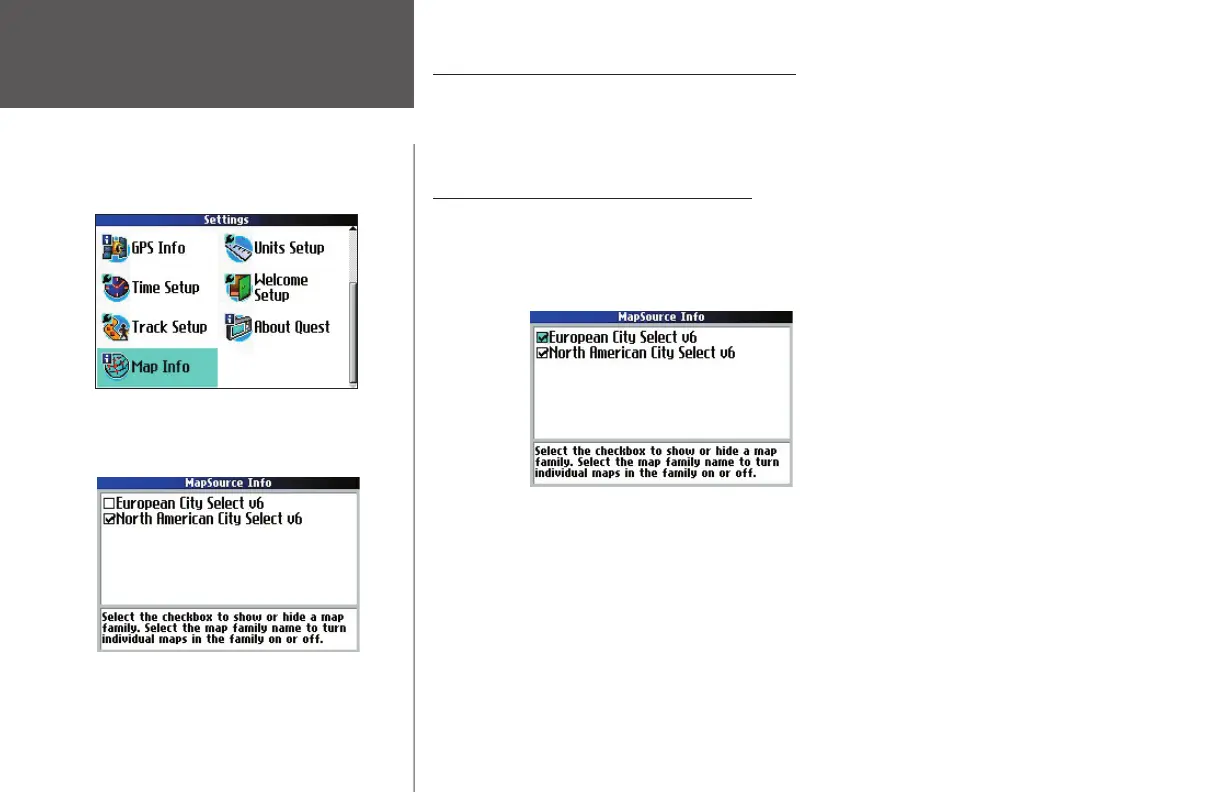
You can view a list of your map families on the MapSource Info page. Map families includes the maps
you added from your City Select software as well as maps from additional mapping software you may have
recently purchased. To access this page, press the Quest MENU key and select Settings. Then, select Map
Info from the Settings page that appears. A MapSource Info page displays:
In the example above, maps from the North American City Select v6 and European City Select v6
mapping software have been loaded to the Quest. A box appears to the immediate left of each map family
name. When the box is checked, your Quest draws the map data from these maps to your Quest. To
disable a map, uncheck the box next to the map family name. If the maps loaded in your Quest do not
overlap, you should not need to disable map families. If you load maps that cover the same area, however,
you may want to disable one of the map families so that you can view detail from the other one.
The map families shown above are actually made up of numerous smaller maps. To see what smaller
maps make up the larger map family, select the map family name and then press OK. A list of all maps
within that map family appears. In the example on the following page, a partial list of maps that make up
the North American City Select map family are shown.
Access the Map Info page by pressing the unit’s MENU
key two times to display the Settings page. Select the
Map Info icon to access the MapSource Info page,
shown below.
Maps from two different mapping software
(called ‘map families’) are loaded into this
Quest.
190-00323-00_0B.indd 54 8/20/2004, 11:08:55 AM



 To Next Page