Reference
25
Planning a Route
Planning routes is fast and easy once you become familiar with and understand the various steps and
options.
To plan a Route:
1. Press the MENU key and select ‘Route Options.’ A ‘Route Options’ page appears.
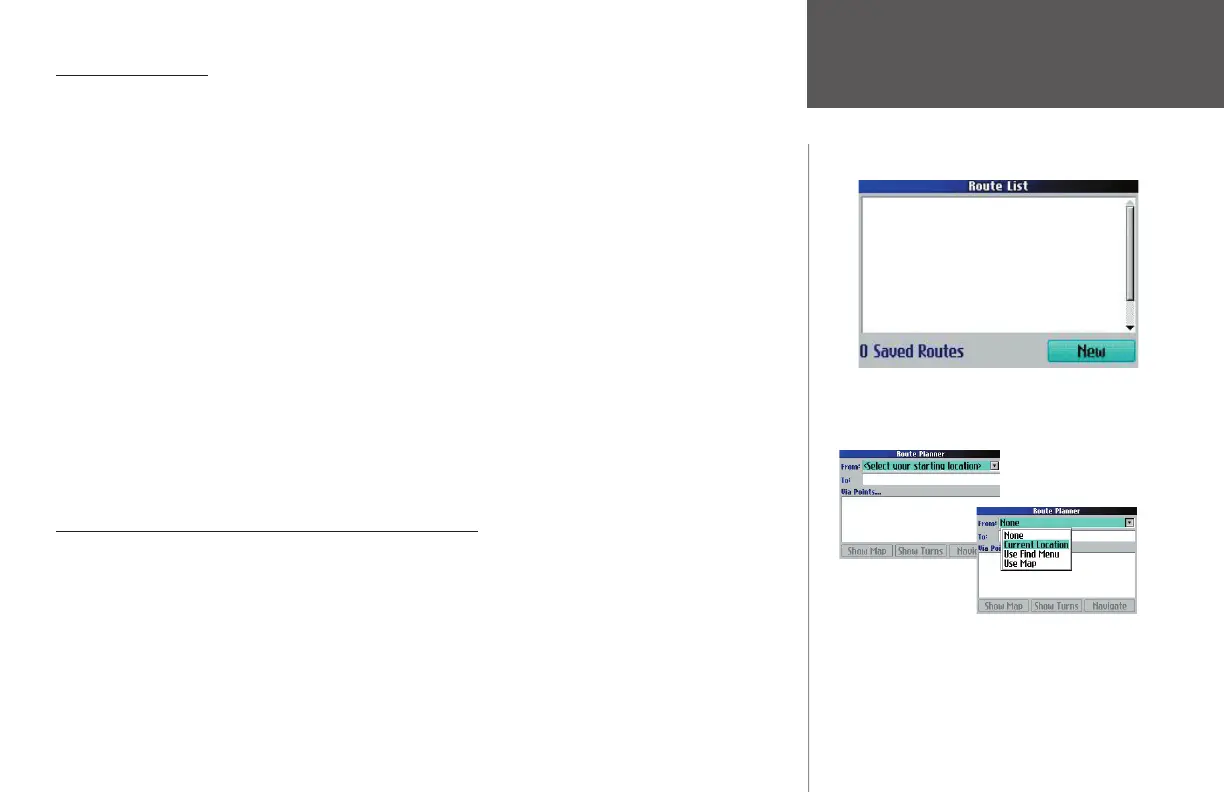
2. From the ‘Route Options’ page, select ‘Route Planner.’ From the ‘Route List’ page that displays, select
‘New.’ A ‘Route Planner’ page appears.
3. From the ‘ Route Planner’ page, select ‘<Select your starting location>’ (if it is not already highlighted)
and press OK. Select one of the four options: None, Current Location, Use Find Menu, or Use Map (see
below for defi nitions).
4. From the ‘Route Planner’ page, select ‘<Select your destination>’ (if it is not already highlighted) and
press OK. Select one of the three options: Current Location, Use Find Menu, or Use Map (see below for
defi nitions).
5. Use the rocker pad to select ‘Navigate’ from the ‘Route Planner’ page.
As soon as your route is created, your Quest begins to navigate the route. If at any time you wish to stop
a route, select Stop Navigation from the Route Options menu. To resume the route, select Resume Navigation.
You can also add via points (extra stops) to this route (see page 29).
None, Current Location, Use Find Menu, and Use Map
Your Quest attempts to help you fi nd your starting and ending points for creating routes as quickly and
as easily as possible. Thus, it allows you four options for building your route:
None — Choose this option if you want the route to begin wherever you happen to be at the present time.
Current Location — Choose this option if you want the route you are planning to always begin (or end)
at the address at which you are currently located. For example, if your current location is at 915 Elm, the
Quest enters this address as the Current Location. (With None, no address is entered.)
Find Menu — Choose this option if you want to fi nd a known place such as a restaurant, hotel, waypoint,
or an address. Use the Find option in the same way that it is discussed in the last section, Finding Places.
Creating Routes
From the Route Menu, select New. A Route Planner page
shown below appears. Pick your starting point (From)
and the ending point (To).
190-00323-00_0B.indd 25 8/20/2004, 11:08:21 AM



 To Next Page