Reference
20
Finding “Recently-Found” Places
The All Categories section can store 50 recently-
found places. Each sub-category can store 15.
Note: Deleting information from the Recent
Finds list merely removes the city name, address,
restaurant, or other place from this list. It does
not delete the actual city from your detail map
nor does it remove places you saved to ‘My
Locations.’
Finding “Recently-Found” Places
Your Quest keeps track of the places you fi nd and stores the 50 most recent fi nds in its memory. Thus,
if you want to route to a place you have recently found, select Recent Finds from the Find menu.
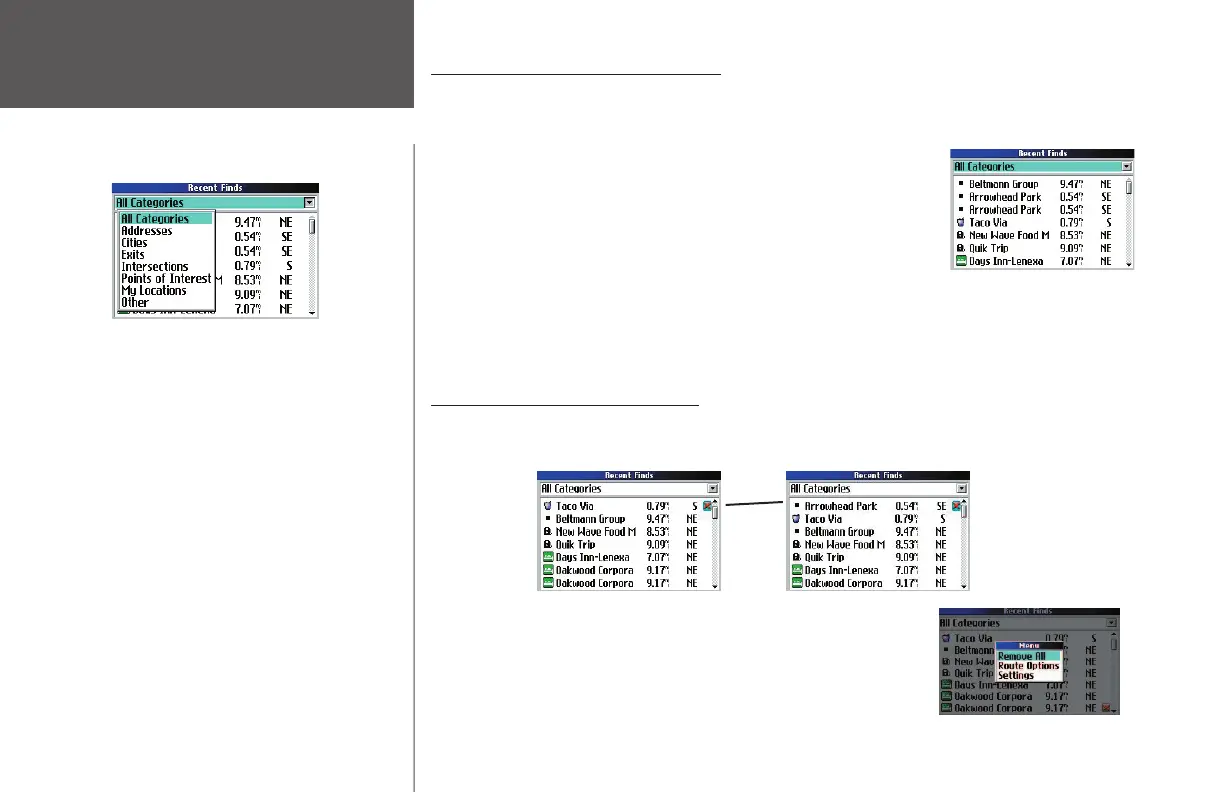
Your 50 most recent fi nds appear. The most recently-reviewed item
appears at the top of each list. If you cannot fi nd your sought-after place
quickly, select the All Categories box and then select a sub-category such
as Addresses, Exits, or Intersections. The 15 most recent fi nds from the
sub-category you select appears. If necessary, use the rocker pad to move
down the new list to fi nd your place.
Note that the Quest only stores places that you actually view. Let’s say,
for example, that you do a search for restaurants and fi ve names appear. If you view information on two of
them, then these two restaurants are stored in your Recent Finds list.
Deleting “Recently-Found” Places
If you wish to delete a place from the Recent Finds list, select the place’s name and then use the rocker
pad to move to the red X, shown below. Press OK, and the name is removed from the list.
To remove all names in the Recent Finds list, press MENU while on
the Recent Finds page. Then, select Remove All.
190-00323-00_0B.indd 20 8/20/2004, 11:08:16 AM



 To Next Page