Reference
33
Map tab
Map Detail — Adjusts the amount of detail that is displayed on your Map page. Most shows maximum
detail and Least shows minimum detail. The higher the detail level, the slower the map redrawing time.
Select Most once you have focused in on a small map area and wish to view lots of detail in that area.
Orientation — Selecting North Up displays the map with North at the top. Selecting Track Up automati-
cally rotates the map to keep your current direction of travel at the top of the page. A white North indicator
is displayed on the map when in Track Up mode. The indicator always points to North. Selecting Auto
displays North Up when the map scale is 200 miles (300 km) or greater and Track Up when the map scale is
less that 200 miles (200 km).
Road Lock — When On, the Quest places the position icon on the nearest road. For example, if you are
walking on a trail or sidewalk that’s close to a road, or if you are driving near a road, the Quest places you
on that road. Select Off when you are not traveling on roads.
AutoZoom — When On, the Map page zooms in and out as you travel. As you approach a turn, the Map
page progressively zooms in. After the turn is completed, it zooms out to show you the next turn.
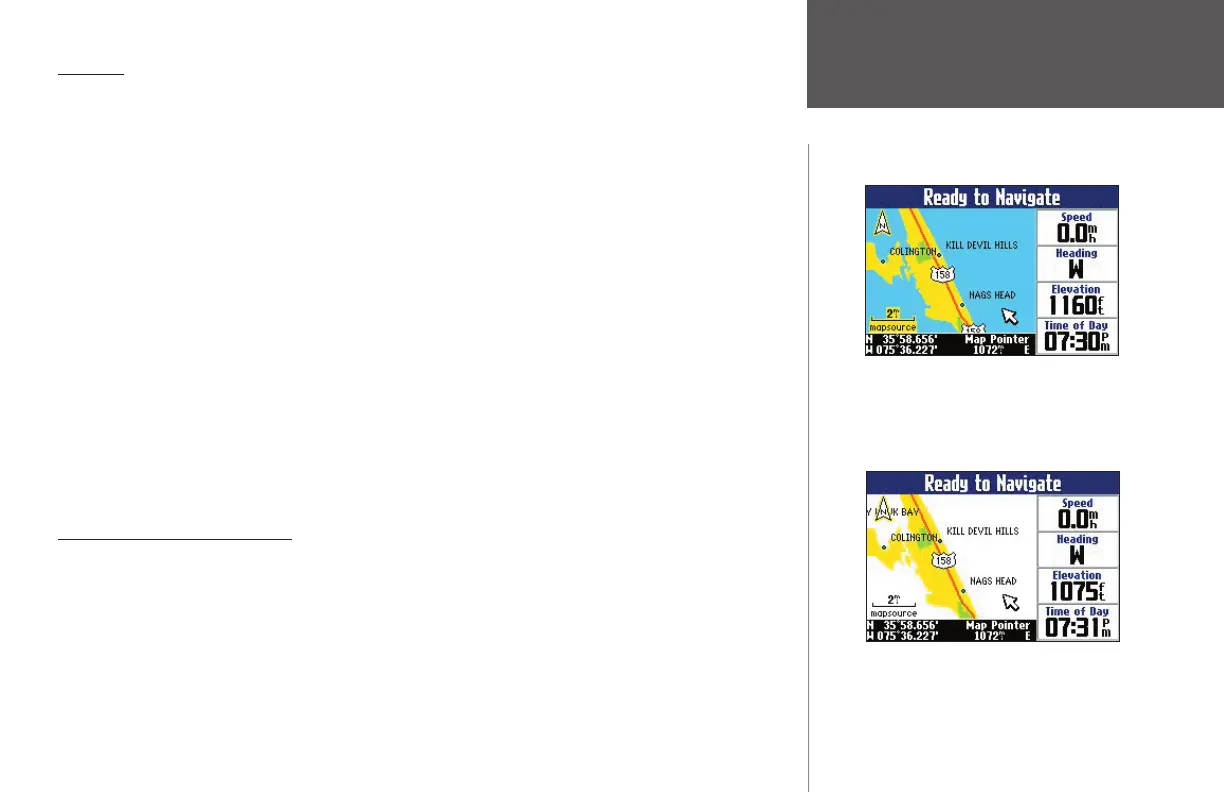
Color Mode — Choose between Land and Water. Unless you are using a marine-type mapping software
such as BlueChart, you will probably keep Land, which is the default value. Water displays the color of
water to white instead of blue.
Line, Point, City, and Area tabs
Line tab — Controls how the track log, railroads, and street labels are displayed on the Map page.
Point tab — Controls how My Locations, exits, and POIs (points of interest) are displayed on the Map
page.
City tab — Controls how cities of various sizes are displayed on the Map page.
Area tab — Controls how rivers, lakes, parks, and other areas such as airports, shopping malls, and hospi-
tals are displayed on the Map page.
Customizing the Map Page
You can customize the color of bodies of water
on your Map page by selecting ‘Color Mode’ on
the Map tab. The image above shows the setting
at ‘Land’ while the image below shows the set-
ting at ‘Water.’
190-00323-00_0B.indd 33 8/20/2004, 11:08:27 AM



 To Next Page