Reference
47
Poor GPS Coverage – The GPS receiver isn’t tracking enough satellites for a 2D or 3D fi x due to bad satel-
lite geometry or due to a shaded antenna (such as driving between buildings)
Receiver Not Usable – The Quest is unusable, possibly due to incorrect initialization or abnormal satellite
conditions. Turn the unit off and back on to reset and re-initialize the receiver if necessary.
GPS is Off – The Quest has been turned off and cannot be used for navigation.
Ready to Navigate – The Quest is ready to navigate routes.
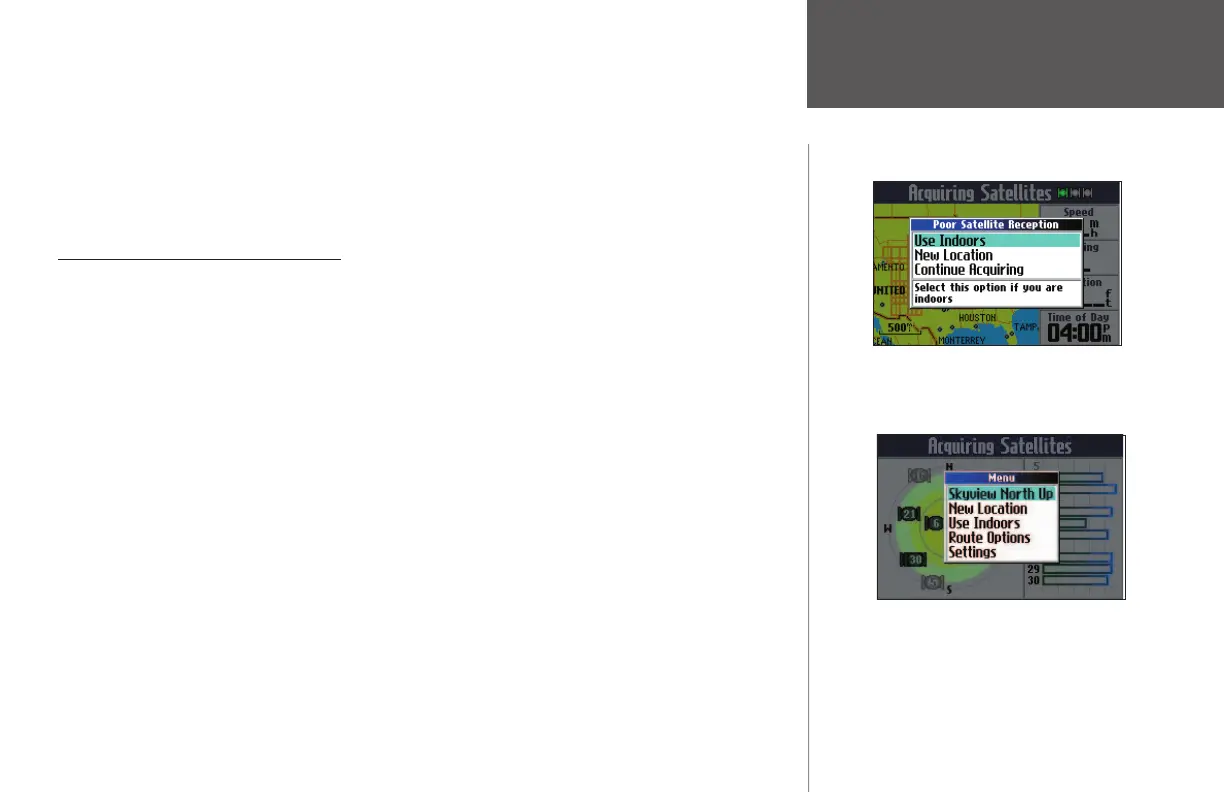
‘Poor Satellite Reception’ Menu
If no satellites are received for several minutes (or if too few satellites are received to determine a posi-
tion fi x), a Poor Satellite Reception message appears. You can: turn off the GPS for using the unit indoors for
practice (Use Indoors); update your approximate location (New Locations); or have the unit automatically
search for the satellites (Continue Acquiring). Updating your approximate location ensures that the Quest
is searching for the correct satellites and is useful if you have traveled over 500 miles with the unit turned
off, or if the unit has been stored for a few months. The Poor Satellite Reception message may appear during
normal use if the antenna is shaded or when the unit is used indoors.
New Location
– Selecting New Location forces the Quest to search for any available satellite to determine
its position. This option can be used only if you don’t have a GPS fi x. It is useful if you’ve relocated a long
distance (greater than 500 miles) from where the Quest was last used. In such instances, the Quest may be
looking for the wrong group of satellites.
To select a new location:
1. Select ‘New Location.’ A window appears with two options (‘Automatic’ and ‘Use Map’).
2. Select either ‘Automatic’ or ‘Use Map.’ Selecting ‘Automatic’ puts the unit in Autolocate mode and begins
searching the sky for satellites. For ‘Use Map,’ a ‘New Location’ map page appears.
3. If ‘Use Map’ is selected, pan and zoom the map pointer on the map to fi nd your approximate location.
Then, press OK.
GPS Info Page
The Poor Satellite Reception menu gives you several
options when an insuffi cient number of satellites is
received to determine a position fi x.
These options appear when you press MENU from the
GPS Info page.
190-00323-00_0B.indd 47 8/20/2004, 11:08:39 AM



 To Next Page