GE Power Management LPS-O Line Protection System 10-
13
10 ALPS-TEST PROGRAM 10.5 VIEW MENU
10
10.5 VIEW MENU 10.5.1 DESCRIPTION
These menu items are supplied and manipulated by Microsoft. Therefore the testing will be brief as these items
behave however Microsoft and the Windows operating system determines they should behave. The one
exception is the items on the toolbar.
10.5.2 TOOLBAR
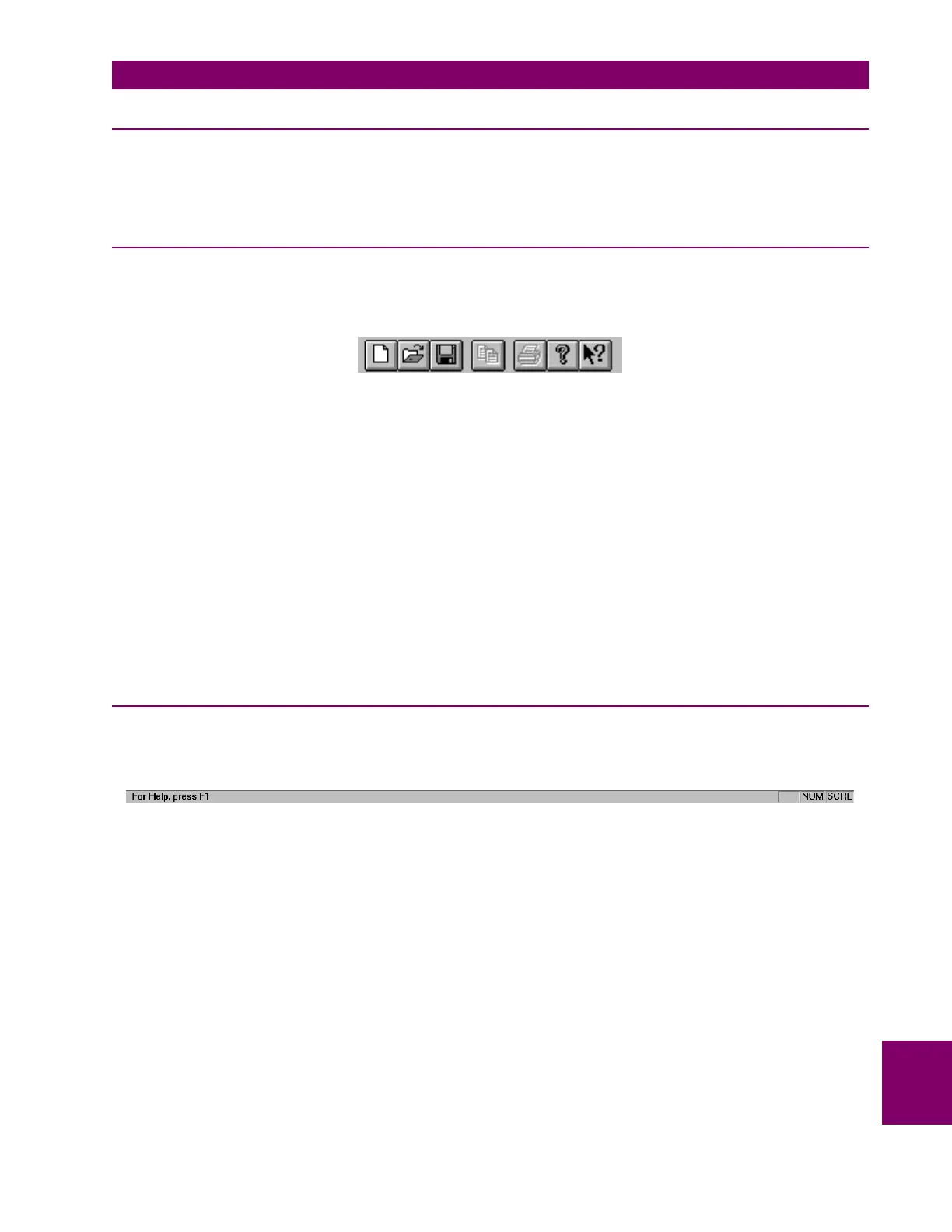
The items on the toolbar (shown below) are, from left to right:
Figure 10–14: ALPS-TEST TOOLBAR
• Create a new test file.
• Open an existing test file.
• Save the current test file.
• Copy the current test output to the clipboard
• Print the current test output.
• Display the “About” dialog box.
• Context Help command.
Select the
View > Toolbar
menu item. The toolbar is removed from the display.
Select the
View > Toolbar
menu item again. The toolbar is displayed.
10.5.3 STATUS BAR
Verify the items on the status bar (shown below):
Figure 10–15: ALPS-TEST STATUS BAR
• The left portion displays a short description of each menu item.
• The right most area displays
SCRL
if the scroll lock key has been selected and displays nothing if the scroll
lock key has been de-selected.
• The area to the left of the scroll lock area displays
CAP
if the caps lock key has been selected and displays
nothing if the caps lock key has been de-selected.
• The area to the left of the caps lock area displays
NUM
if the num lock key has been selected and displays
nothing if the num lock key has been de-selected.
Select the
Status Bar
menu item. The status bar is removed from the display.
Select the
Status Bar
menu item again. The status bar is displayed.



 To Next Page