GE Power Management LPS-O Line Protection System 11-
13
11 LPSO-LINK USER GUIDE 11.4 SETTING UP YOUR HOST MACHINE
11
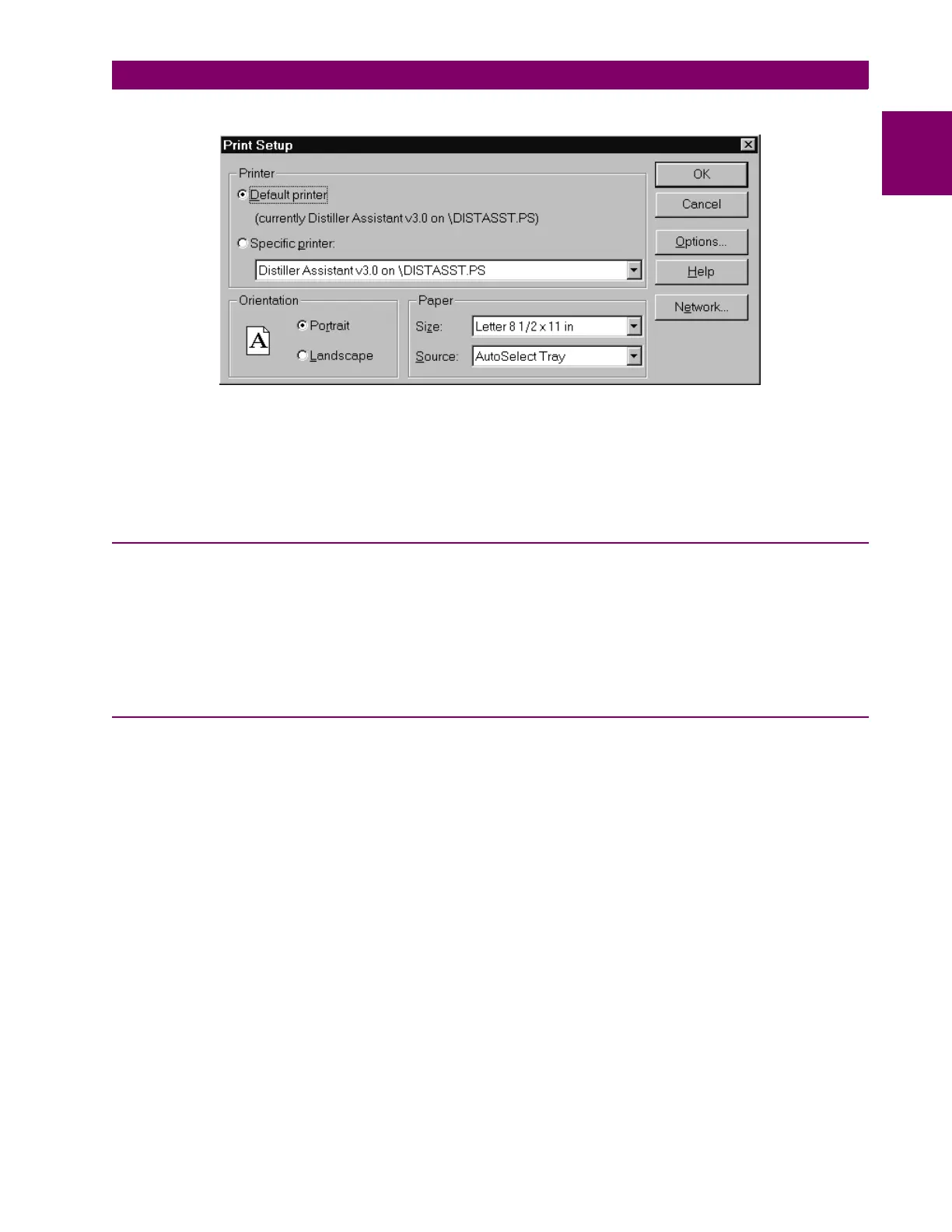
Figure 11–11: PRINTER SETUP DIALOG BOX
Select the printer you want to use. You can select the
Default Printer
by clicking that radio button or choose
the
Specific Printer
option by clicking on that radio button and select one of the current installed printers
shown in the box. Click on the
Options
button to get additional choices about printing, specific to the type of
printer you have selected.
11.4.5 DEVICE SETUP
More than one LPS-O device could be connected to the host machine on the physical link. But, at any given
time, LPSO-Link can communicate with a single device. It is possible that each of these devices are configured
with various communication parameters: for example, telephone number, baud rate, etc. LPSO-Link should be
setup with these details so that it can make proper connections with the devices. The Device Setup facilitates
updating LPSO-Link with this information. If you need to add a device or modify the existing communication
parameters of a device, Device Setup provides you the necessary interface.
11.4.6 HOW TO ADD A DEVICE
You can introduce a new device to LPSO-Link system or modify the setup of an existing device using the
device setup feature.
Choose the
Device Setup
item in the
Device
menu. A
Device Directory
dialog box appears. This has the list
of the devices already known to LPSO-Link. Click on the scroll button of the device name field to see this list.
To add a new device click the
Add
button. The
Device Setup
dialog box appears with the default parameters.



 To Next Page