11-
14
LPS-O Line Protection System GE Power Management
11.4 SETTING UP YOUR HOST MACHINE 11 LPSO-LINK USER GUIDE
11
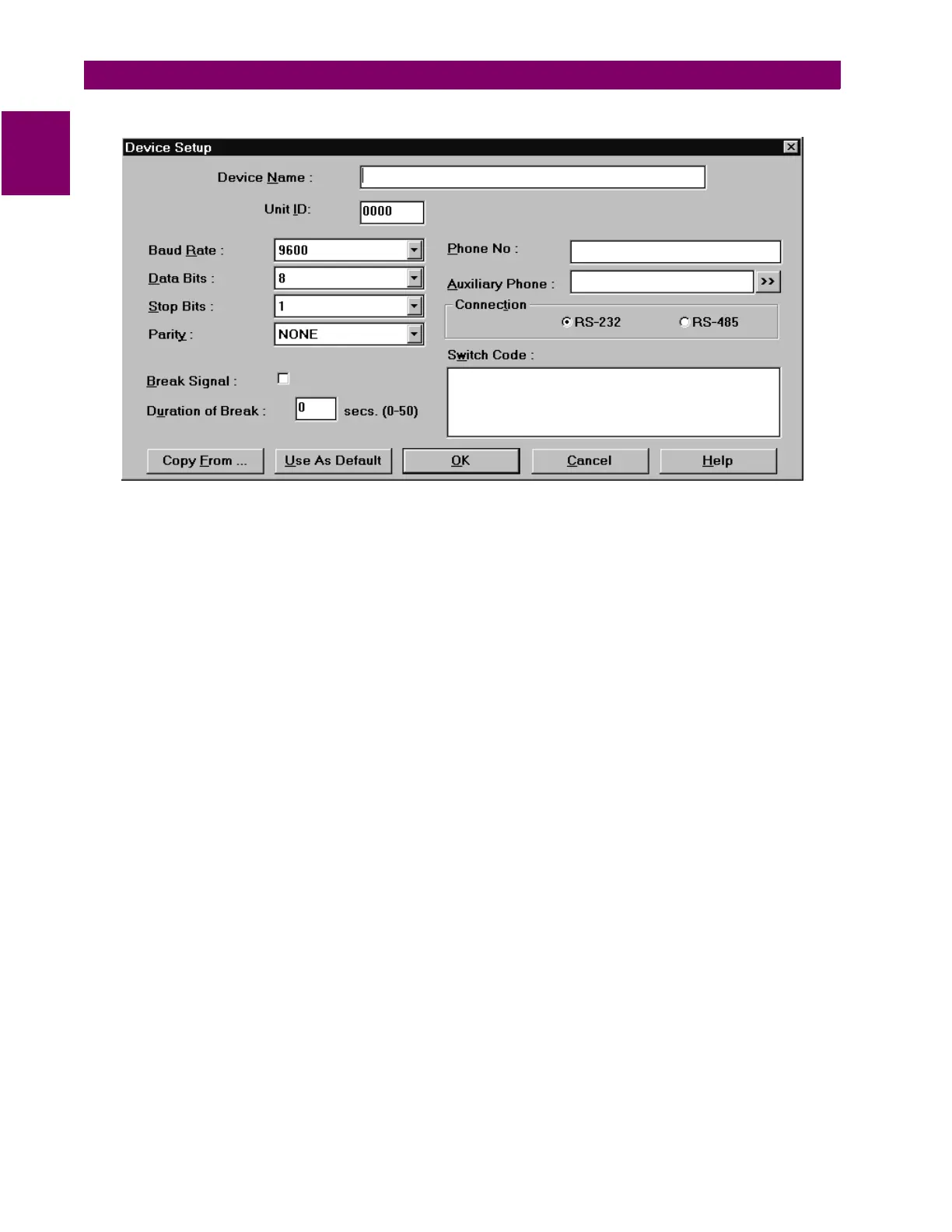
Figure 11–12: DEVICE SETUP DIALOG BOX
Click in the
Device Name
text box and enter the name for the relay. Do the same for the
Unit ID
text box.
From the
Baud rate
list, select the communication speed that matches the relay Name (Device Name).
Specify the number of
Data Bits
,
Stop Bits
and the
Parity
in the specified fields for communication with this
device.
The
Break Signal
is needed for communication with certain Code Operated Switches (COS) used on the other
side of the communication line. Click this if the COS you are using needs this.
Duration of Break
refers to the time gap required to specify a certain message is for the COS. This may be
needed with or without the break signal.
The
Phone No
. text box is the phone number the host machine must dial to get connected to this device. A
maximum of 60 characters can be entered in this field.
The
Auxiliary Phone
number specified is dialed before dialing the actual phone number. The Browse button
(
>>
) will display a dialog box with a list of the existing auxiliary phone numbers. In this dialog box, you can add,
delete and modify auxiliary phone numbers. For
Modify
and
Delete
, first select a number from the list and then
choose the appropriate button. When you select
Add
and
Modify
, a dialog box appears with fields for the num-
ber and description. If no auxiliary phone number is necessary, leave this field blank.
A maximum of 60 characters can be entered in each of these field.
In the Device Setup dialog box, click on one of the radio buttons to indicate the mode of communication as the
RS-232 or
RS-485
.
The
Switch Code
text box is a string of characters sent to the code operated switch. It accepts a maximum of
six characters in Hexadecimal format.
These parameters take effect from the next time you make a connect request to the device specified. Choose
the
OK
button to save these parameters for the specified device. Alternatively, choose the
Cancel
button to
quit the dialog box without updating the device setup.


 To Next Page
 Loading...