28 SD Series Technical Manual MDS 05-4846A01, Rev. D
2. Configure your PC network settings to an IP address on the same
subnet as the radio. The default subnet mask is 255.255.255.0.
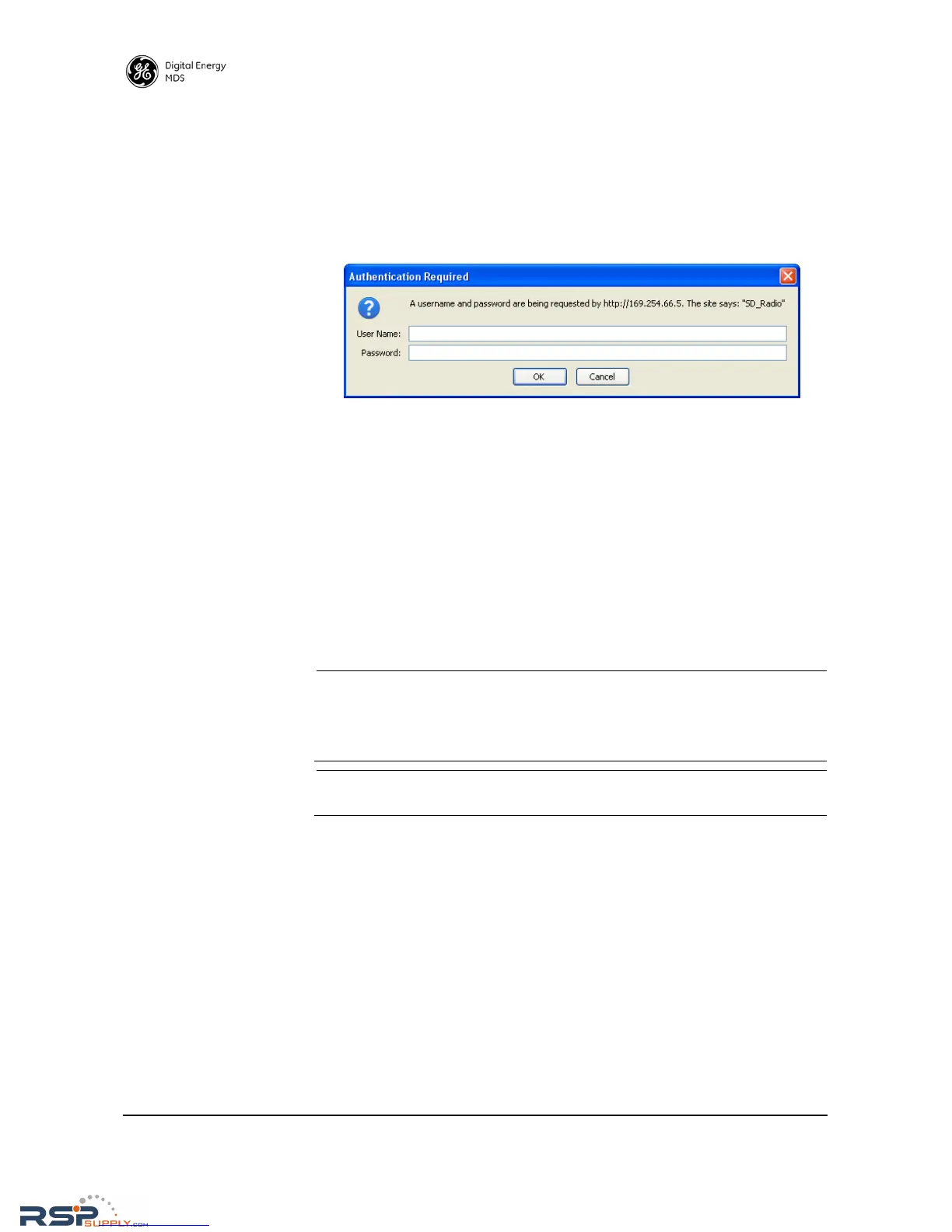
3. Enter the radio’s IP address in a web browser window, just as you
would enter a website address. When the login screen appears
(Figure 1), enter the User Name and Password for the radio. The
default entries for a new radio are both admin. Click OK.
Invisible place holder
Figure 1. Login Screen
Using the Basic
Setup Wizard
4. The Basic Setup Wizard (Figure 22) begins automatically upon con-
nection to a new factory shipped radio. It may also be started manu-
ally by selecting Setup Wizards>>Basic Setup, and then clicking Start.
The Wizard displays a series of screens with key selections as fol-
lows:
• TX/RX Frequencies (entries must match station license)
•RF Power Output
• Operating Mode
• Modem Type
• Serial Port Configuration
• Ethernet Bridging
• Encryption Setting
• AP or Remote Service
NOTE: TX and RX frequencies may not be set when the radio is shipped from the
factory, depending on ordering options. If no frequencies have been set, an
alarm condition is generated and the PWR led flashes. These will be
cleared after the frequencies are set. In all cases, users must verify that the
frequencies are properly set according to the station license.
NOTE: Operation on exact multiples of 25 MHz is not supported by the SD4 trans-
ceiver (i.e., 400, 425, 450, 475, and 500 MHz).
Continue through each wizard screen until all selections have been
made. (You may back up to previous screens if required, to review or
change settings.) If you are unsure about a required setting, contact
your Network Administrator for assistance.



 To Next Page