page | 36
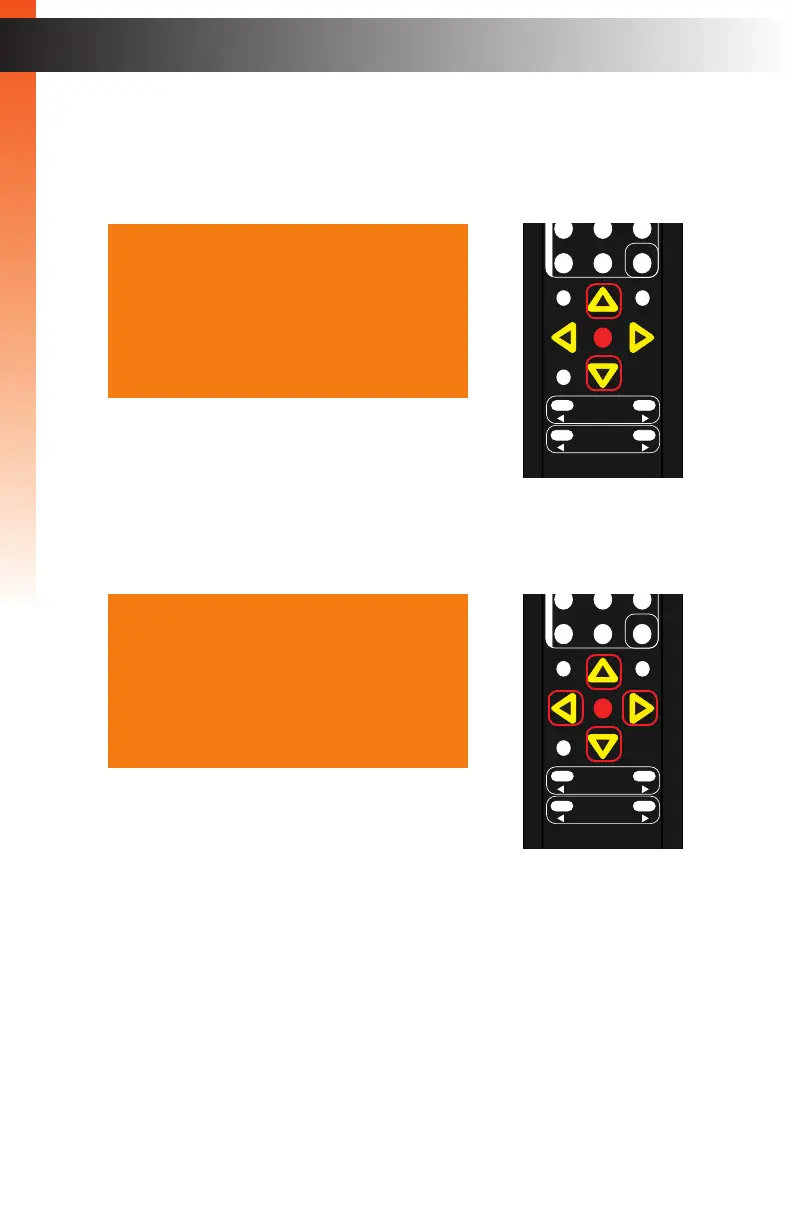
9. Press the ▲ or ▼ buttons to highlight the color channel to be changed.
10. Press the OK button to select the highlighted color channel. Once selected,
the current value will be highlighted in red. In this example, we have selected
the Green channel.
11. Press the ▲, ▼, ◄, or ► buttons to set the desired value for the color channel.
The range for each color channel is: 0 - 100.
12. Press the OK button to accept the desired color channel setting.
13. Repeat steps 9 - 11 for each color channel, as desired.
14. To return to the previous menu, press the ▲ or ▼ buttons to highlight the Back
option, then press the OK button. You can also press the Menu button to return
to the top-level menu.
OK
Resolution
Menu
Exit
L/R 1
Int
VGA
HDMI
Off On
DP DVI
Comp Mask
Optical Coaxial
L/R 2 Mute
Info
Vol -
Vol +
Aspect Ratio
Audio
Red 050
Green 050
Blue 050
Back
OK
Resolution
Menu
Exit
L/R 1
Int
VGA
HDMI
Off On
DP DVI
Comp Mask
Optical Coaxial
L/R 2 Mute
Info
Vol -
Vol +
Aspect Ratio
Audio
Basic OperationBasic Operation
Menu System
Red 050
Green 052
Blue 050
Back
Basic OperationBasic Operation



 To Next Page