page | 79
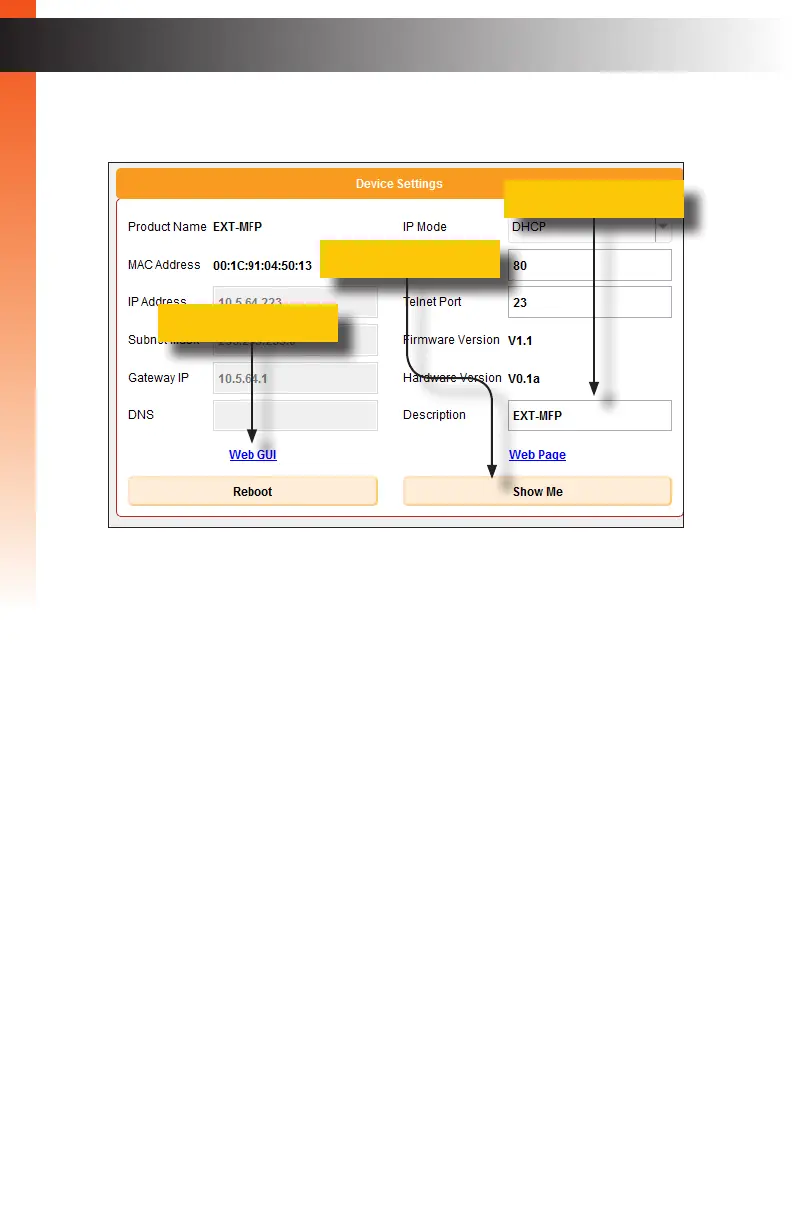
6. The current IP Address and settings are displayed. You can change the settings
if necessary to allow other users to easily connect to the Multi-Format Processor.
7. The text in the Description eld can be changed to help identify a specic unit if there
are several Multi-Format Processors connected on a network. By default, the Product
Name is used as the Description.
8. Press the Show Me button. When the Show Me button is pressed, the Audio and
Video LED indicators on the front panel of the Multi-Format Processor will ash
green..This behavior indicates that you are connected to the correct device.
9. Press the Web GUI link to go directly to the built-in Multi-Format Processor Web
interface.
Note that if the IP address of the Multi-Format Processor is not compatible with your
network settings, then you will be unable to access the Web interface. You can
change the IP settings of the Multi-Format Processor on this page and then try again
to connect.
10. Type the password (default Operator password is “operator”) to access the control
screen. See Using the Built-in Web Interface (page 80) for more information.
Basic OperationBasic Operation
Syner-G Discovery Tool
Description eld
Web GUI link
Show Me button


 To Next Page