47
To set up auxiliary channels:
o From the ‘Speaker Setup’ menu, use
the UP or DOWN keys to highlight ‘Aux
channel setup’ and press ENT.
o Set up the auxiliary channel
configuration (see page 47).
o Set the ‘Level’ settings on either
channel, using the UP or DOWN keys to
highlight ‘Level’, then use the LEFT or RIGHT
keys to adjust the level to your desired
setting.
o Set the ‘Delay’ settings on either
channel, using the UP or DOWN keys to
highlight ‘Delay, then use the LEFT or RIGHT
keys to adjust the time to your desired
setting.
o If you are happy with all the settings,
use the UP or DOWN keys to highlight EXIT
and press ENT to return to the ‘Speaker
setup’ menu.
Configuration setup
Configuration setupConfiguration setup
Configuration setup
Aux channel configuration setup contains the
parameters for user adjustable presets.
• filter type sets the type of the filter used:
none, lowpass or highpass
• filter frequency sets the crossover
frequency used
Highpass allows filter values between
20 Hz- 1 kHz and lowpass 20 Hz – 18 kHz.
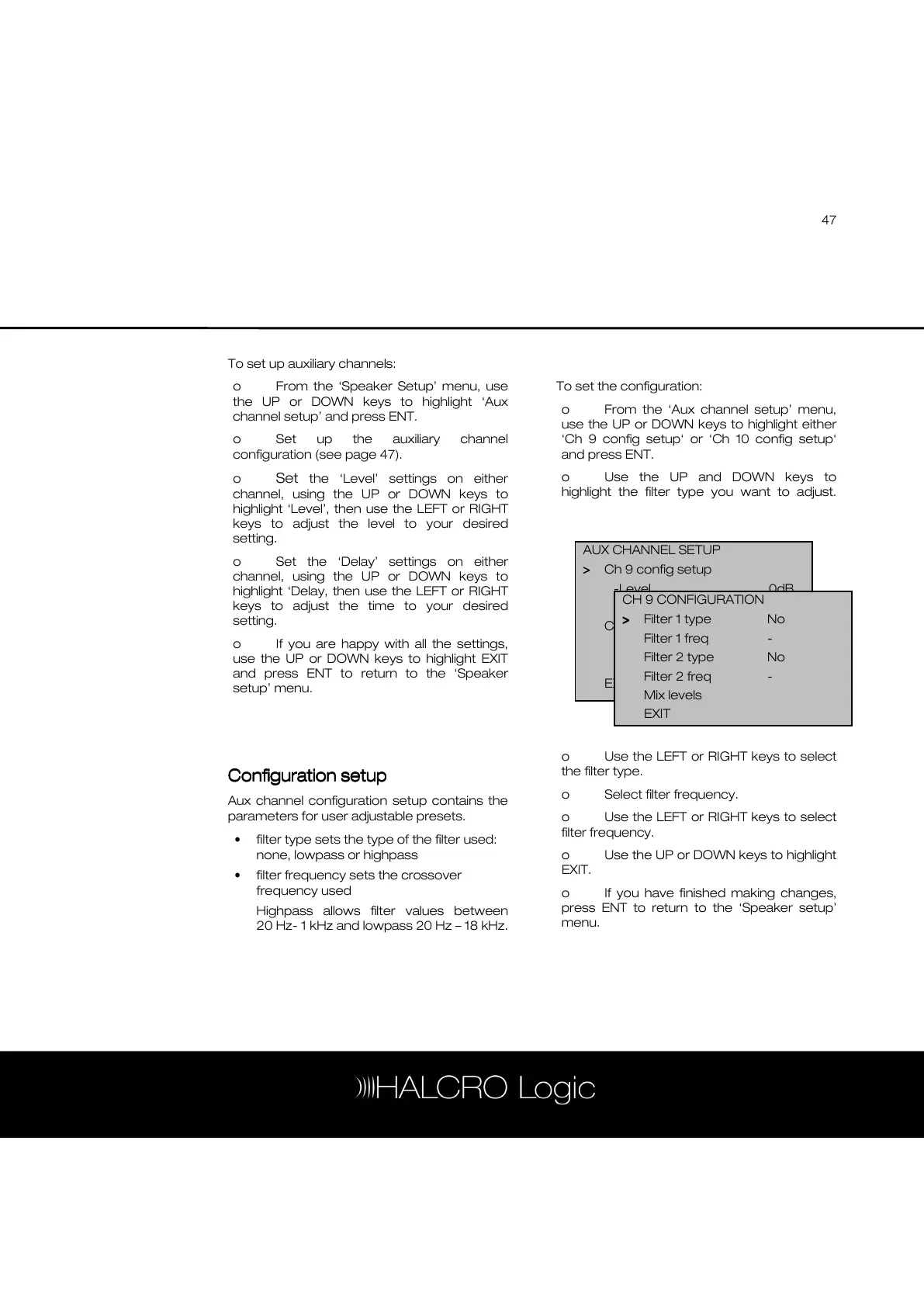
To set the configuration:
o From the ‘Aux channel setup’ menu,
use the UP or DOWN keys to highlight either
‘Ch 9 config setup‘ or ‘Ch 10 config setup‘
and press ENT.
o Use the UP and DOWN keys to
highlight the filter type you want to adjust.
o Use the LEFT or RIGHT keys to select
the filter type.
o Select filter frequency.
o Use the LEFT or RIGHT keys to select
filter frequency.
o Use the UP or DOWN keys to highlight
EXIT.
o If you have finished making changes,
press ENT to return to the ‘Speaker setup’
menu.
AUX CHANNEL SETUP
>
>>
> Ch 9 config setup
-Level 0dB
-Delay 0ms
Ch 10 config setup
-Level 0dB
-Delay 0ms
EXIT
CH 9 CONFIGURATION
>
>>
> Filter 1 type No
Filter 1 freq -
Filter 2 type No
Filter 2 freq -
Mix levels
EXIT


 To Next Page