Using the Devices explorer
Using the Devices explorer
l
Filter devices: Locate a device or refine the listed devices.
l
Connect to a device
l
Check device status: An info icon provides the status of each board.
l
View details: Use the explorer to hover over the device to view details.
l
Disconnect a device: To disconnect a device that you are connected in the HBK ADVANTAGE project
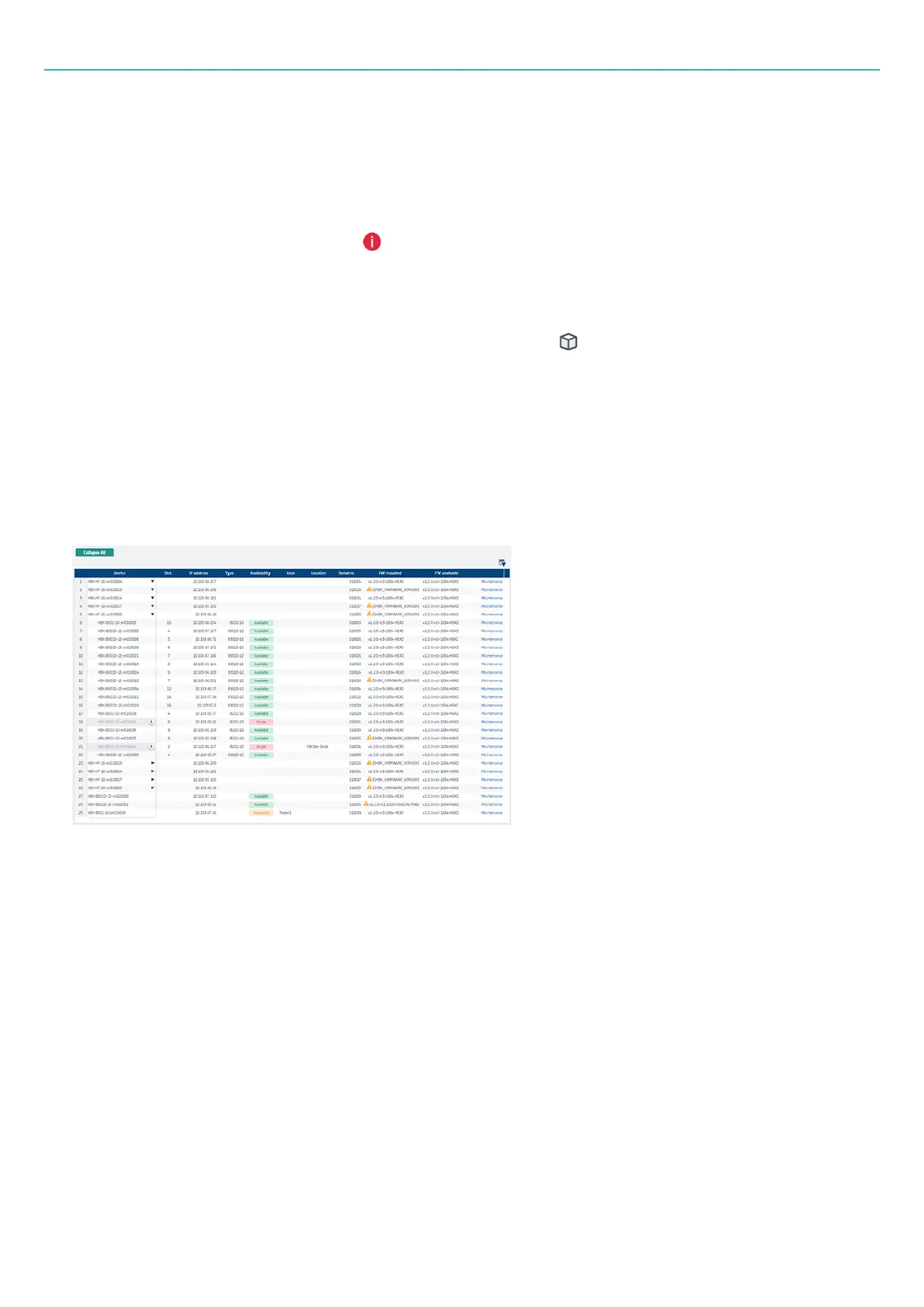
Boards will be listed their respective frames. Click the arrow next to to toggle between collapsed and
expanded frames.
Boards within a frame are listed based on their slot position, starting at slot 1 and ending at slot 16.
Greyed out devices are not available.
Devices table in HBK ADVANTAGE
The Devices table shows detailed information about the hardware, including:
l
Device: When a device is detected the name of the device is automatically read. This can be the
default name, such as HBK-B201-serialnumber, but can also be a custom name given by a user. To
change the device name, double-click the name in the table and enter text.
l
Slot: The slot number in the frame – applicable only to boards.
l
IP address: The IP address of the device on the LAN.
l
Type: The item number of the device, either: B201-10, B301D-12 or HF-16.
l
Availability: Connection status of the device – see details below. Device status is live updated as soon
as a board or frame is detected.
l
User: The person connected to the device. Double-click in the table cell to enter the user.
l
Location: The user-defined location of the device. Double-click in the table cell to enter the location.
l
Serial number: The factory-defined serial number of the device. Serial numbers are physically added to
each board and frame.
l
FW (firmware) installed : The currently installed firmware version on the device.
- 59 -



 To Next Page