Install HBK ADVANTAGE
All physically connected devices that are not in use show as 'Available'. This means they have been detected
and are ready to use in your test setup. When you add a device to your project, the device status will change
to 'Connected' or 'In use'.
Install HBK ADVANTAGE
NOTE
If you are re-installing the software, for example after an upgrade, you do not have to uninstall the
previous version of the software beforehand.
1. Open your installation package.
2. Locate and double-click the setup.exe file.
3. The end user license agreement is shown.
a. Select I agree to the license terms and conditions to continue.
b. Click Options to set the file path for the installation folder if you do not want to use the default
path.
4. Click Install.
5. You must agree to the license terms and conditions to install the software.
The installation will take a few minutes.
The software is installed and the HBK ADVANTAGE icon is added to the Windows
®
desktop.
Start the software
1. Double-click the application short-cut on your desktop.
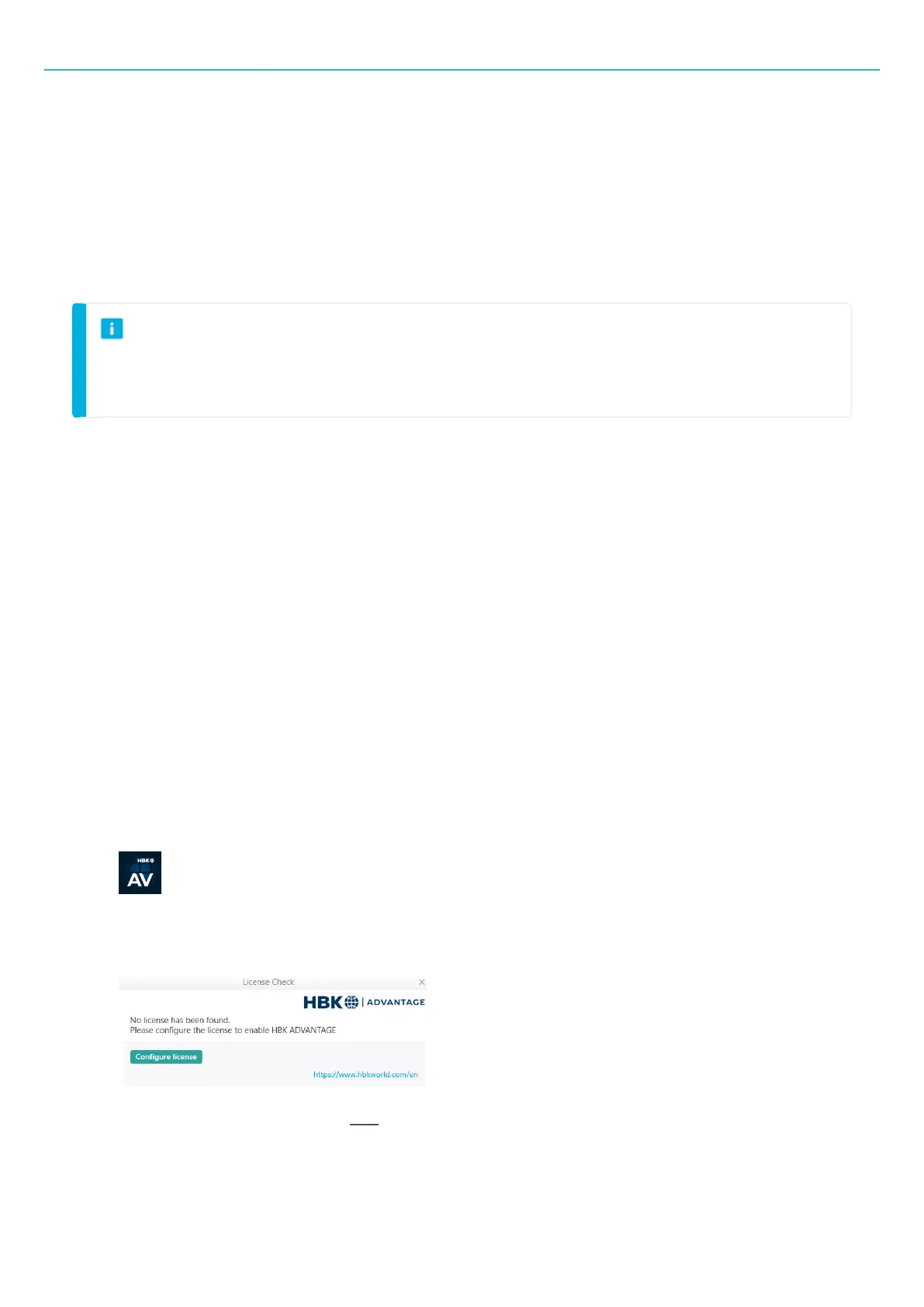
2. You will need to configure your license at start-up.
3. Click Configure license.
If you requested and received a free license from HBK, the software will start up immediately. You can
skip all subsequent steps.
- 31 -



 To Next Page