Symbols in the table
l
FW available: The latest released firmware version.
l
Maintenance: A link to the device's web page where you can view device details and update the
firmware.
Symbols in the table
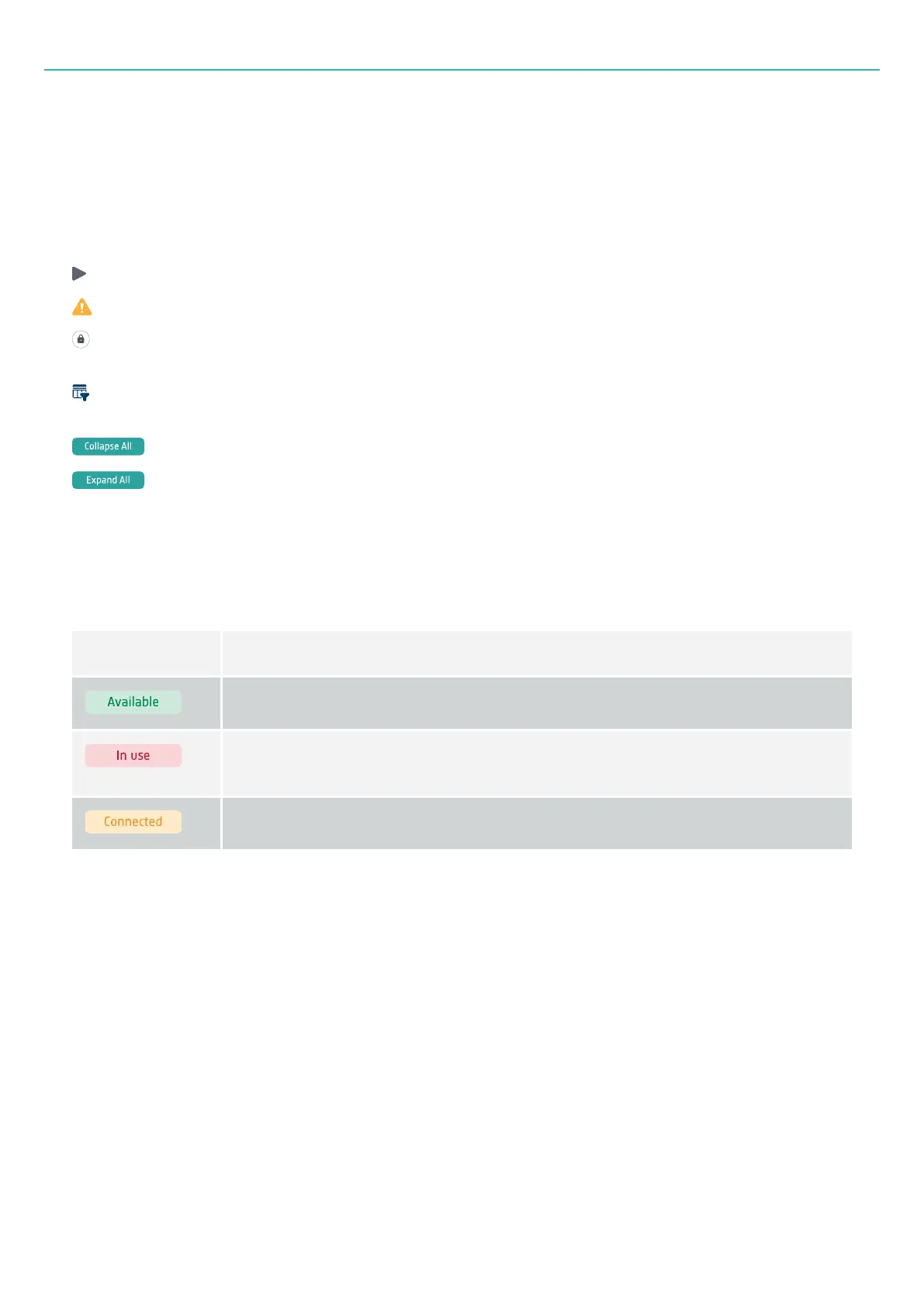
An arrow next to a frame which you can click to expand and view all boards within that frame.
A warning icon in the FW installed column indicates that a newer firmware version is available.
A lock next to a device in use gives you the possibility to unlock the device. It is recommended to check
with the user before unlocking.
Click to filter the table. Entry fields are added at the top of each column so that you can search and filter
the table for a specific parameter (serial no., user name, etc.)
Click at the top of the interface to collapse all expanded frames.
Click at the top of the interface to expand all frames to view the boards.
Availability
When a device is connected directly to the PC running HBK ADVANTAGE or connected via the LAN, its status
is shown as available. The following table shows status options for each connected device.
Status Description
The device is detected and ready for use in a test setup/measurement.
The device is used in another active test from another PC. You will be unable to
connect to it.
The device is part of the current test scenario.
User
Device ownership is allocated during each session of HBK ADVANTAGE. This means that if you connect to a
device in HBK ADVANTAGE, you will automatically have ownership of that device.
If you close the session (or log out) of HBK ADVANTAGE, device ownership is released. The device is then
available to any other user on the PC or network, who may take ownership when they start a new session
and open a project in HBK ADVANTAGE.
User names can be edited by double-clicking in the table cell and entering text.
- 60 -



 To Next Page