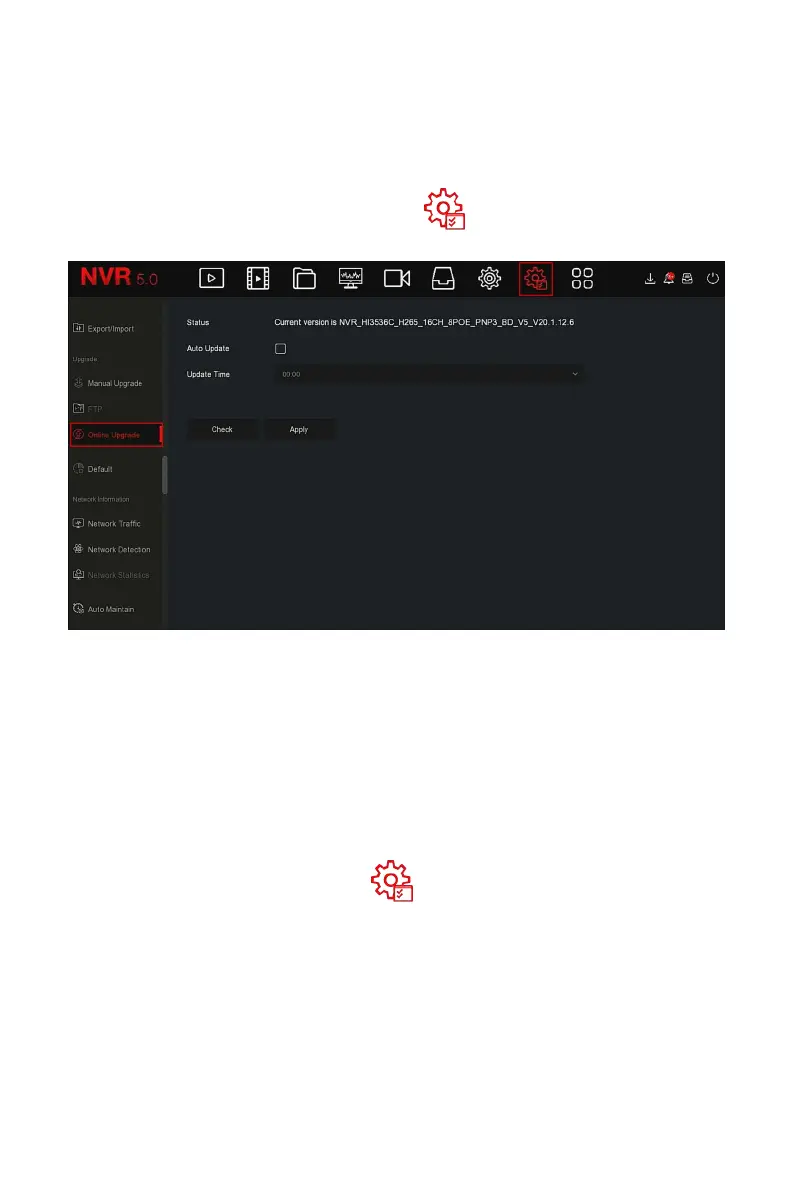
automatic upgrade and manual detection upgrade, and the current device
system version is displayed.
Automatic Online Upgrade
The specific operation steps are as follows:
Step 1: In the main menu, choose " →Online Upgrade" to enter
automatic online upgrade interface, as shown in Figure 5-84 below.
Figure 5-84
Steps 2: choose "Auto Update".
Steps 3: Set the device upgrade time, click "Apply", when there is a new
version in the cloud, the system will automatically detect the version and
upgrade the device at the set time.
The specific operation steps are as follows:
Step 1: In the main menu, choose " →Online Upgrade" to enter manual
online upgrade interface.
Steps 2: Click "Check", a prompt interface pops up, if a new version is
detected, the system will prompt information about the new version.
Steps 3: Click "Update" and wait for the device to download the upgraded
file. After the device is upgraded, the device will automatically restart.
Status: The current version of device.


 To Next Page