2. Adjust the
lt posion of the device to 0 by controling the up arrow and down arrow on the PTZ
panel.
3. Adjust the pan posion to show the live view of the north direcon by controling the le arrow
and right arrow on the PTZ panel.
4. Click Set as North.
8.12.2 Set Auto Compass
For the device that has built-in e-compass, the compass can automacally tell the north direcon
for the device.
Before You Start
Electromagnec interference may aact the accuracy of the e-compass. Use manual compass if
electromagnec interference occurs in the device installaon environment.
Steps
1. Select the PT Mode as Auto.
2. Click Calibrate to synchronize the north of the device with that of the e-compass.
8.13 Set Power
O Memory
This funcon can resume the previous PTZ status of device aer it restarng from a power-o.
Steps
1. Go to
Conguraon → PTZ → Basic Sengs .
2. Select Resume Time Point. When the device stays at one posion for the set resume me point
or more, the
posion is saved as a momory point. The device returns to the last memory point
when it restarts.
3. Click Save.
8.14 Set PTZ Priority
The funcon can set the PTZ priority of dierent signals.
Steps
1. Go to Conguraon → PTZ → Priorize PTZ .
2. Set the priority signal and delayed me.
Network
The network signal controls the device with priority.
RS-485
The RS-485 signal controls the device with priority.
Delay
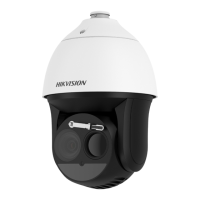
Thermal & Opcal Bi-spectrum PTZ Network Camera User Manual
46


 To Next Page
 Loading...