Steps
1. Click Live View.
2. Click
on the toolbar to enable two-way audio funcon of the camera.
3. Click and select , move the slider to adjust the volume.
4.
Click
, disable the two-way audio funcon.
10.3 Set ROI
ROI (Region of Interest) encoding helps to assigns more encoding resource to the region of
interest, thus to increase the quality of the ROI whereas the background
informaon is less
focused.
Before You Start
Please check the video coding type. ROI is supported when the video coding type is H.264 or H.
265.
Steps
1. Go to
Conguraon → Video/Audio → ROI .
2. Check Enable.
3. Select the channel No. according to your need.
4. Select Stream Type.
5. Select Region No. in Fixed Region to draw ROI region.
1) Click Drawing.
2) Click and drag the mouse on the view screen to draw the
xed region.
3) Click Stop Drawing.
Note
Select the xed region that needs to be adjusted and drag the mouse to adjust its posion.
6. Input the Region Name and ROI Level.
7. Click Save.
Note
The higher the ROI level is, the clearer the image of the detected region is.
8. Oponal: Select other region No. and repeat the above steps if you need to draw mulple xed
regions.
10.4 Display
Sengs
It oers the parameter sengs to adjust image features.
Go to Conguraon → Image → Display Sengs .
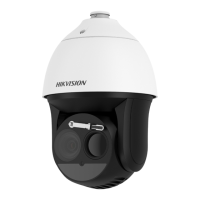
Thermal & Opcal Bi-spectrum PTZ Network Camera User Manual
59


 To Next Page
 Loading...