Selenia User Guide
Chapter 6—The User Interface
90 MAN-03270 Revision 003
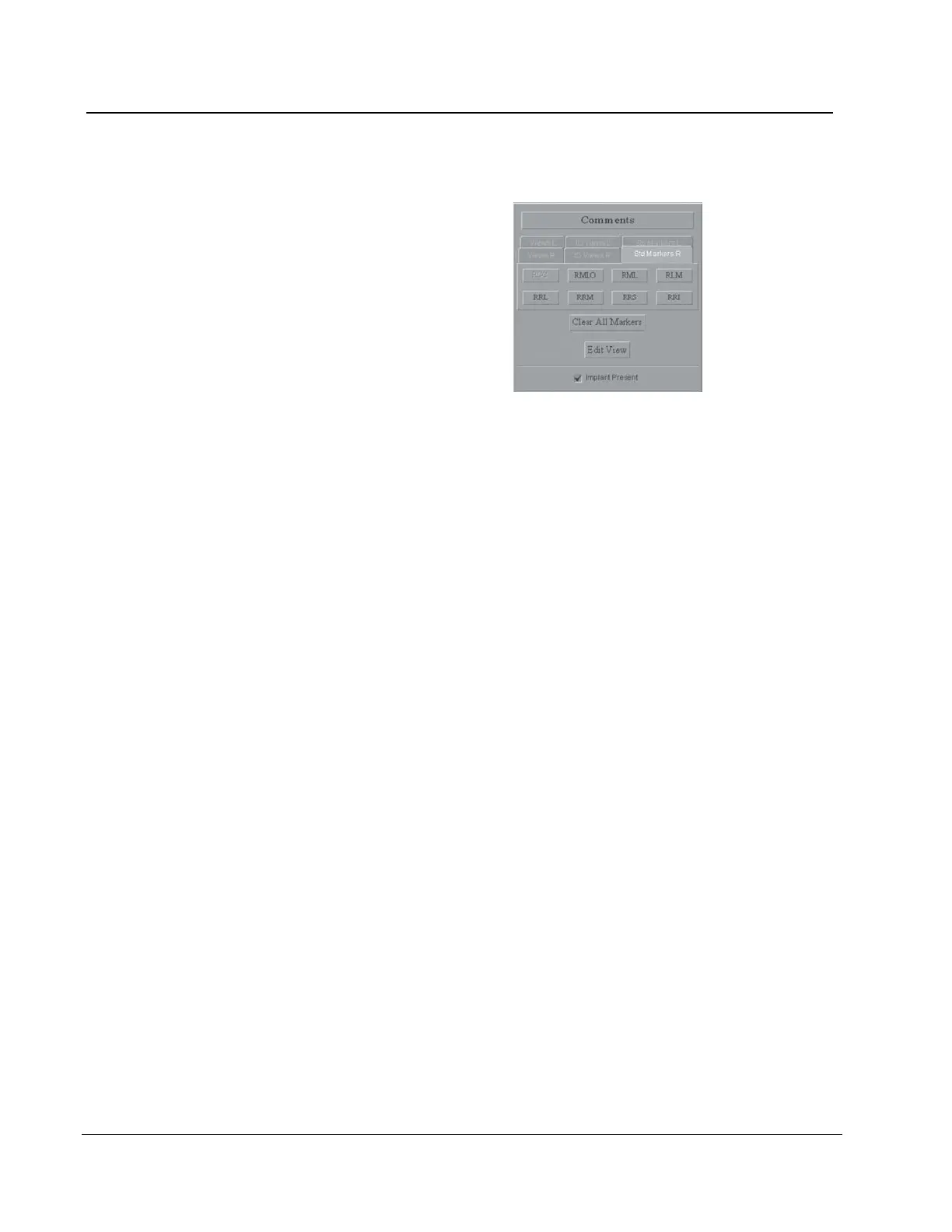
6.4.3.2 The Edit View Button and Markers
Select the Edit View button to
update the DICOM header and
enable the image to hang
correctly at the Diagnostic
Review Workstation.
The tabs and buttons allow you
to change just the Marker.
Figure 66: The Markers in the Preview Pane
6.4.3.2.1 How to Use the Marker function
1. If the marker is wrong, select the Clear All Markers button
2. Select the Tab for the set of markers you need.
3. Select the marker you need. You can select a maximum of three markers from the
available set for each image.
4. Move the marker to the correct position.
If you change a Marker, you change the label on the image, but not the DICOM header.
You will not see the change on the Patient View page.
6.4.3.2.2 How to Use the Edit View button
Before You Accept the Image
1. Select the Edit View button.
2. Select the required view from the displayed list.
3. Select OK. The correct image displays on the preview screen and the marker and the
direction the image hangs are correct.
After You Accept the Image
If the image is Accepted before you notice the wrong view, the incorrect image was sent to
the selected output. Make the corrections, then resend the corrected image with the Image
or Spool Management menu. (See Image/Spool Management on page 73.)
1. Before you make any changes:
• If you printed the mislabeled image, find and discard that image.
• If the image was sent to a Diagnostic Review Workstation, delete the mislabeled
image.
• If the image was sent to the PACS, tell the PACS administrator to delete the
mislabeled image.
2. Repreview the Image. (See The Repreview Option on page 77.)
3. Select the Edit View button on the Preview screen.












 To Next Page