Selenia User Guide
Chapter 6—The User Interface
MAN-03270 Revision 003 73
6.2.8.2 Admin Menu
6.2.8.2.1 Image/Spool Management
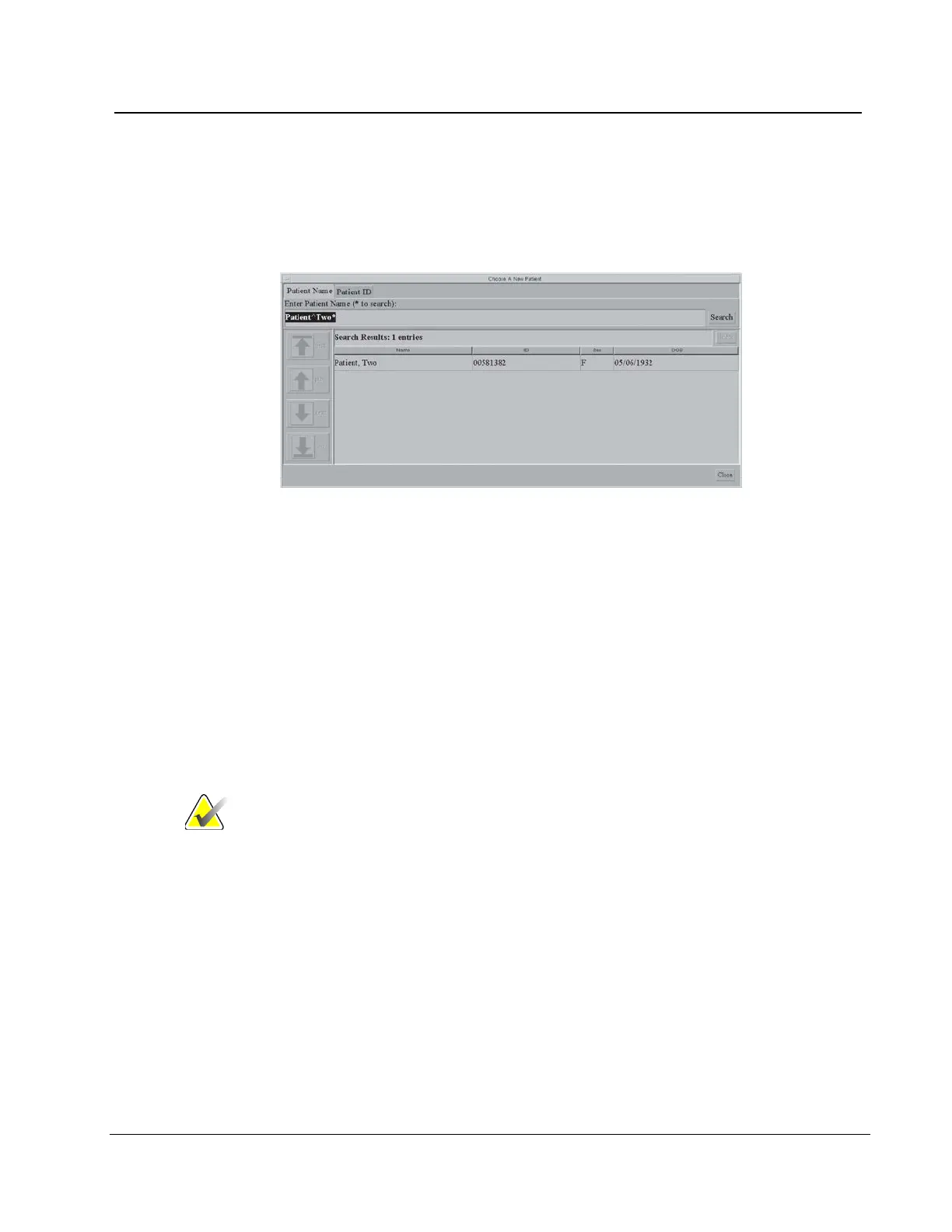
1. Select Admin>Image Management. The Choose a New Patient dialog box appears.
Figure 53: Choose a New Patient Dialog Box
2. Select the Patient Name tab or the Patient ID tab.
3. Enter the search information in the Enter Patient Name or ID box.
4. Select the Search button.
5. Select a patient from the list.
6. Select the thumbnail image of the image to resend or repreview.
• You can select more than one to resend.
• If there are more than four images, use the arrows on the side to scroll.
7. Select the Tab for Repreview or Resend.
8. Continue with directions in The Resend Options on page 77 or The Repreview Option on
page 77.
Note
If the commit function is enabled and archive has committed
the image to storage, the line "Commit: Accepted" appears in
the information about the image in the upper right pane. See
the figure Image Management Resend Options on page 77.
6.2.8.2.2 Protect Patients
Use the Protect function to prevent automatic removal of patient records from the hard drive.
1. Select Admin>Protect Patients.
2. Search for the patient to protect.
3. Select the patient to protect from the search results.
4. Select the Protect button at the bottom of the screen.
5. When the confirmation dialog box appears, select the Yes button.
6. Select the Close button.












 To Next Page