10
D-STAR OPERATION (BASIC)
10-7
Accessing repeaters
This section describes how to check whether or
not you can access a local area repeater (access
repeater), and if your signal is successfully sent to a
destination repeater�
TIP: If your call sign (MY) has not been set, or your
call sign and equipment have not been registered at
a D-STAR repeater, see pages 10-4 and 10-5�
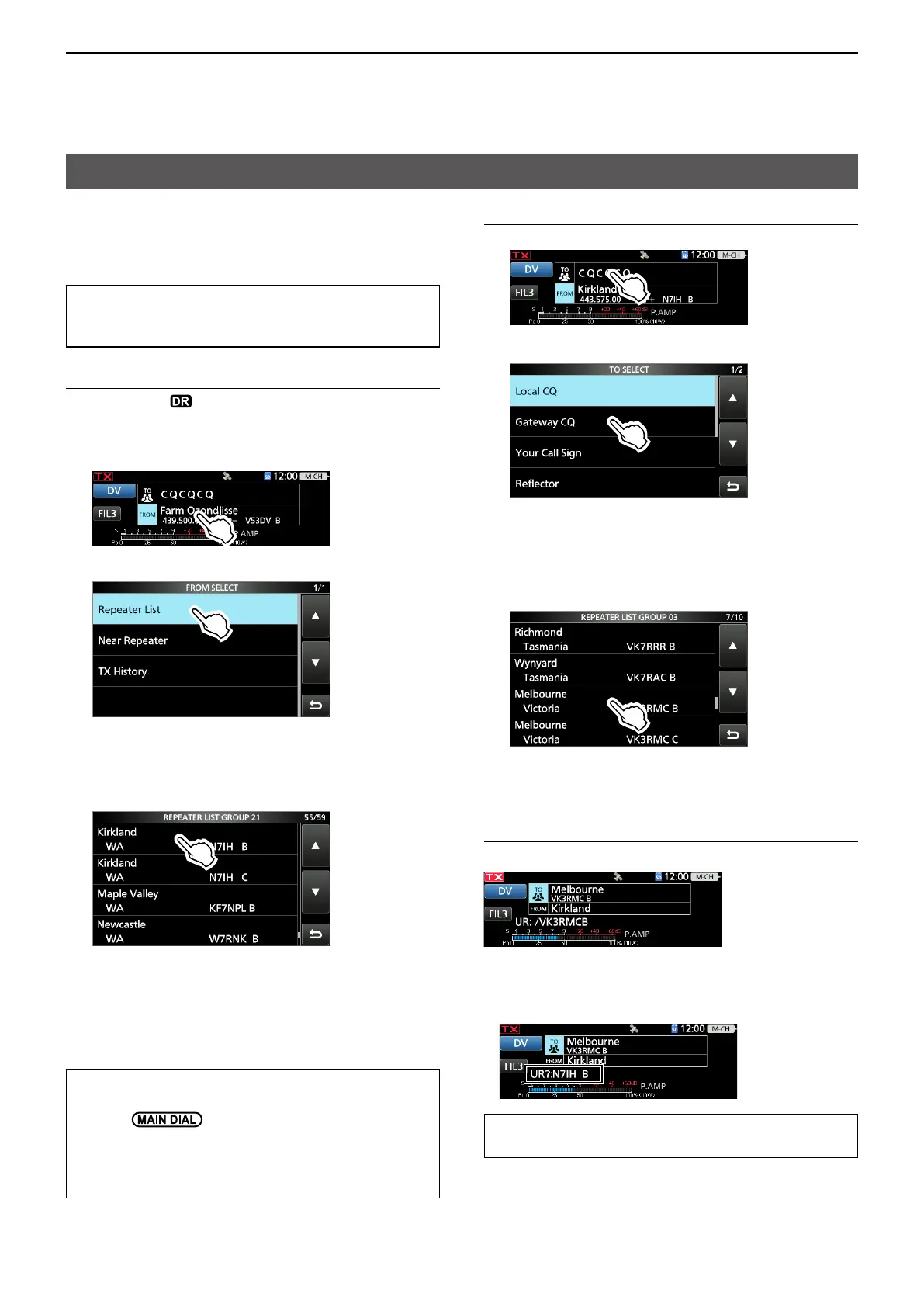
Step 1. Set “FROM” (Access repeater)
1� Hold down
for 1 second to display the DR
screen�
2� Touch “FROM” to select, and then touch “FROM”
again�
3� Touch “Repeater List�”
• Displays the REPEATER GROUP screen�
4� Touch the repeater group where your access
repeater is listed�
5� Touch your access repeater� (Example: Kirkland)
• Returns to the DR screen, and the selected repeater
name is displayed in “FROM�”
L By just selecting the repeater name, the repeater
call sign, its frequency, duplex setting, and frequency
oset are automatically set.
L The repeater list here is just an example�
TIP: There are several ways to set the access
repeater� (p� 11-2)
• Rotate on the DR screen with “FROM” is
selected�
• Search for the nearest repeater�
• Set from the TX History�
• Search for a repeater using the DR scan�
Step 2. Set “TO” (Destination)
1� Touch “TO” twice�
2� Touch “Gateway CQ�”
• Displays the REPEATER GROUP screen�
3� Touch the repeater group where your destination
repeater is listed�
4� Touch your destination repeater�
(Example: Melbourne)
• Returns to the DR screen, and the selected repeater
name is displayed in “TO�”
Step 3. Check whether you can access the
repeater
Hold down [PTT] for 1 second to access the repeater�
• If you get a reply call, or “UR?” is displayed within 3
seconds, your signal reached your access repeater and
your call was successfully sent to your destination
repeater�
TIP: See page 10-16 for status indications after a
reply is received�



 To Next Page