Platinum™ VX
Installation and Operation Manual Navigation
© 2016 Imagine Communications Corp. Proprietary and Confidential. Version 1.2 | Page 98
Module Details
When you click the Open Module button against a module in the Frame View, Module details are
displayed in a window superimposed over the previous frame window.
In case of 4/8 RU frames, the Module window displays ALL of the modules of the same type as the
one that you selected (these would be either BNC Input/Output Modules (4/8 RU Frames) (on page
99) or SFP Input/Output Modules (4/8 RU Frames) (on page 99)
In case of 1/2 RU Frames, the built in components are displayed (IO-72x72/IO-48x48 (2 RU Frames)
(on page 99), PV-27SFP Modules (2 RU SFP frame) (see "PV-72SFP Modules (2 RU SFP frame)" on
page 101) or PV-32x32 Modules (1 RU and 1 RU CQS frames) (on page 102)
The following details are displayed:
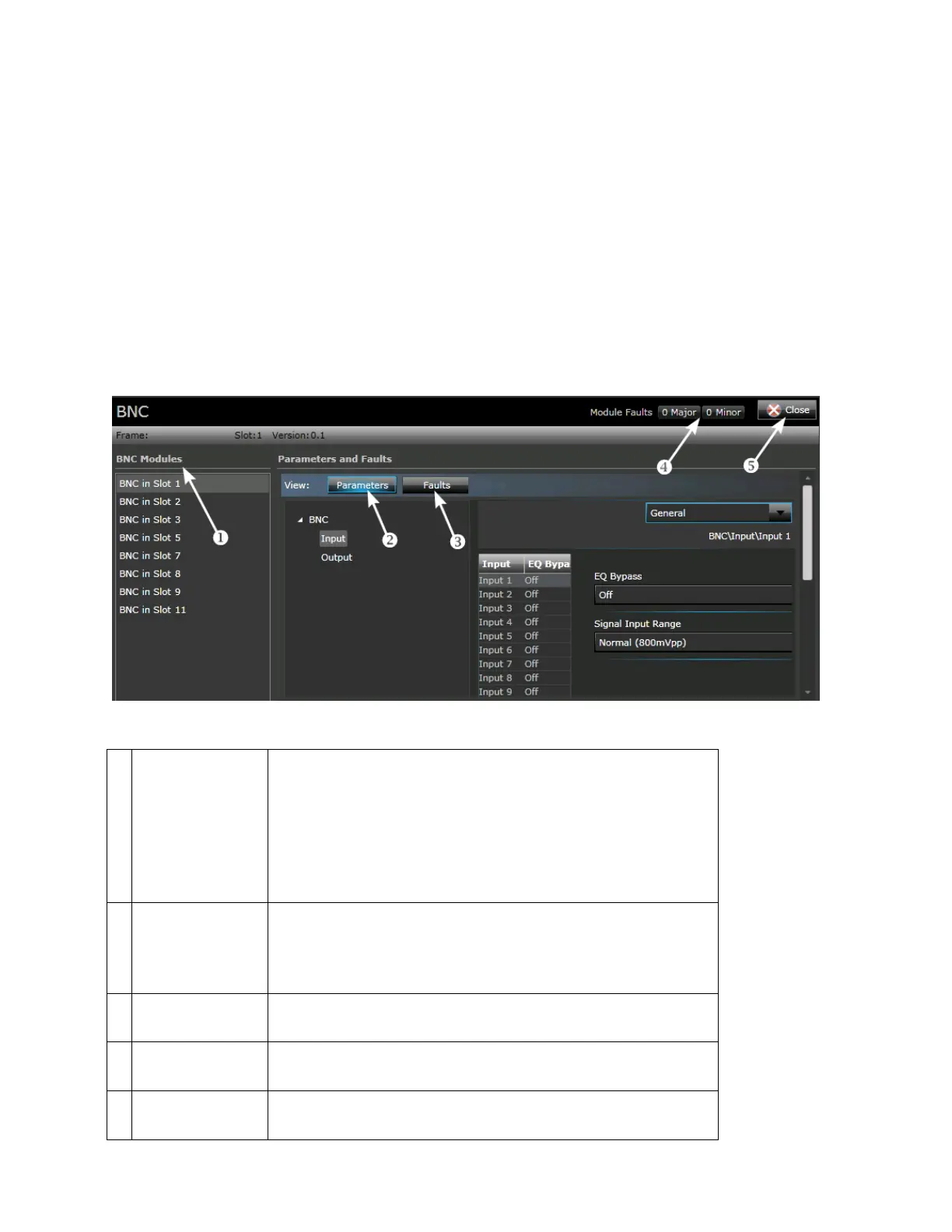
Figure 65: Module Details
The first column displays the name of the selected module
(and the slot it is in), and lists other modules of the same type
in the frame, if present. You can access details of other similar
modules by clicking on them in the list. When you select a
module in this list, information on the frame it belongs to, the
slot, version, and serial number is dynamically updated in the
header at the top, and parameters are displayed on the right.
Displays parameter categories/menus and individual
parameters for the selected module. Parameter options can be
changed using the GUI.
See Parametric Control (on page 93).
Displays any existing faults (and related details) for the
selected module. See Module Faults
The number of major and minor faults for the module are
displayed at the top.
You can close the Module window at any time by clicking the
Close button at the top right hand corner of the screen.


 To Next Page