PAMSPAN501x G.SHDSL.bis EFM Gateway
-15
3
3
C
C
o
o
n
n
f
f
i
i
g
g
u
u
r
r
e
e
t
t
h
h
e
e
P
P
A
A
M
M
S
S
P
P
A
A
N
N
5
5
0
0
1
1
x
x
v
v
i
i
a
a
E
E
m
m
W
W
e
e
b
b
3.1 Accessing EmWeb
To access EmWeb on the PAMSPAN501x that has been booted with an image containing
a factory default configuration:
1. Attach a PC to one of the LAN interfaces. At your web browser, enter the URL:
http://192.168.1.1
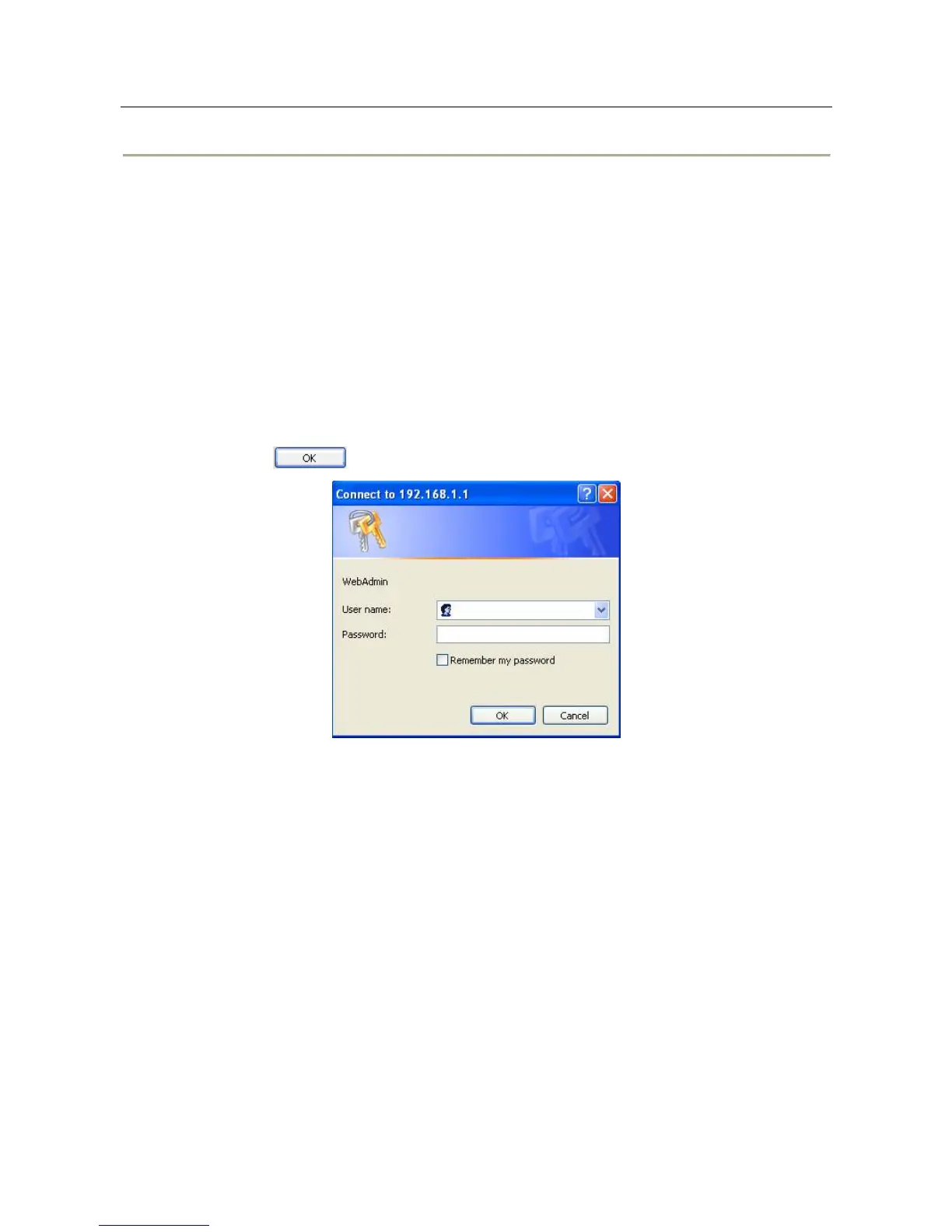
2. If you first time login the EmWeb, you will see a login box is displayed. You must enter
your username and password to access the pages. The default User name/Password as
follows
User Name: admin
Password: admin
3. Click on . You are now ready to configure PAMSPAN501x using EmWeb.
3.2 About EmWeb pages
EmWeb provides a series of web pages that you can use to setup and configure the
PAMSPAN501x. These pages are organized into three main topics. You can select each of
the following topics from the menu on the left-hand side of the main window:
• Status: information about the current setup and status of the system.
• System: The System section lets you carry out system commands like Event Log,
Firmware Update, Backup/Restore, Save configuration and Authentication.
• Configuration: information about the current configuration of various system features with
options to change the configuration.
The changes made via web pages will immediately reflect in all elements of the network.
The exact information displayed on each web page depends on the specific configuration
that you are using. The following sections give you a general overview of the setup and
configuration details.


 To Next Page