PAMSPAN501x G.SHDSL.bis EFM Gateway
-67
3.2.4.1.9 Configuring validators
A validator allows/blocks traffic based on the source/destination IP address and the
subnet mask. Traffic will be allowed or blocked depending on the validator
configuration specified when the policy was created. See the Configuring Firewall
policies Section. This section assumes that the instructions given in the Configuring
Firewall policies Section have previously been followed.
To configure a validator:
1. From the Current Security Policies table, click on the Host Validators link for the
policy that is to be configured. The Configure Validators page will be displayed.
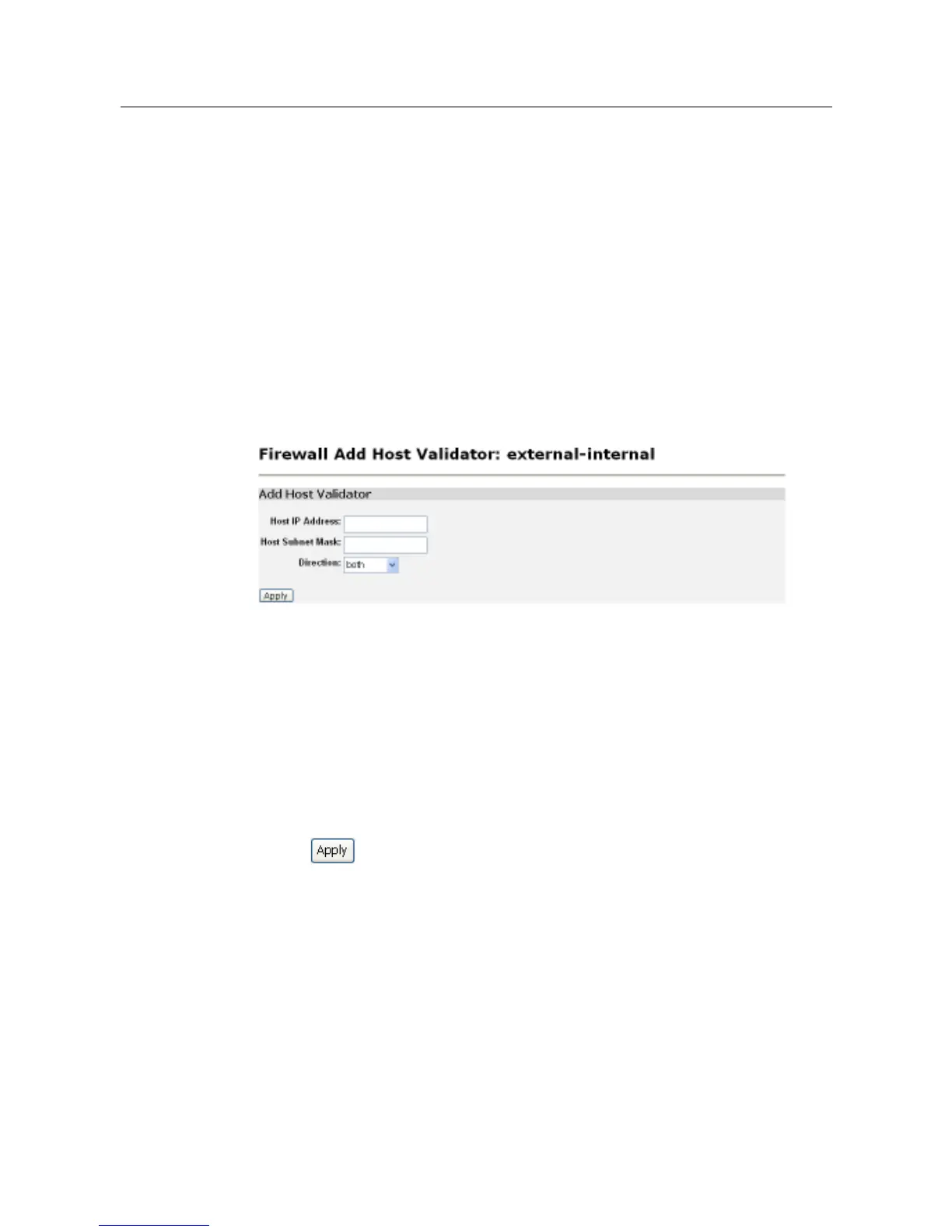
Click the Add Host Validator link. The following page will be displayed:
2. In the Host IP Address text box, enter the IP address that is to be
allowed/blocked.
3. In the Host Subnet Mask text box, enter the IP mask address. If a range of
addresses is to be filtered, the mask can be specified, for example, 255.255.255.0.
If a single IP address is to be filtered, use the specific IP mask address, for
example, 255.255.255.255.
4. Click on the Direction drop-down list and select the direction of the traffic that the
validator is to filter.
5. Click . The Configure Validators page will be displayed, containing details
of the host validator that has just been added.
6. Each portfilter displayed on the Configure Validators page has a Delete Host
Validator hyperlink assigned to it. To delete a validator, click this link, and then click
on the Delete Host Validator button on the confirmation page. The validator will be
removed from the Firewall configuration.


 To Next Page