LIMITER
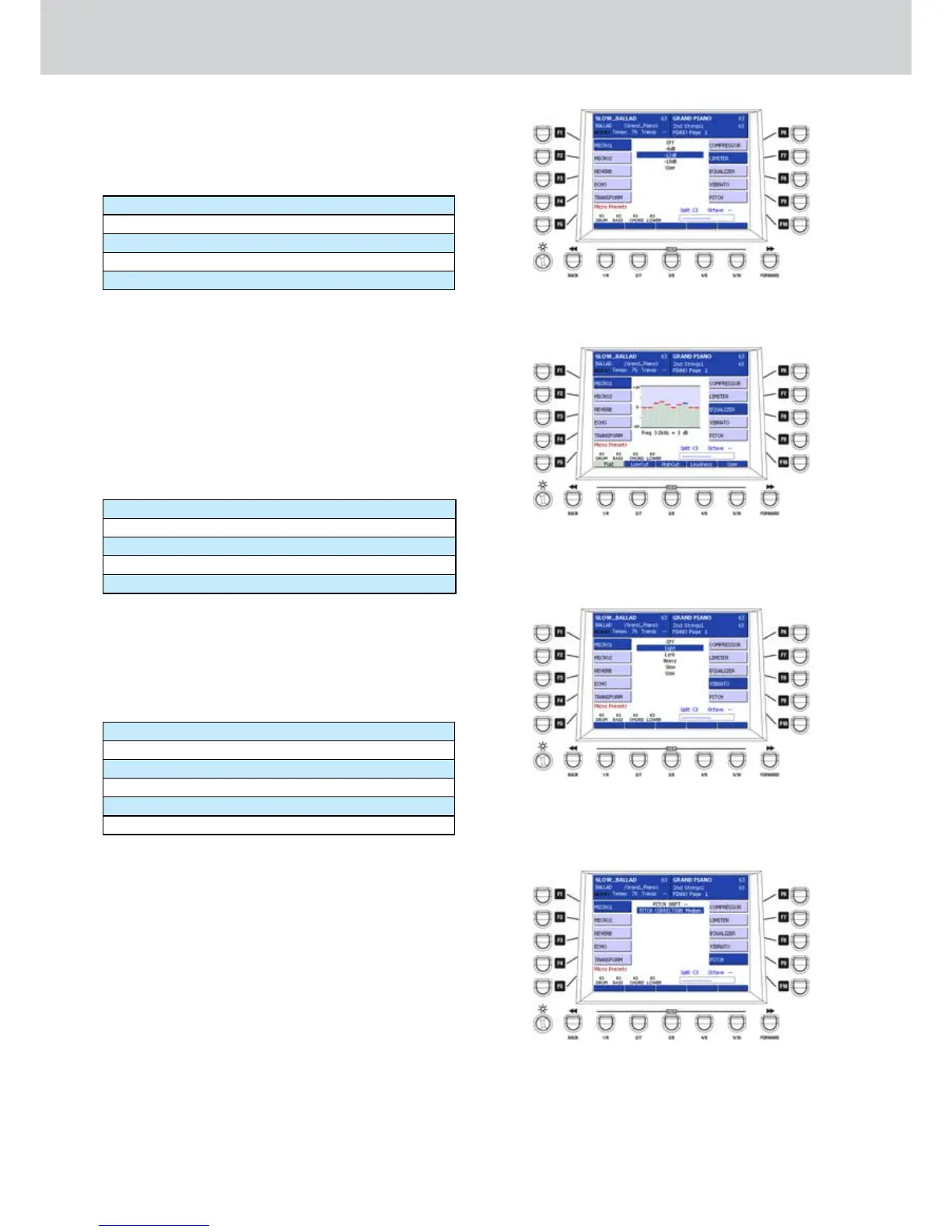
By selecting the F6 button a LIMITER screen (only
for MICRO1) like Figure 298 will appear where you
can choose one of the available Limiters by using the
CURSOR § ¶
buttons
or the DATA/VALUE wheel:
Off
-6dB
-12dB
-18dB
User
EQUALIZER
By selecting the F8 button an EQUALIZER screen
(only for MICRO1) like Figure 299 will appear where
you can choose one of the equalization Presets by
using the USER buttons from 1 to 5, or set the your
equalization curve. To change the equalization curve,
choose the band by using the
CURSORE
Ó Á and
change the value (+/- 14 dB) by using the DATA/
VALUE wheel or the CURSOR § ¶
buttons
. The
Preset curves are the following:
Flat (USER 1)
LowCut (USER 2)
HighCut (USER 3)
Loudness (USER 4)
User (USER 5)
VIBRATO
By selecting the F9 button a VIBRATO screen (only
for MICRO1) like Figure 300 will appear where you
can choose one of the available Vibrato effects by
using the CURSOR § ¶
bu
t
tons
or the DATA/VALUE
wheel:
Off
Light
Lyric
Heavy
Slow
User
PITCH
By selecting the F10 button a PITCH screen (only for
MICRO1) like Figure 301 will appear where you can
set the parameters to change the pitch. Select the
PITCH SHIFT parameter by using the CURSOR § ¶
buttons and change the value by using the CURSOR
Ó Á or the DATA/VALUE wheel (values +/- 24
semitones).
Select the PITCH CORRECTION parameter by using
the CURSOR § ¶
buttons
and change the value by
using the
CURSOR
Ó Á or the DATA/VALUE wheel
(Off, Slight, Slow, Medium, Fast).
Voicetron
Figure 298
Figure 299
Figure 300
Figure 301



 To Next Page