2ND VOICE
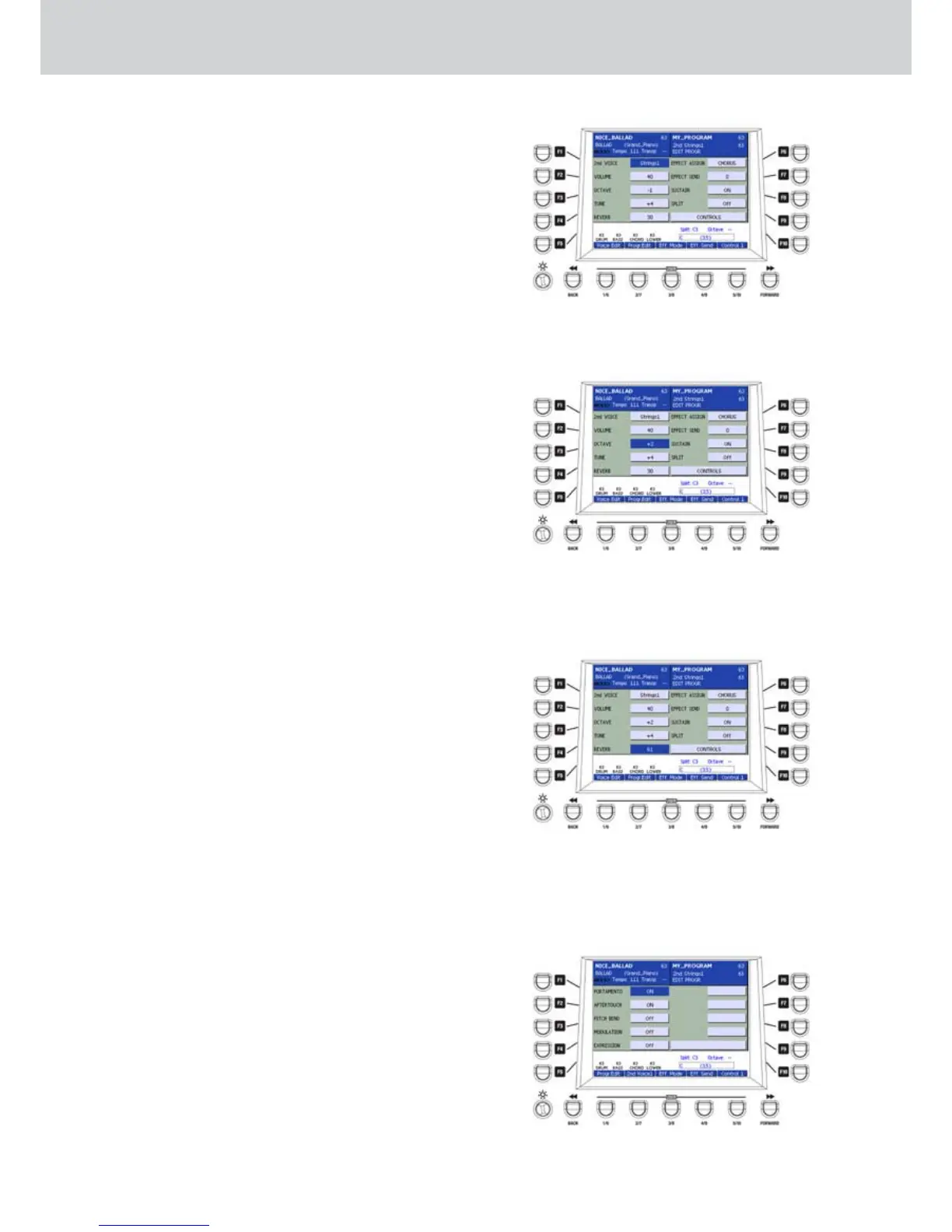
Press the USER 2 button (2nd Voice) to see a screen
like Figure 73 by using the parameters for the second
voice (2ND VOICE), that you can activate by pressing
the 2ND VOICE button in the VOICES section.
Press the F1... F10 buttons to access the parameters
of the 2ND VOICE. Modify the values of the selected
parameter by using the DATA/VALUE wheel or the
CURSOR Ó Á buttons.
F1–2ND VOICE: you can assign an instrument
•
from those of the GM banks.
For example:
Strings1
Strings2
Strings3
Symphonic
Timpani
Geige
Contrabass
Tremolos
... etc.
F2–VOLUME: you can adjust the volume of the
•
2ND VOICE. Press the CURSOR Ó Á buttons
together to set the value to 0.
F3–OCTAVE: you can set +/- 2 octaves of the
•
2ND VOICE (Figure 74). Press the CURSOR Ó
Á buttons together to set the value to zero (—).
F4–TUNE: you can adjust the fine pitch by +/-
•
100 cent of semitone (values from -63 to + 64).
F5–REVERB: you can adjust the send level to
•
the reverb (Figure 75). Press the CURSOR Ó Á
buttons together to set the value to 0.
F6–EFFECT ASSIGN: you can assign a second
•
effect, such as CHORUS or ECHO.
F7–EFFECT SEND: you can adjust the send level
•
of the second effect (CHORUS or ECHO).
F8–SUSTAIN: you can enable/disable the
•
SUSTAIN pedal on the second voice.
F9–SPLIT: you can set the right split note for the
•
second voice.
F10–CONTROLS: opens a further control page
•
for the 2ND VOICE (Figure 76) where to switch
the following parameters ON/OFF:
F1–PORTAMENTO ON/OFF: enable/disable the
Portamento control.
F2–AFTERTOUCH ON/OFF: enable/disable the
Aftertouch control.
F3–PITCH BEND ON/OFF: enable/disable the
Pitch Bend control.
F4–MODULATION ON/OFF: enable/disable the
Modulation Wheel control.
F5–EXPRESSION ON/OFF: enable/disable the
Expression control.
Figure 73
Figure 74
Figure 75
Figure 76
Program



 To Next Page