Program
EFF. MODE
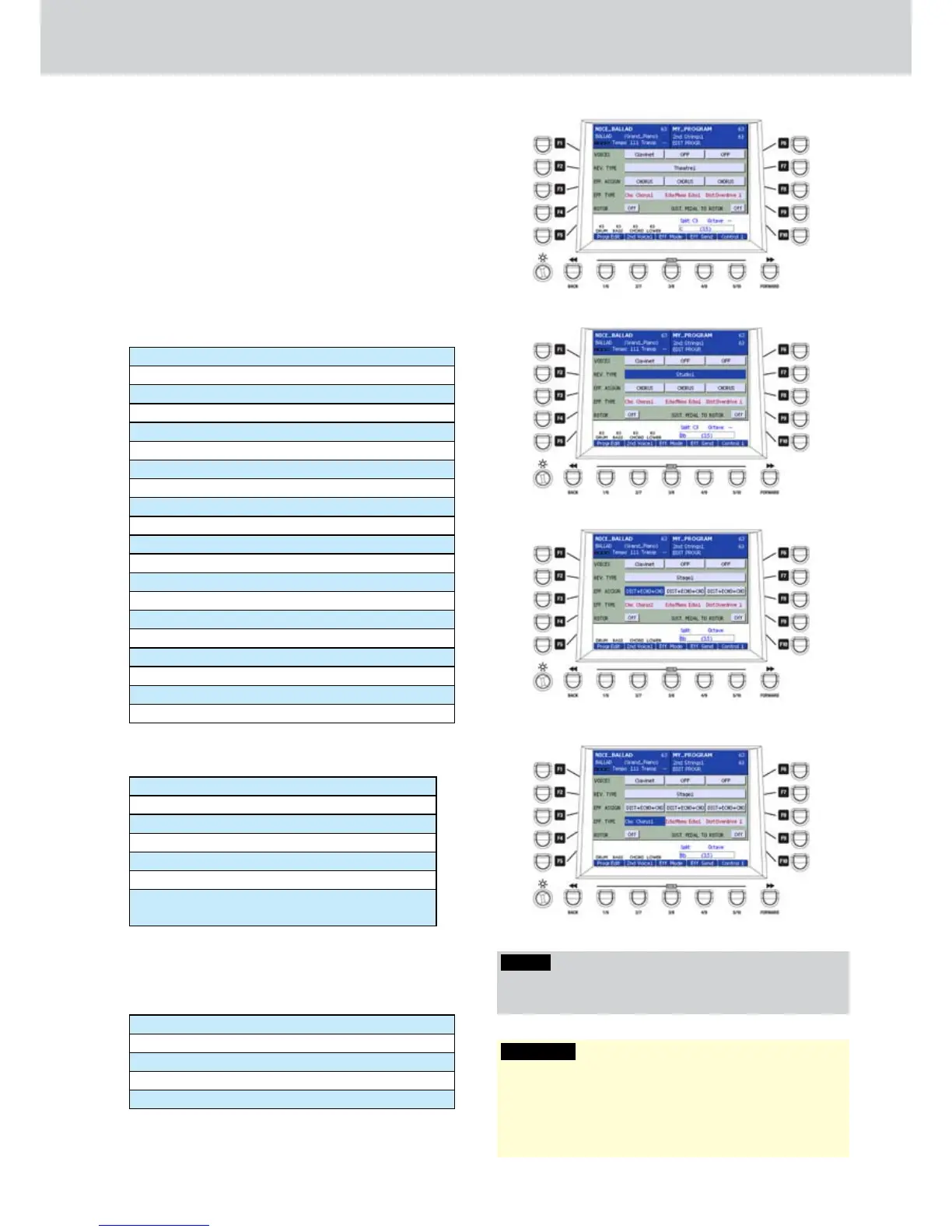
The USER 3 button opens a screen like Figure 77
where all the parameters for EFF. MODE will appear,
that is the effects mode of the PROGRAM. Use the
F1... F10 buttons to modify the parameters of the
effects mode. Once you select a parameter, you can
modify the value by using the DATA/VALUE wheel or
the CURSOR Ó Á buttons.
F1/F6–VOICES: you can assign up to three
•
VOICES to the same PROGRAM, as already seen
in the first screen of PROGRAM EDIT page.
F2/F7–REV TYPE: you can choose a reverb type
•
(Figure 78). For example:
Studio1
Studio2
Club1
Club2
Hall1
Hall2
Theatre1
Theatre2
Stage1
Stage2
Church1
Church2
Hangar
Galaxy
Space
User Rev1 (user reverb 1)
User Rev2 (user reverb 2)
User Rev3 (user reverb 3)
User Rev4 (user reverb 4)
User Rev5 (user reverb 5)
F3/F8–EFF. ASSIGN: you can assign an effect to
•
each VOICE (Figure 79) as shown below:
NONE: no effect
CHORUS: Chorus effect
ECHO: Echo effect
ECHO+CHO: Echo + Chorus effect
DIST: Distortion effect
DIST+CHO: Distortion + Echo effect
DIST+ECHO+CHO: Distortion + Echo +
Chorus effect
F4/F9–EFF. TYPE: for each assigned effect you
•
can set the effect type (Figure 80).
E.g., for the CHORUS effect type you can
choose:
Chorus1, Chorus2, Chorus3... Chorus6
Tremolo1, Tremolo2, Tremolo3
Phaser1, Phaser2, Phaser3
Flanger1, Flanger2, Flanger3
User Cho1, User Cho2 ... User Cho5
Figure 77
Figure 78
Figure 79
Figure 80
WARNING
If you select the DIST (Distortion) effect for one VOICE
you cannot select an effect like CHORUS or ECHO for
the remaining VOICES. You can select an effect like DIST
for the three VOICES or any combination of DIST+CHO
or DIST+ECHO+CHO effects.
NOTE
By pressing the CURSOR
Ó Á
buttons together you
set the default effect.



 To Next Page