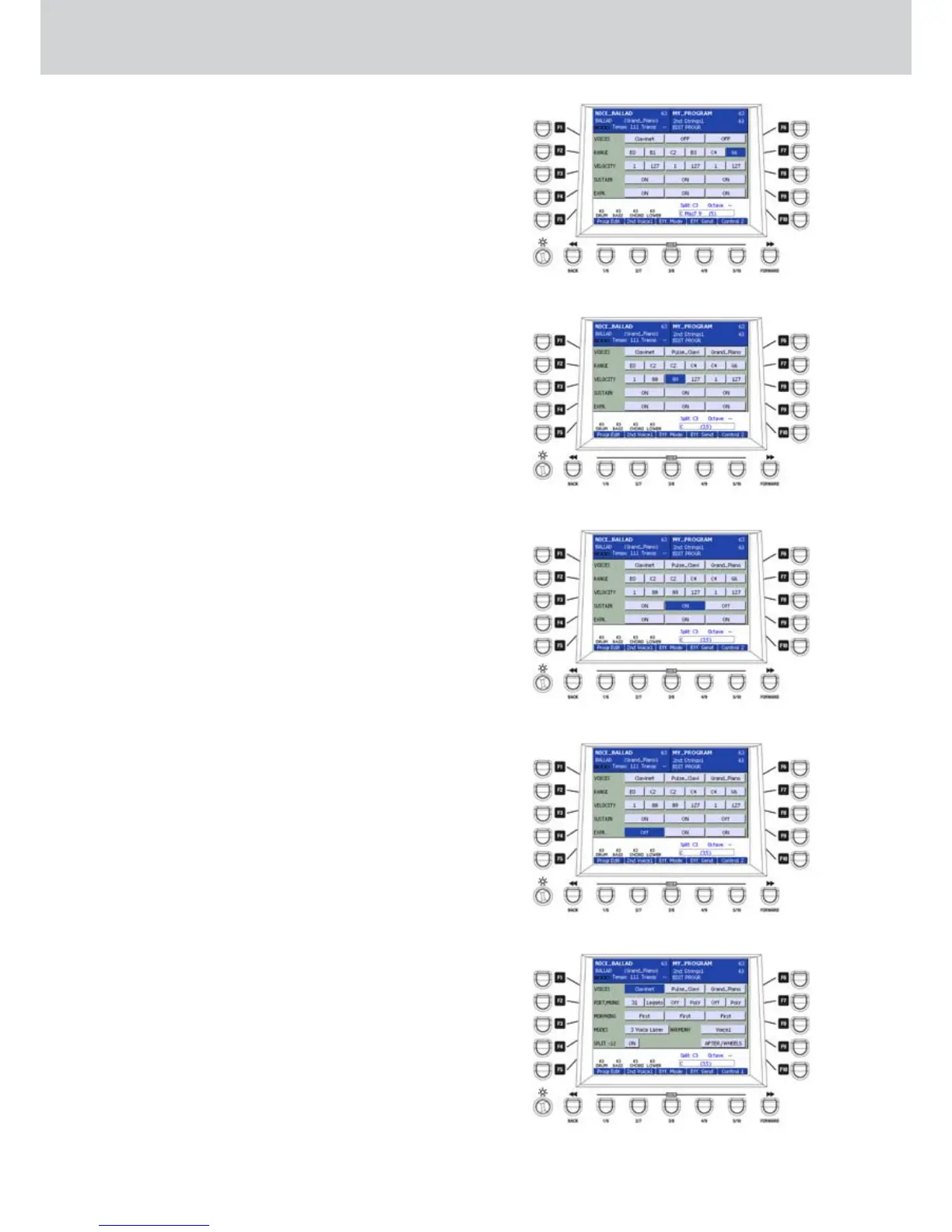
F1/F6–VOICES: you can assign up to three
•
VOICES to the same PROGRAM, as already seen
in the first PROGRAM EDIT screen.
F2/F7–RANGE (
•
Figure 91): you can set the split
points of the three instruments. You can set the
split points for each VOICE playing directly on
the keyboard. For example:
E0 (lower NOTE of the first VOICE)
B1 (higher NOTE of the first VOICE)
C2 (lower NOTE of the second VOICE)
B3 (higher NOTE of the second VOICE)
C4 (lower NOTE of the third VOICE)
G6 (higher NOTE of the third VOICE)
F3/F8–VELOCITY (
•
Figure 92): you can set the
dynamic value for each VOICE (values from 0 to
127). For example:
Minimum VELOCITY for the first VOICE: 1
Maximum VELOCITY for the first VOICE: 88
Minimum VELOCITY for the second VOICE: 89
Maximum VELOCITY for the second VOICE: 127
Minimum VELOCITY for the third VOICE: 1
Maximum VELOCITY for the third VOICE: 127
This means that if you play on the keyboard with a
VELOCITY value (dynamic value) from 89 or above,
the first VOICE will stop playing, while the second will
play. Instead, the third VOICE will always play at any
velocity value.
By pressing together the CURSOR buttons you can
set the value to 1 in the odd VELOCITY boxes and to
127 in the even boxes.
F4/F9–SUSTAIN (
•
Figure 93): enable/disable the
sustain pedal for each VOICE.
F5/F10–EXPR (
•
Figure 94): enable/disable the
expression control for each VOICE.
CONTROL 2
You can open a second control page from the
CONTROL 1 page where you can modify further
parameters of the PROGRAM.
By pressing the USER 5 button (Control 2) from the
CONTROL 1 page you will see a screen like Figure
95. Once you select a parameter, you can modify
the value by using the DATA/VALUE wheel or the
CURSOR Ó Á buttons. Press the USER 5 button
(Control 1) again to return to the CONTROL 1 page.
You can choose the the parameters by using the F1...
F10 buttons:
Program
Figure 91
Figure 92
Figure 93
Figure 94
Figure 95



 To Next Page