CHORUS RIGHT
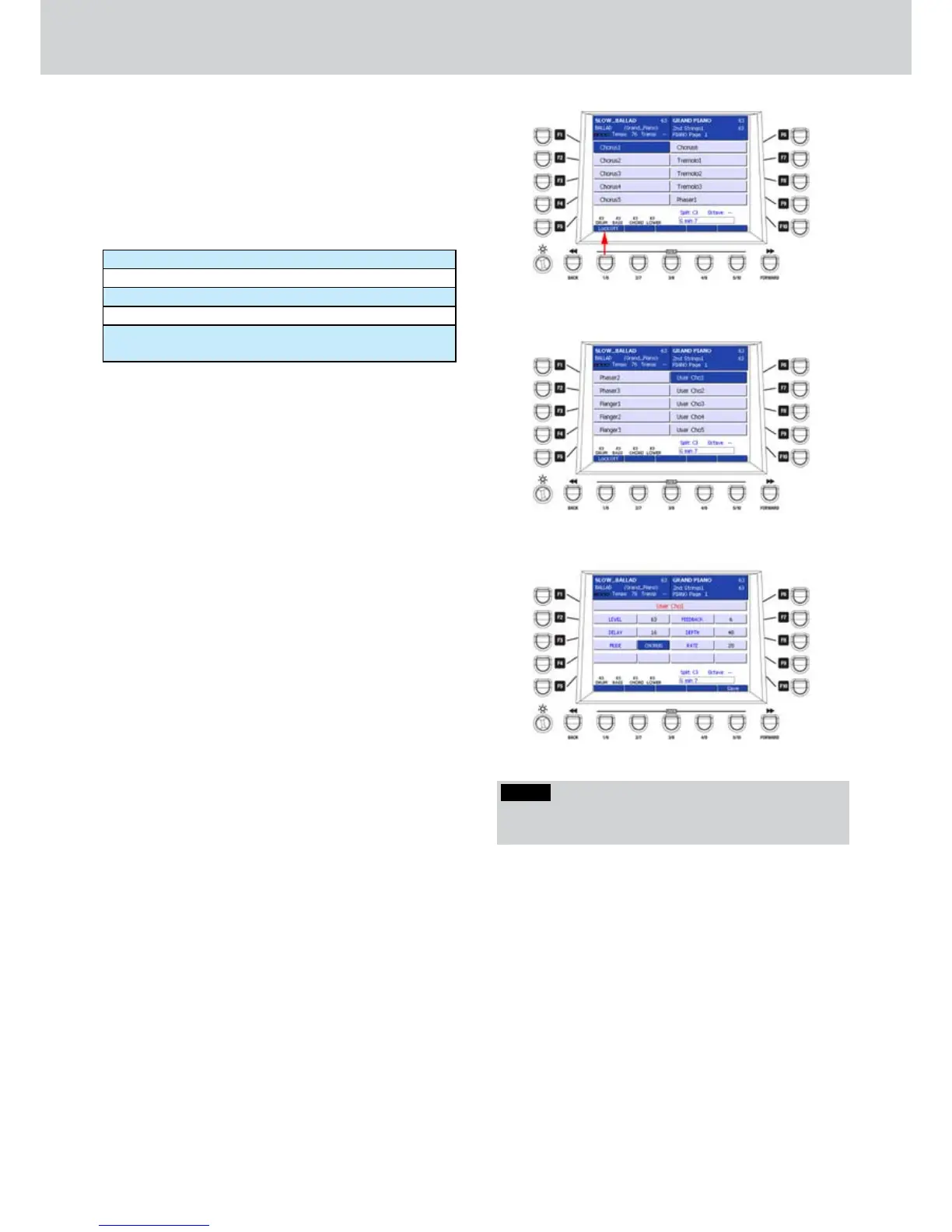
From the CHORUS page, by pressing the F1 button
(CHORUS RIGHT) you can access the page for the
selection of the Chorus for the right hand (Figure 234).
10 Chorus Presets are available in the first page and
10 in the second, by pressing any CURSOR button or
the DATA/VALUE wheel. Press any F1-F10 button to
select the corresponding Chorus type:
Chorus1, Chorus2 ... Chorus6
Tremolo1, Tremolo2 and Tremolo3
Phaser1, Phaser2 and Phaser3
Flanger1, Flanger2 and Flanger3
User1, User2, User3, User4 and User5 (see details
later)
After you select the effect for the right hand, you can
hear the result by playing directly on the right split of
the keyboard.
To lock the Chorus also when changing Program or
Registration or at start-up, press the Lock: ON button,
corresponding to the USER 1 button (Figure 234).
After the effect type selection, exit by pressing the
EXIT button or directly by pressing the MENU button.
To store the Chorus type at start-up press the
SAVE button on the front panel and F6 (CUSTOM
STARTUP).
CHORUS LEFT/GM
From the CHORUS page, by pressing the F2 button
(LEFT/GM REVERB) you can access the page for the
selection of the Chorus for the left hand and the GM
parts (Figure 234). The available Chorus Preset are
the same of those for the right hand seen before.
To lock the Chorus also when changing Program or
Registration or at start-up, press the Lock: ON button,
corresponding to the USER 1 button, as shown by the
arrow on Figure 234.
After the effect type selection, exit by pressing the
EXIT button or directly by pressing the MENU button.
USER CHORUS
When you select the Chorus for the right hand or the
left hand and the GM parts, you can choose one of
the 5 USER CHORUSES (Figure 235) corresponding
to the F6-F10 buttons of the second CHORUS page.
By pressing the EDIT button on the front panel you
can customize the User Chorus and store them as
User Cho1, User Cho2, User Cho3, User Cho4 and
User Cho5.
The Figure 236 shows the parameters of User Cho1
that you can modify by using the F1-F10 buttons and
the CURSOR
Ó Á
buttons
or the DATA/VALUE
:
F1– User Cho (choose from 1 to 5)
F2– LEVEL: Chorus level (values 0–63)
F3– TIME: Chorus time (values 0–63)
F4– MODE: Chorus mode (Chorus, Flanger, Tremolo
and Phaser)
F7– FEEDBACK: feedback amount (values 0–63)
F8– DEPTH: Chorus depth (values 0–63)
F9–RATE: Chorus rate (values 0–63)
After you set the parameters you can to store the
custom Chorus by pressing the USER 5 button (SAVE)
or the SAVE button on the front panel. A brief SAVE
DATA TO DISK message will appear.
Figure 234
Figure 235
Figure 236
NOTE
By pressing the CURSOR
Ó Á
buttons together you
set the value to 0.



 To Next Page