ROTOR
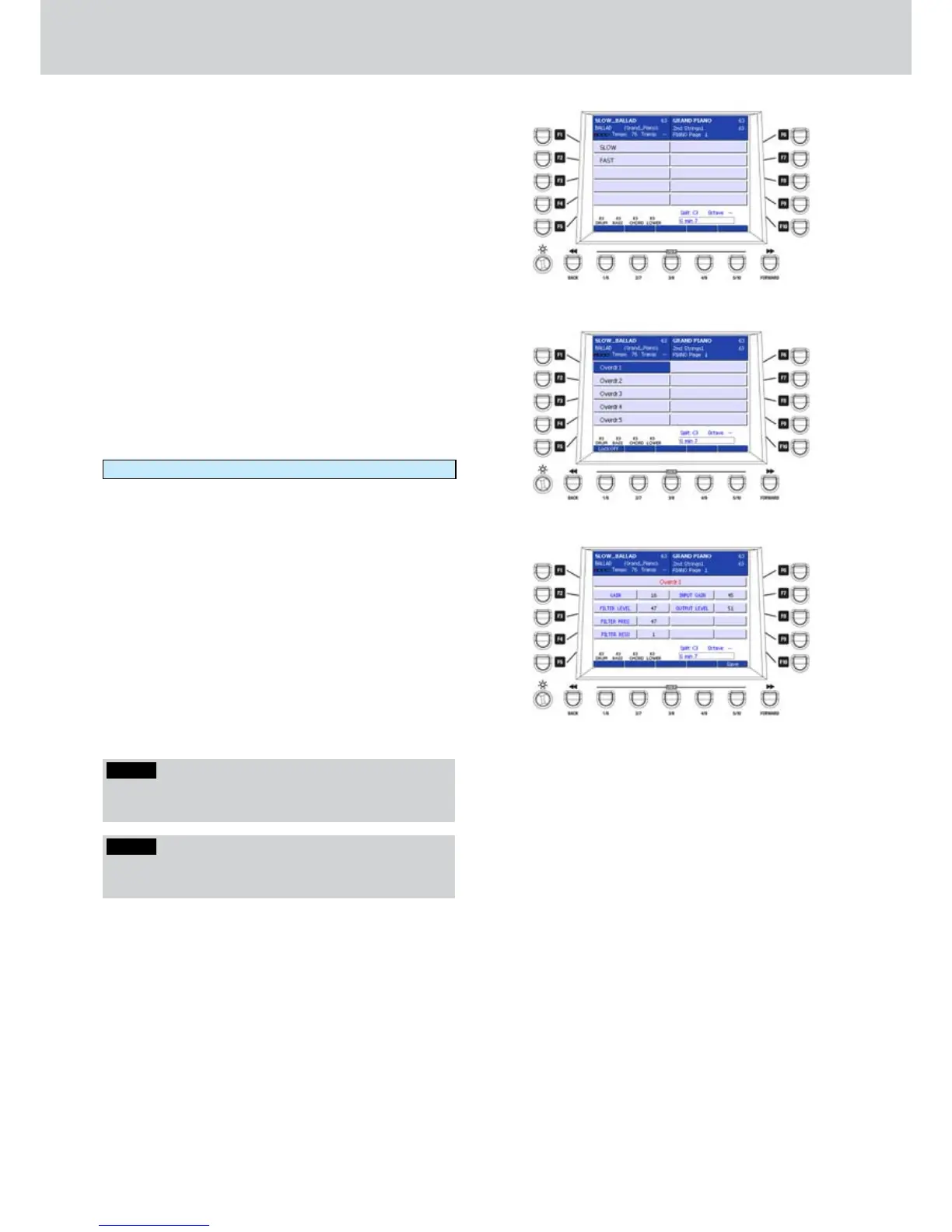
By pressing the F5 button on the DSP page, you can
access the window ROTOR, as shown in Figure 244.
Here you can select the speed of the rotor:
F1–SLOW
F2- FAST
The same function is available by using the two
SLOW and FAST buttons of the ROTOR section on
the front panel.
DRAWBAR OVERDRIVE
By pressing the F6 button on the DSP page, you can
access the DRAWBAR OVERDRIVE screen, as shown
in Figure 245. Here you can select the DRAWBAR
OVERDRIVE type to set into the DSP to make it
available for DRAWBAR.
5 Drawbar Overdrive Presets are available. Just press
one of the F1-F5 buttons to select the corresponding
Overdrive type:
Overdr1 ... Overdr5
When you activate an Overdrive Preset you can set
the option Lock:On/Off as for the previous effects.
By pressing the EDIT button on the front panel, you
can access the parameters of the selected Overdrive
Preset, as shown in Figure 246. The parameters are
identical for all the five Overdrive effects:
F1– Overdrive (choose from 1 to 5)
F2–GAIN: effect level (values 0–127)
F3– FILTER LEVEL: filter level (values 0–63)
F4– FILTER FREQ: frequency filter cutoff (values 0–63)
F5– FILTER RESO: filter resonance (values 0–63)
F7–INPUT GAIN: input level (values 0–63)
F8– OUTPUT LEVEL: output level (values 0–63)
After you set the parameters you can to store the
custom Overdrive by pressing the USER 5 button
(SAVE) or the SAVE button on the front panel. A brief
message SAVE DATA TO DISK will appear.
Figure 244
Figure 245
Figure 246
NOTE
Be careful not to boost the Resonance value of the
filter.
NOTE
By pressing the CURSOR
Ó Á
buttons together you
set the value to 0.



 To Next Page