Out1&2 Drum
By using the CURSOR
§ ¶
bu
t
tons
or the DATA/
VALUE wheel, you can select the percussive
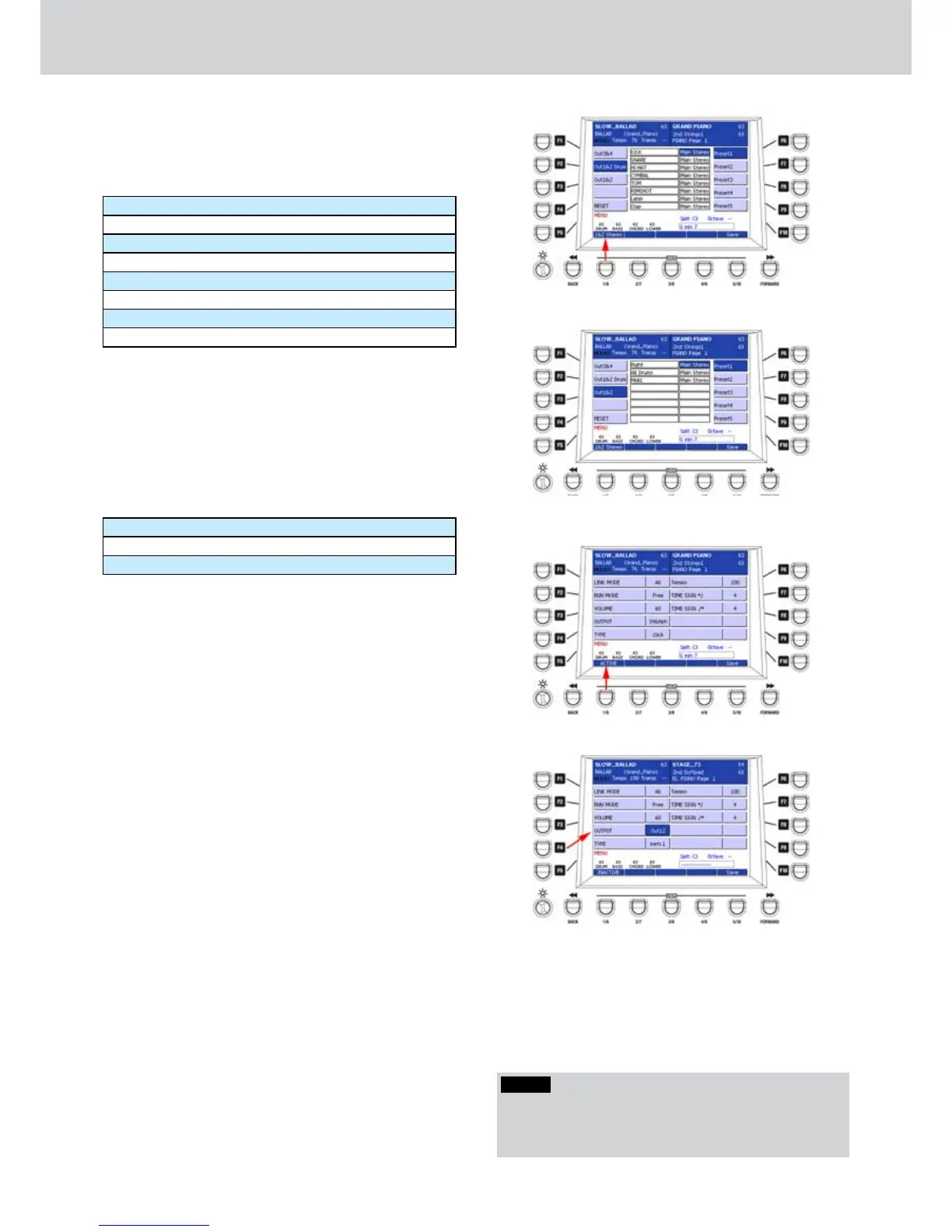
instrument of the drum to output (Figure 269). The
percussive instruments are the following:
KICK
SNARE
HI-HAT
CYMBAL
TOM
RIMSHOT
LATIN
CLAP
Once selected the percussive instrument, you can set
the output with the CURSOR
Ó Á
buttons
, choosing
between Main Stereo or 1&2 Stereo.
Out1&2
By using the CURSOR
§ ¶
buttons
or the DATA/
VALUE wheel, you can select the internal source to
send to the output 1 and 2 (Figure 270). The internal
sources are the following:
Right
All Drums
MIDI 1
Once selected the source, you can set the output
destination with the CURSOR
Ó Á
buttons
,
choosing between Main Stereo or 1&2 Stereo.
METRONOME CLICK
▀
By pressing the F6 button from the main page of •
the MENU, you can access to the METRONOME
CLICK screen, where to make settings of the
metronome (Figure 271). By using the F1-F10
buttons you can set the following parameters:
F1–LINK MODE: sets the metronome in the
following environments:
All, Style, MIDI, Wave, MP3.
F2–RUN MODE: sets the start mode of the
metronome (Free, Start).
F3–VOLUME: output volume from 0 to 63.
F4–OUTPUT: output assign (Figure 272) to Out 1
and 2, Out 3 and 4, Out 3 and 4 and headphones
(34&Hph). In this last mode, you will hear only
the metronome on the headphones. Useful for
drummers.
F5–TYPE: click type CLICK, METR.1 and METR. 2.
F6–TEMPO: tempo setting. This applies only if the
songs don’t have tempo information (usually the
WAV and MP3 files).
F7–TIME SIG */.: sets the numerator of the
division. Values from 1 to 12.
F8–TIME SIG ./*: sets the denominator of the
division. Values 4 or 8 .
Press the USER 1 button (ACTIVE/INACTIVE) to
enable/disable the METRONOME CLICK function, as
shown from the arrow in Figure 272.
Figure 269
Figure 270
Figure 271
Figure 272
NOTE
By pressing the USER 1 button you can toggle the 1&2
Stereo and the 1&2 Mono output, as shown by the
arrow on Figure 269.



 To Next Page