13 Global menus and settings | 163
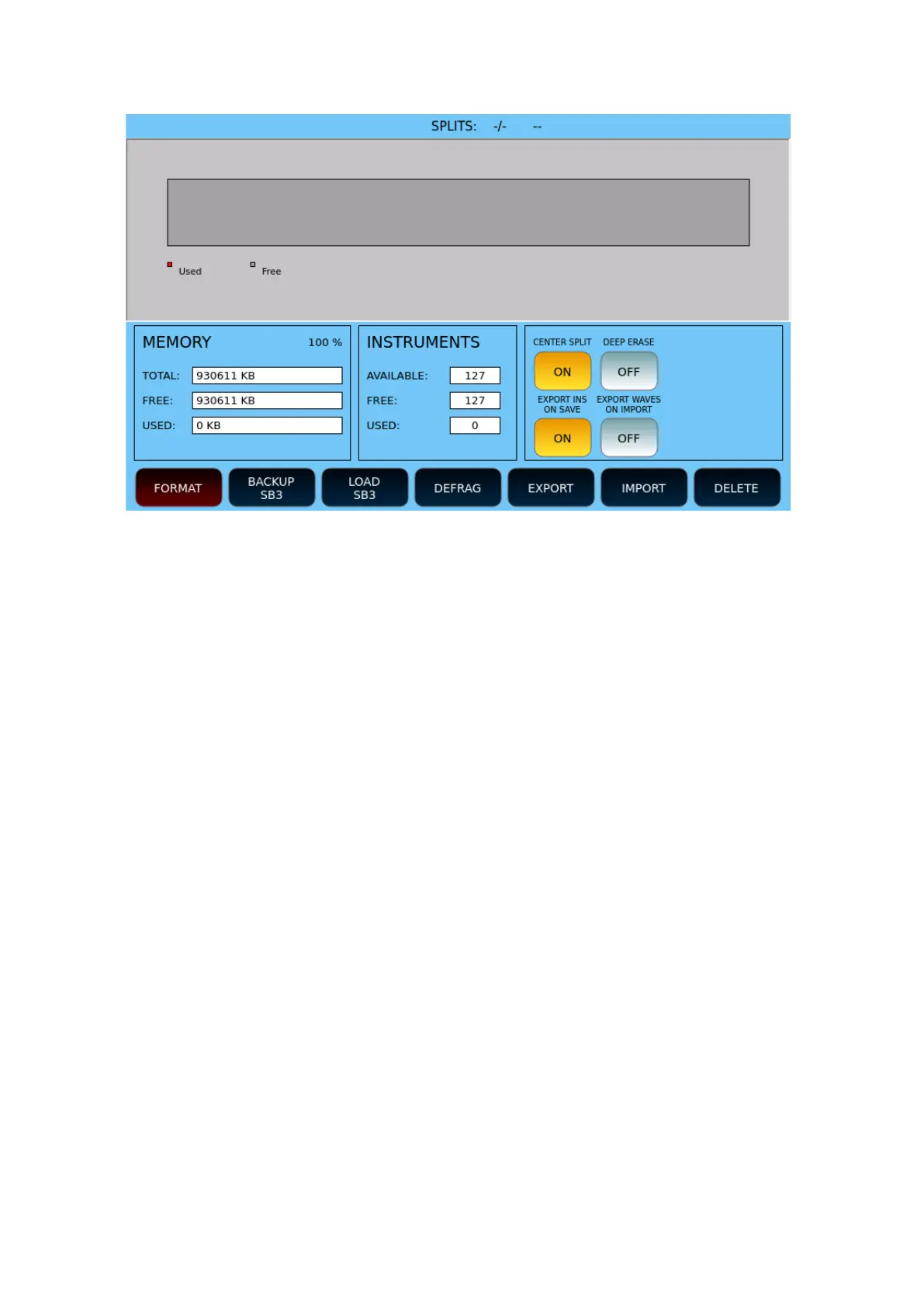
The next page shows disk space occupancy data and available instruments.
Options:
• CENTER SPLIT: Allows you to split an audio sample into two equal parts, placing the
split point exactly in the center of the sample. This is useful for isolating and
manipulating specific sections of the sound more precisely, making editing easier.
• DEEP ERASE: Completely erases the memory area of the Sampler. It can take several
minutes. Enable the option and then start the formatting procedure.
• EXPORT INS ON SAVE: Saves a copy of the MS3 INSTRUMENT in the INSTRUMENT
folder, when you save an INSTRUMENT.
• EXPORT WAVES ON IMPORT: Allows you to export wave files when loading an MS3
file.
At the bottom, the general control buttons of the page:
• FORMAT: This button formats the memory area dedicated to the sampler and clears
all data contained therein. Be careful before confirming.
• BACKUP SBK: This button saves a copy of the SAMPLER's memory to a disk file
having the extension .SB3 ,inside the INSTRUMENT folder.
• LOAD SBK: This button restores a. SB3 file previously saved with the backup
procedure. This completely replaces the contents of the SAMPLER memory within the
INSTRUMENT folder.
• DEFRAG: This reorders the memory of the SAMPLER.
• EXPORT: Press this button to export an instrument previously saved in the SAMPLER.
You’ll then find a .MS3 file in the INSTRUMENT folder.
• IMPORT: Press this button on the screen to import a .ms3 file from disk from the
INSTRUMENT folder into EDIT.


 To Next Page