34410A/11A/L4411A User’s Guide 15
Quick Start 1
Using the Front Panel (34410A/11A)
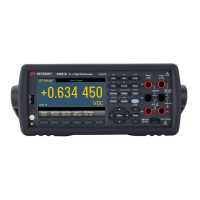
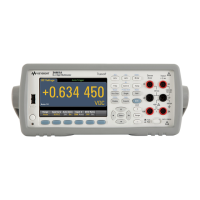
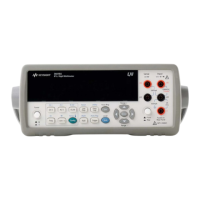
This section introduces the 34410A/11A multimeter front panel.
Front-Panel Keys
The front panel provides keys to select various functions and operations. Pressing a
measurement function key (e.g. ) selects that function. Press to enter the
configuration menu for the selected measurement function.
Most keys have a shifted function printed in blue above the key. To perform a shifted
function, press , and then press the key that has the desired label above it.
To view and select menu items, use the menu navigation keypad (for example the or
keys). The current (or default) selection is displayed in FULL BRIGHTNESS. All
other choices are displayed in HALF BRIGHTNESS. The selections on each menu level
scroll, but do not wrap. Arrow annunciators on the second display line indicate
additional selections to the left or right. To accept a selection, press .
To set numeric parameters, use or to select a digit, and or to increase or
decrease that digit.
Front-Panel Display Shortcuts
Direct front panel shortcuts are provided for three commonly used display functions:
ranging, digit masking, and integration time.
Ranging. The multimeter’s manual range can be set directly from the navigation
keypad.
To manually change the current multimeter range, press or . The
ManRng
annunciator will light, and the selected range (e.g. 100mV RANGE) will be briefly
displayed on the second line.
Digit Masking. The navigation keypad provides a shortcut to mask (change the
number of digits displayed) the reading on the main display, easing readability.
To enable digit masking during any measurement function, press or
. DIGIT MASK will be displayed, along with a list of choices (3.5, 4.5, 5.5,
6.5 and AUTO) on the second display line. Press
or to scroll through and select one of these settings, and then press .


 To Next Page