LaCie Ethernet Disk RAID (Firmware version 1.4)
User Manual
page 65
Managing Your Ethernet Disk RAID
5.7.6.1. Expanding the Shared Storage
e disk space on your Ethernet Disk RAID is di-
vided into two portions. One portion is for shared fold-
ers; the other is for backups of your computer disks.
e Storage Status view on the Home page shows how
much disk space is currently allocated for shared folders,
how much is used by backups, and how much is avail-
able for either.
You can expand the amount of disk space allocated
for shared folders (as long as free disk space is avail-
able), but you cannot reduce it without reconfiguring
your disks and losing all your data. erefore, it is rec-
ommended that you allocate the least amount of space
for shared folders until all the computer disks that you
plan to protect have been backed up.
To expand the amount of disk space allocated for
shared folders:
In the navigation bar, click Advanced.
In the left pane, click Disks.
In the Administrator password text box, enter your
password for logging in to the Manager.
Click Expand Shared Storage.
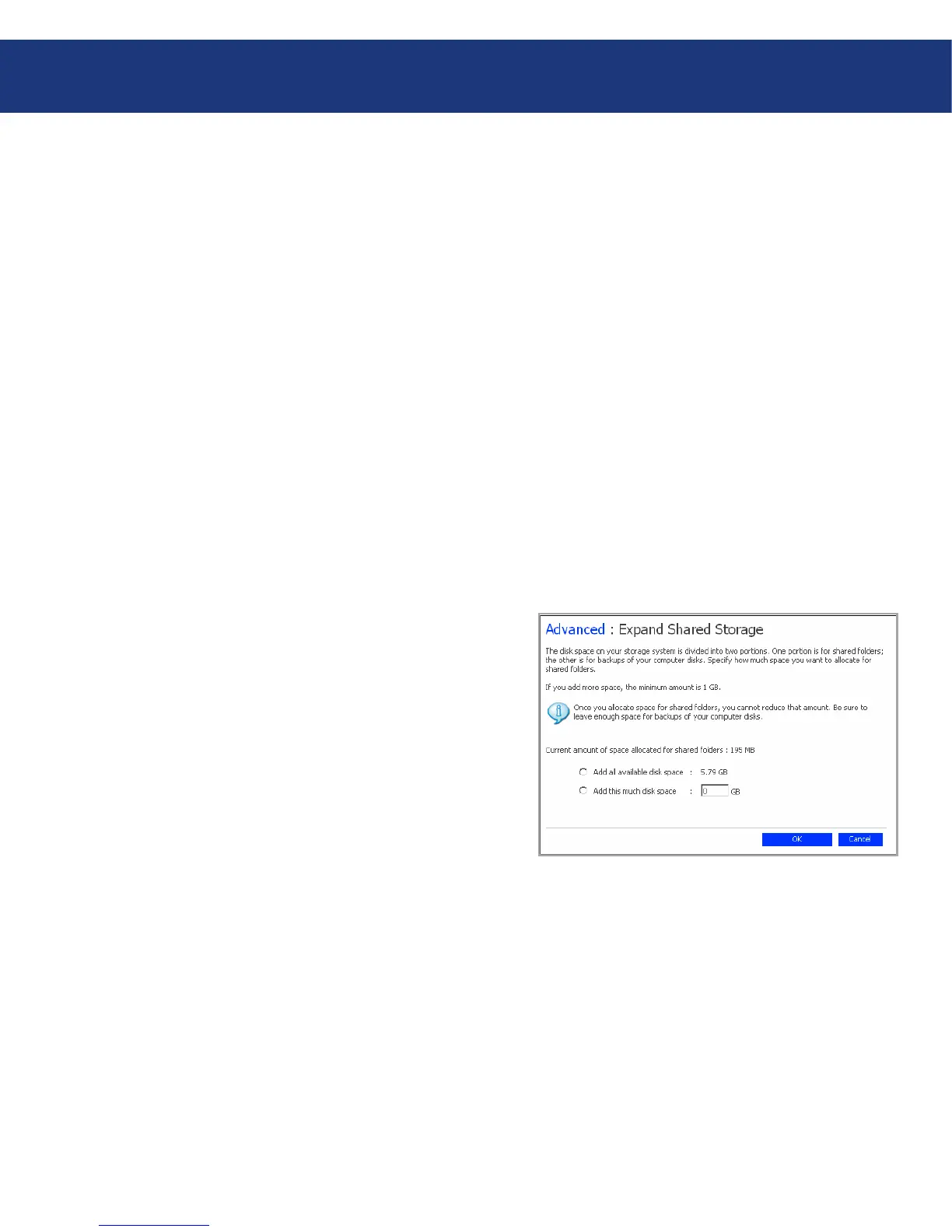
e Expand Shared Storage page appears (see
Fig. 4.10).
Specify how much disk space to add to the space that
is currently allocated for shared folders.
To allocate all available disk space, select Add all
available disk space.
To allocate a specific amount, select Add this much
disk space and enter the desired number of giga-
bytes. (e minimum is 1 GB, and the maximum is
the total amount of space currently available. You can
specify only whole numbers.)
Click OK.
When the confirmation message appears, click OK.
1.
2.
3.
4.
5.
6.
7.
Fig. 5.7.6.1.














 To Next Page