LaCie Ethernet Disk RAID (Firmware version 1.4)
User Manual
page 73
Working with Shared Folders
6.1.1.2. Using the Console
To access a shared folder using the Console:
Install the Console (as described in section 3.2.1. In-
stalling the Console).
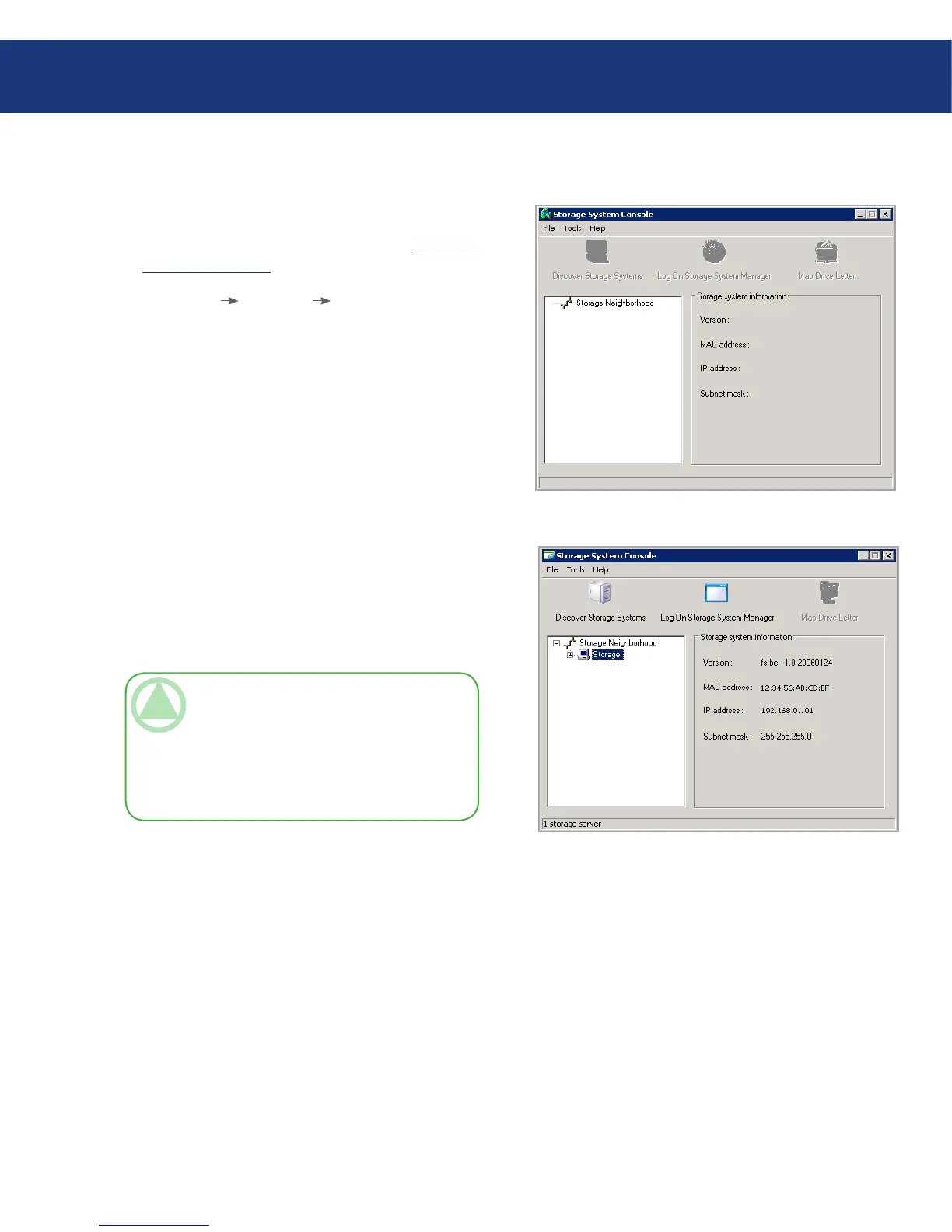
Click Start Programs Storage System Con-
sole. e Console application window appears (see
Fig. 6.1.1.2.A).
As soon as you start the Console, it automatically
scans the network for storage devices. is might take
a few minutes. As soon as the scan is complete, the left
pane displays a tree view of all the storage devices it
found (see Fig. 6.1.1.2.B).
Each Ethernet Disk RAID has two ports for con-
necting to the network. If your Ethernet Disk RAID
uses both ports, two items appear in the tree in the left
pane, each using the same name. You can identify the
IP address used by each port by clicking each item in
the tree and observing the IP address area in the right
pane.
1.
2.
Fig. 6.1.1.2.A
TeChNICAl NOTe: If you connect an Eth-
ernet Disk RAID to the network after the Con-
sole has already scanned it, or if you change the
IP address of the Ethernet Disk RAID, you must
click Discover Storage Systems to scan the net-
work again and update the tree in the left pane.
Fig. 6.1.1.2.B














 To Next Page