LaCie Ethernet Disk RAID (Firmware version 1.4)
User Manual
page 74
Working with Shared Folders
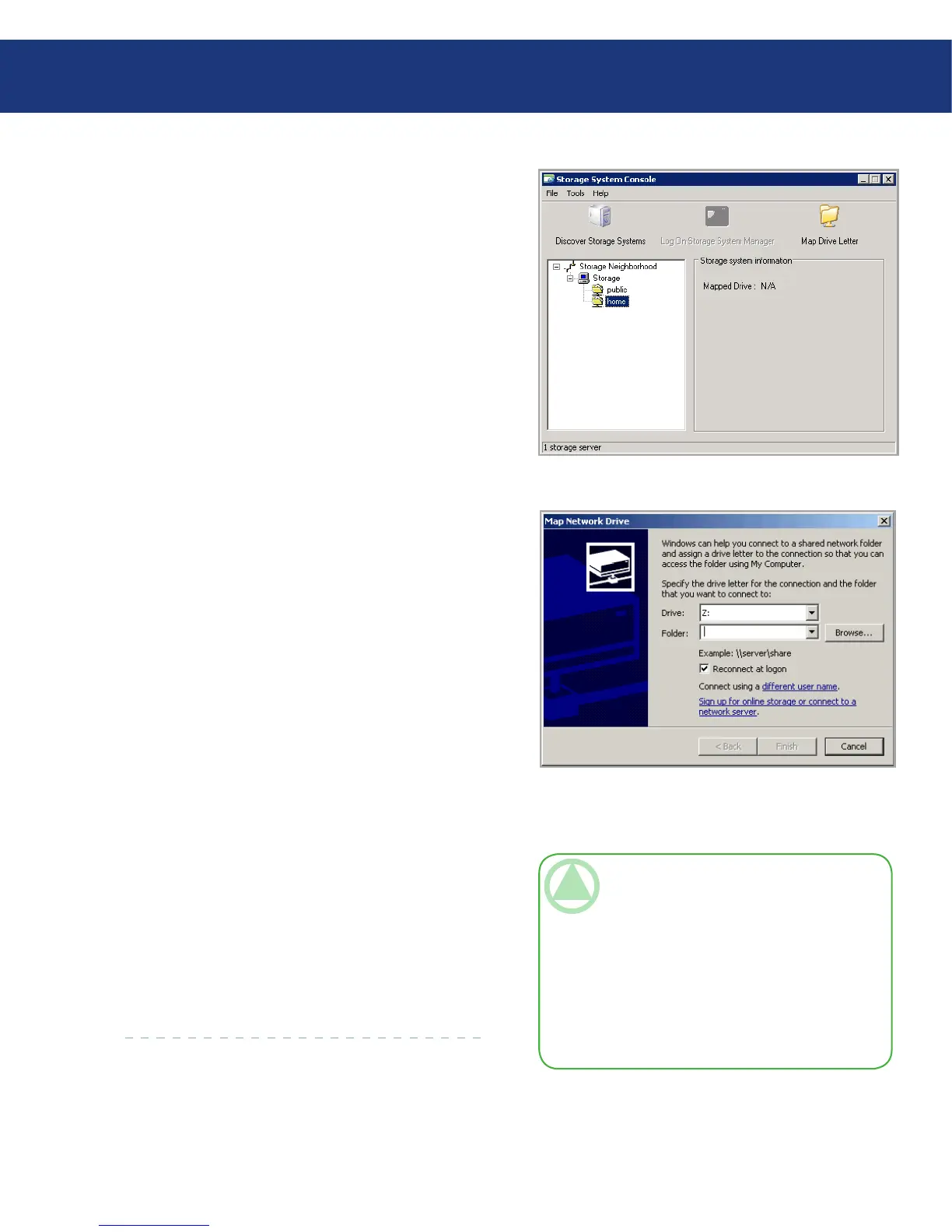
Fig. 6.1.1.2.C
In the left pane, double-click the name of the Ether-
net Disk RAID that contains the shared folders that
you want to access.
If your Ethernet Disk RAID uses both available
ports to connect to the network, you can double-
click either name.
e system name expands to display all the available
shared folders. ose shared folders that can be ac-
cessed using the guest user name and password are
listed first. See Fig. 6.1.1.2.C.
3.
In the left pane, select the name of the shared folder
that you want to access (for example, home), and
then click Map Drive Letter. To access a folder oth-
er than home, you must log in as a user with access
to that folder.
e Map Network Drive dialog box appears with
the name of the folder installed (see Fig. 6.1.1.2.D).
e exact appearance of this dialog box varies, de-
pending on your operating system.
In the Drive list, select the drive letter that you want
to assign to the shared folder.
To automatically connect to this shared folder each
time you log on to Windows, select Reconnect at
logon.
If you clear this option, you must repeat this proce-
dure each time you want to access the shared folder.
Click Finish.
If prompted, enter your user name and password for
accessing this shared folder, and then click OK.
4.
5.
6.
7.
8.
Fig. 6.1.1.2.D
TeChNICAl NOTe: If the user name and
password for accessing the shared folder are the
same as your Windows user name and password,
you are not prompted to provide a user name and
password to access the shared folder. In addition,
once you provide your user name and password for
accessing one shared folder, you are not prompted
to provide it again when you access other shared
folders to which you have access rights.














 To Next Page