LaCie Ethernet Disk RAID (Firmware version 1.4)
User Manual
page 87
Protecting Local Disks
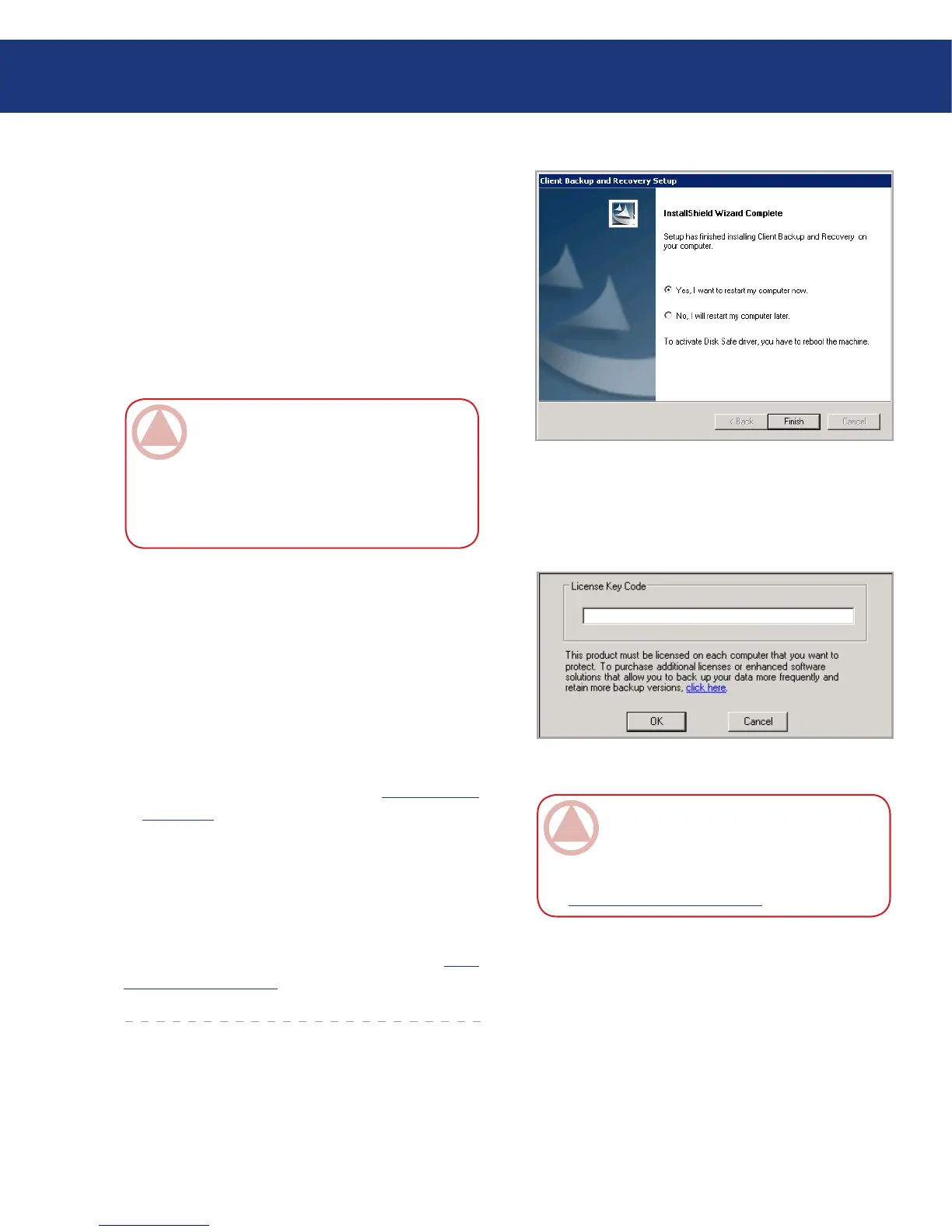
13. To complete the installation and restart your com-
puter, click Finish.
If you do not want to restart your computer at this
time, select No, I will restart my computer later and
then click Finish. When the confirmation message
appears, click OK. You do not have to restart the
computer immediately after installation, but you do
have to restart it before running Windows Backup
Software.
14. After you restart your computer, click OK on the
welcome message. e Add License dialog box ap-
pears. See Fig. 7.1.4.G.
15. Enter the key code for licensing the product and
click OK. e license key code is located on the back
of the Ethernet Disk RAID. If you have an Inter-
net connection, the license is activated automatically.
When you click OK on the confirmation message,
the Protect a Disk wizard starts. For information
about this wizard, refer to section 7.2. Protecting
Your Disks.
If your Internet connection is temporarily down, or
if this computer doesn’t have an Internet connection,
click OK on the warning message. e Protect a Disk
wizard still starts, but after 30 days you will no longer be
able to perform backups or recovery until you activate
the license. For more information, refer to section 7.1.6.
Activating Your License.
Fig. 7.1.4.F
ImpOrTANT INfO: If you do not restart
your computer and you subsequently reinstall
Windows Backup Software, serious problems
can occur with your installation. It is strongly
recommended that you restart your computer at
your earliest convenience.
Fig. 7.1.4.G
ImpOrTANT INfO: If you previously used
this key code on a different computer, an error
message appears, and you must re-activate your
license. For more information, refer to section
7.1.6. Activating Your License.














 To Next Page