LaCie Ethernet Disk RAID (Firmware version 1.4)
User Manual
page 93
Protecting Local Disks
4. If no Ethernet Disk RAIDs are automatically dis-
covered, or if you want to back up your disk to a dif-
ferent Ethernet Disk RAID, enter the name or IP
address of the desired Ethernet Disk RAID in the
Storage system name or IP address text box. en
click OK.
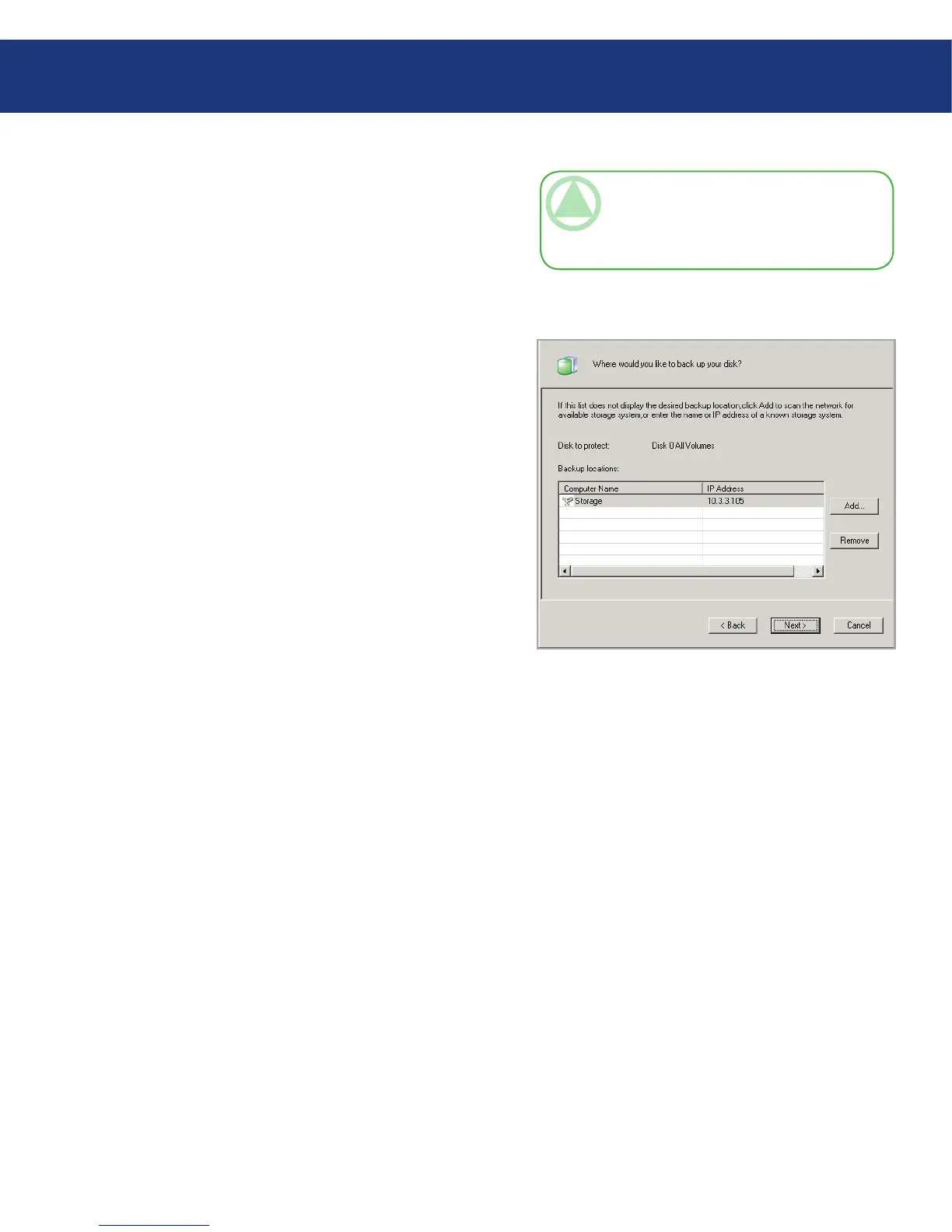
5. From the Backup locations list, select the Ethernet
Disk RAID to use for backups of this disk or parti-
tion. (e first backup location in the list is selected
by default.) See Fig. 7.2.C.
If you want to scan the network for new Ethernet
Disk RAIDs, or add a new one manually, click Add
and repeat step 3.
If you want to remove a Ethernet Disk RAID that’s
not valid or that you no longer want to use, select the
Ethernet Disk RAID from the Backup locations
list, click Remove, and then click Yes to confirm the
removal. (You can remove an Ethernet Disk RAID
only if it is not currently being used to protect an-
other disk.)
Once you have selected the desired backup location,
click Next and go to step 6.
TeChNICAl NOTe: If an authentication er-
ror occurs, make sure the name or IP address of
the Ethernet Disk RAID is correct, and that your
computer is connected to the network.
Fig. 7.2.C














 To Next Page