11.Connecttheexternalcablesandtheacpoweradaptertothecomputer.
12.Turnonthecomputerandallattacheddevices.
Note:Whenyouturnonthecomputerforthefirsttimeafterreplacingthecoin-cellbattery,anerror
messagemightbedisplayed.Thisisnormalafterreplacingthecoin-cellbattery.
13.UsetheSetupUtilityprogramtosetthedate,time,andanypasswords.See“UsingtheSetupUtility
program”onpage59.
ReplacingtheWi-Ficard
Attention:DonotopenyourcomputerorattemptanyrepairbeforereadingandunderstandingtheChapter
1“Readthisfirst:Importantsafetyinformation”onpage1.
Note:TheWi-Ficardisavailableonlyonsomemodels.
ThissectionprovidesinstructionsonhowtoreplacetheWi-Ficard.
ToreplacetheWi-Ficard,dothefollowing:
1.Removeallmediafromthedrivesandturnoffallattacheddevicesandthecomputer.Then,disconnect
allpowercordsfromelectricaloutletsanddisconnectallcablesthatareconnectedtothecomputer.
2.Placeasoft,cleantowelorclothonthedeskorotherflatsurface.Holdthesidesofyourcomputerand
gentlylayitdownsothatthescreenisagainstthesurfaceandthecoverisfacingup.
3.Removetheframestand.See“Removingandinstallingtheframestand”onpage99.
4.Removethecomputercover.See“Removingthecomputercover”onpage102.
5.Removethesystem-boardshield.See“Removingandinstallingthesystem-boardshield”onpage106.
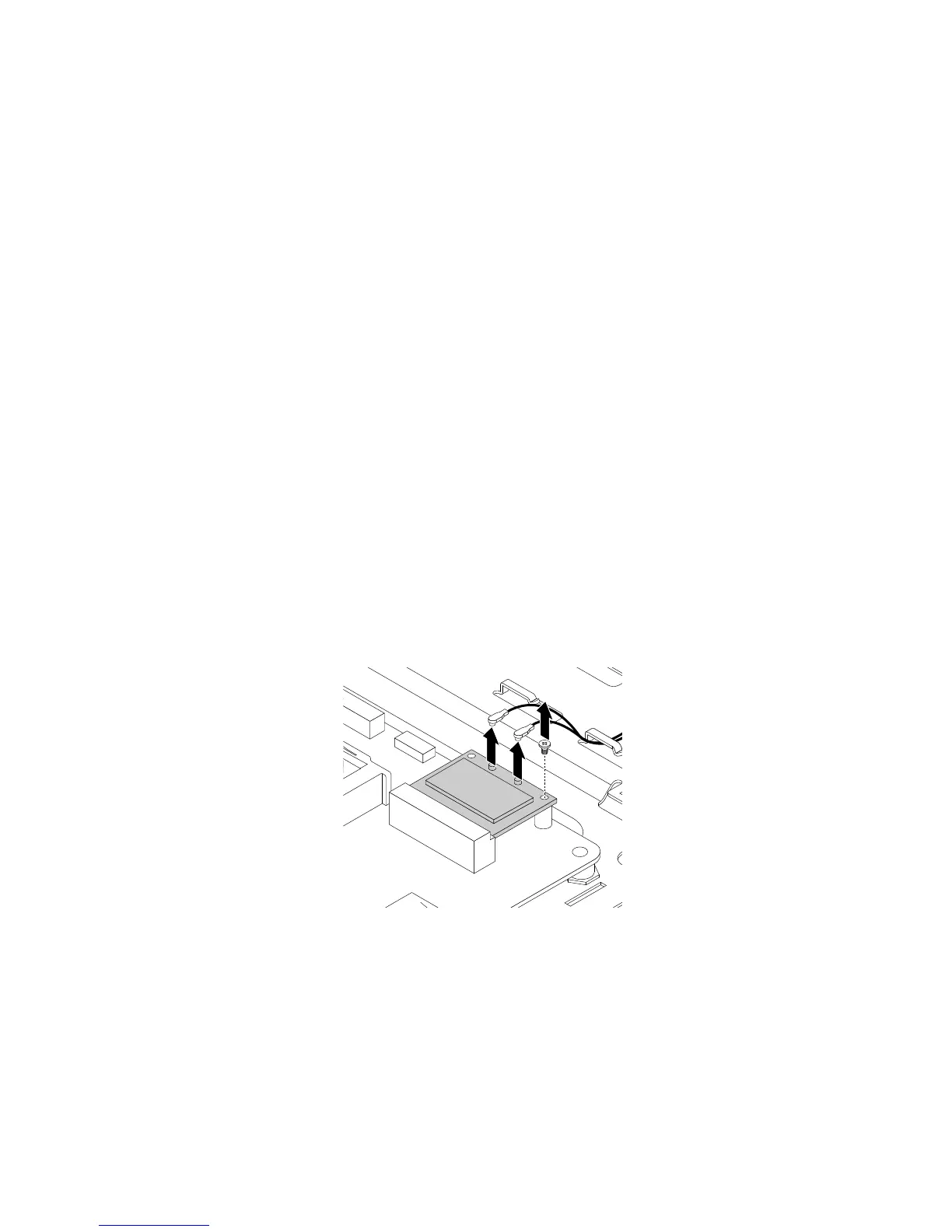
6.DisconnectthetwoWi-FiantennacablesfromtheWi-Ficard.Then,removethescrewthatsecures
theWi-FicardtothesystemboardsothattheWi-Ficardpopsup.
Figure27.DisconnectingcablesandreleasingtheWi-Ficard
112ThinkCentreE63zUserGuide












 To Next Page