14.Installthesystem-boardshield.See“Removingandinstallingthesystem-boardshield”onpage106.
15.Routeandconnectallthecablesthatyouhavedisconnected.See“Locatingpartsonthesystem
board”onpage32.
Whattodonext:
•Toworkwithanotherpieceofhardware,gototheappropriatesection.
•Tocompletetheinstallationorreplacement,goto“Completingthepartsreplacement”onpage127.
Replacingthekeyboardormouse
Attention:DonotopenyourcomputerorattemptanyrepairbeforereadingandunderstandingtheChapter
1“Readthisfirst:Importantsafetyinformation”onpage1.
Toreplacethekeyboardormouse,dothefollowing:
1.Disconnecttheoldkeyboardcableormousecablefromthecomputer.
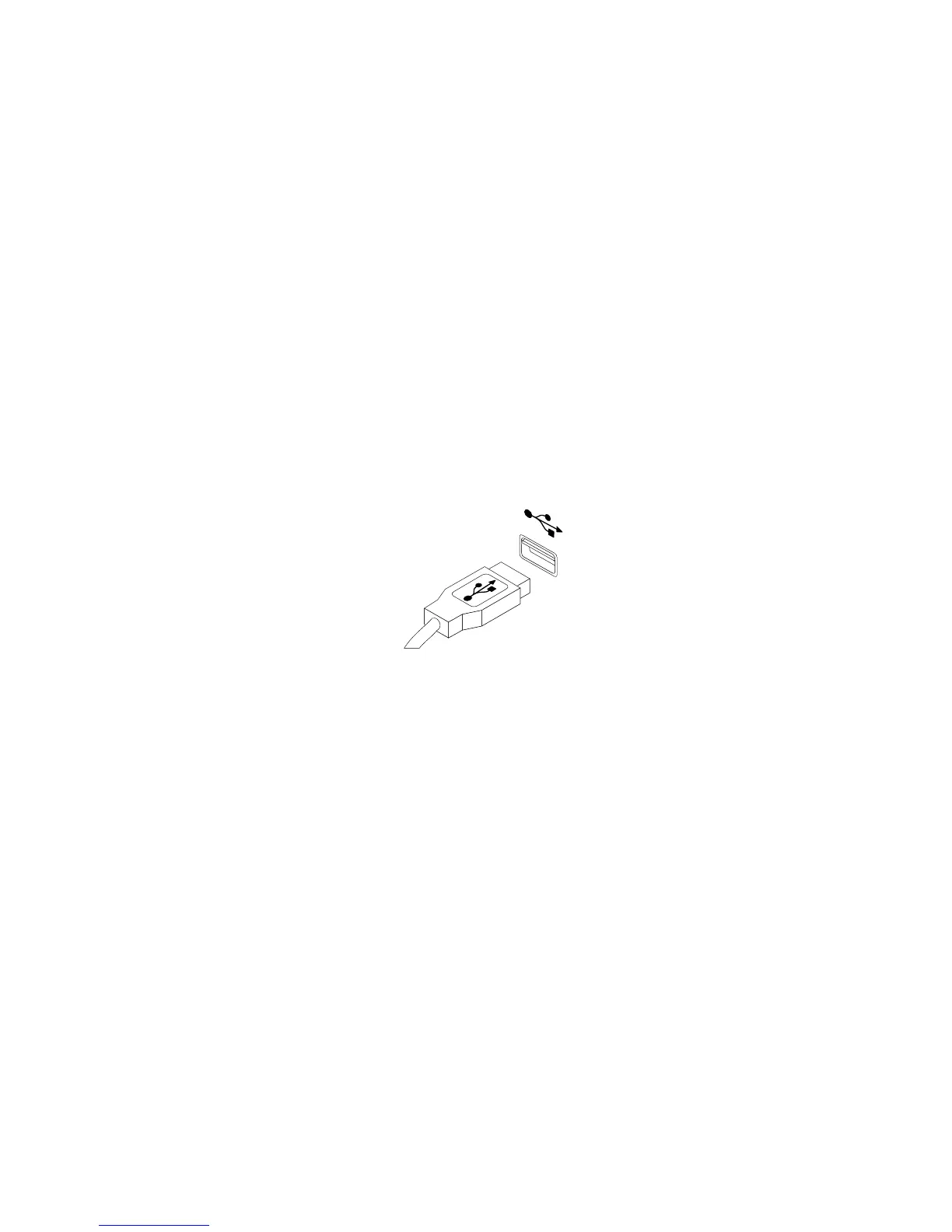
2.ConnectanewkeyboardormousetooneoftheUSBconnectorsonthecomputer.Dependingon
whereyouwanttoconnectthenewkeyboardormouse,see“Locatingconnectors,controls,and
indicatorsonthefrontofyourcomputer”onpage28or“Locatingconnectorsontherearofyour
computer”onpage29
.
Figure44.ConnectingtheUSBkeyboardormouse
Replacingthewirelesskeyboardormouse
Attention:DonotopenyourcomputerorattemptanyrepairbeforereadingandunderstandingtheChapter
1“Readthisfirst:Importantsafetyinformation”onpage1.
Replacingthewirelesskeyboard
Toreplacethewirelesskeyboard,dothefollowing:
1.Removeyourfailingwirelesskeyboard.
2.Takeoutthenewwirelesskeyboardfromthepackage.
124ThinkCentreE63zUserGuide












 To Next Page