EasyManua.ls Logo

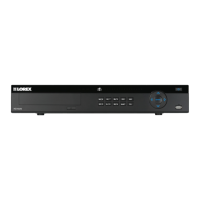
Lorex NR800 Series - User Manual

Lorex NR800 Series
180 pages
Print Icon
To Next Page IconTo Next Page
Loading...
Instruction Manual
NR800 Series

Table of Contents

Questions and Answers

  • R
    Rachael BaileyAug 13, 2025
    How to fix Lorex Network Hardware when it's not powering on?
    • K
      Kimberly HarmonAug 13, 2025
      If your Lorex Network Hardware isn't powering on, start by checking the power connections. Ensure the cable from the power adapter is securely connected to the back of the unit and plugged into the outlet. Also, verify that the power switch is in the ON (I) position. If it's still not working, try plugging the power adapter directly into a wall outlet, bypassing any power bars or surge protectors. Confirm the outlet is working by testing it with another device.
  • J
    Jon MooreAug 16, 2025
    What to do if there is no picture on my monitor/TV connected to Lorex Network Hardware?
    • L
      lidavidAug 17, 2025
      If you're not seeing a picture on your monitor/TV after connecting it to the Lorex Network Hardware, first power cycle both the monitor/TV and the system. Turn them off, then turn the monitor/TV back on first, followed by the system. Ensure that you have selected the correct input channel on your monitor/TV to which the system is connected. Also, check the video cable connection to both the system and the monitor/TV to make sure it is secure.
  • A
    april07Aug 20, 2025
    Why is my mouse not working with my Lorex Network Hardware?
    • D
      Dustin RoweAug 20, 2025
      If your mouse isn't being detected by your Lorex Network Hardware, ensure the mouse cable is firmly connected to one of the USB ports. If that doesn't work, power off the system by disconnecting the power cable, then firmly connect the USB mouse to a USB port. Reconnect the power cable to the DC 12V port on the rear panel to power the system back on.
  • D
    Dr. Cassandra SimpsonAug 25, 2025
    How do I fix a hard drive not detected by Lorex Network Hardware?
    • H
      hendersondanielAug 25, 2025
      If your Lorex Network Hardware isn't detecting the hard drive, the first step is to remove the housing and check that the hard drive cables are firmly connected. If there is no hard drive in the system, open the housing and install a compatible hard drive. Remember to format the drive after installing it.
  • M
    Madison ZavalaAug 28, 2025
    Why is there no picture on some channels of my Lorex Network Hardware?
    • S
      Stephanie WhiteAug 28, 2025
      If you're not seeing a picture on certain channels of your Lorex Network Hardware, check the camera video cable and connections. Disconnect and reconnect the cable at both the system and the camera. You might also try moving the camera to another channel or using a different cable to rule out a faulty cable or port.
  • A
    Adrienne PachecoSep 1, 2025
    What to do if Lorex Network Hardware hard drive is full and not recording?
    • B
      Brooke LyonsSep 1, 2025
      If your Lorex Network Hardware's hard drive is full and the unit has stopped recording, it's likely that the overwrite function is not enabled. To resolve this, go to the Main Menu, then navigate to Setting>General>General. Under HDD Full, select Overwrite and click OK to enable the overwrite function.
  • J
    Joshua BlakeSep 4, 2025
    Why am I not receiving email notifications from my Lorex Network Hardware?
    • Q
      qgarciaSep 4, 2025
      If you are not receiving email notifications from your Lorex Network Hardware, ensure you have configured email notification. Also, make sure that Send Email is enabled in the Event menu for any events you want to be notified of.
  • D
    Donna SummersSep 8, 2025
    How to stop Lorex Network Hardware from beeping during motion detection?
    • L
      Leon GlassSep 8, 2025
      If your Lorex Network Hardware is beeping during motion detection, it means that motion detection is enabled and the alarm buzzer is activated. To disable the beeping, open the Main Menu and click >Event>Motion>Motion Detect. Uncheck Buzzer for each channel and click Apply.

Lorex NR800 Series Specifications

General IconGeneral
Video Channels8
Hard Drive SupportYes
Network ConnectivityYes
Remote AccessYes
Operating SystemEmbedded Linux
TypeNetwork Video Recorder
Max Resolution4K (8MP)
Max HDD Capacity10TB
Compression FormatH.265, H.264
Remote ViewingYes
Mobile App SupportLorex Home
Video OutputHDMI, VGA
Operating Temperature-10°C to 55°C (14°F to 131°F)

Related product manuals