34 Chapter 2: Powering and connecting to your Matrox Iris GTR
❖ Matrox Design Assistant expects to work with the MtxUser account; in this case,
it should not be renamed or deleted.
Accessing your Matrox Iris GTR from your PC
Once your Matrox Iris GTR is added to your network, you can remotely access
the hard disk of your Matrox Iris GTR using Microsoft Windows Explorer.
Typically, Matrox Iris GTR will be listed as a computer under the Network folder.
When you try to access the files on your Matrox Iris GTR, you are prompted for
a user name and password. Note that these fields are case-sensitive.
If you are accessing your camera from a computer on a separate domain, remember
to prefix your user name with the camera’s device name:
On Matrox Iris GTR with Matrox Design Assistant, several folders are shared by
default, including the MtxUser user’s folder.
In Matrox Design Assistant, you can use the PATH function with predefined
settings to access a few of the more commonly used paths.
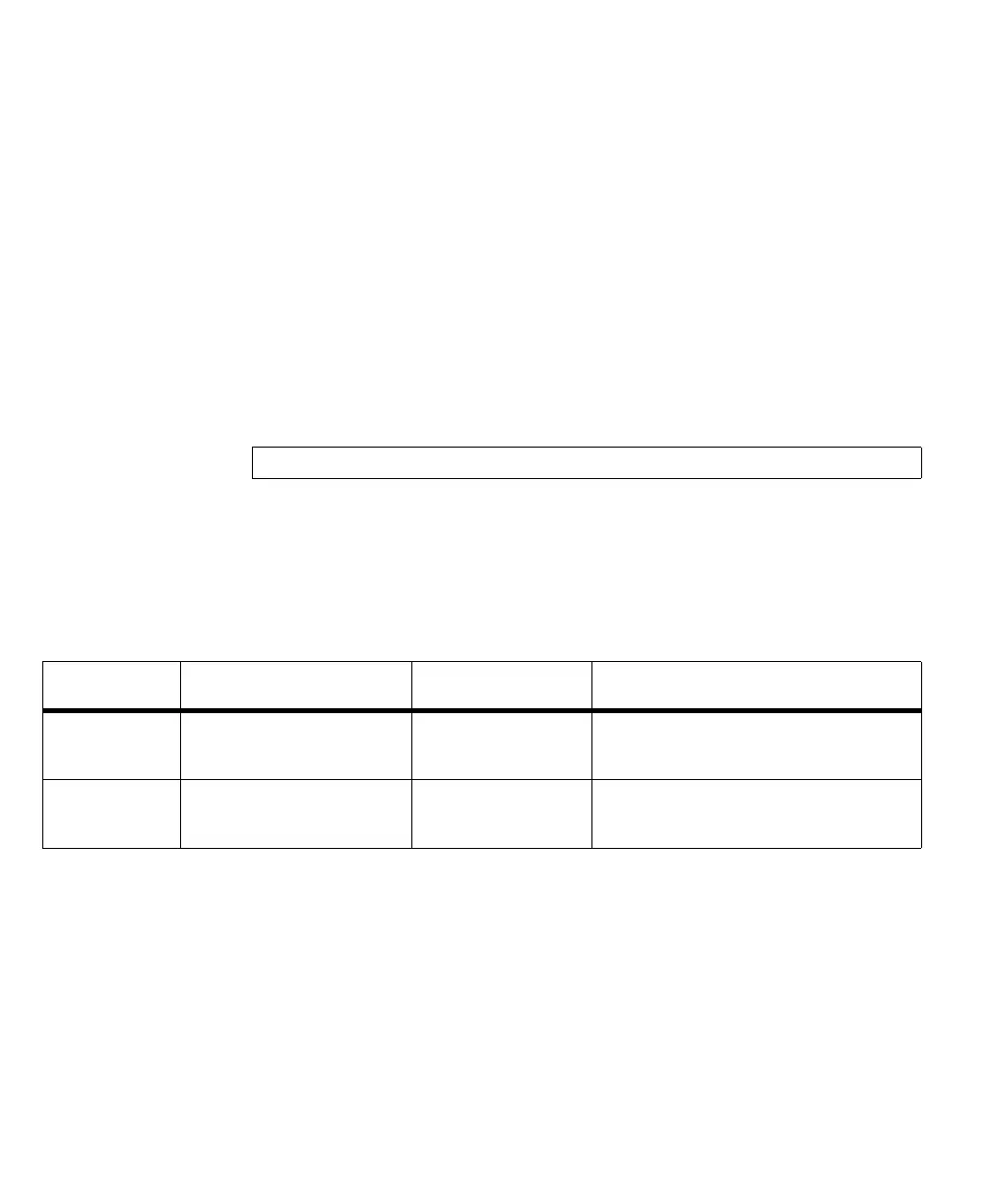
\\gtr32XXXX\mtxuser
Type of files File path Path command in Matrox
Design Assistant
Examples
Matrox Design
Assistant
Documents
\\GR32XXXX\mtxuser\Documents
PATH("DA Documents") {PATH("DA Documents")}\\SavedImages
{PATH("DA Documents")}\\SavedTextFiles
{PATH("DA Documents")}\\Images
Matrox Design
Assistant Project
files
\\GTR32XXXX\mtxuser\da\Projects
PATH("DA Project") {PATH("DA Project")}\\Images



 To Next Page