89
Adding a voice-over to your sequence
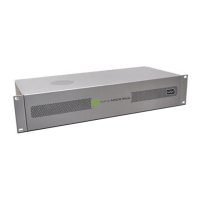
5 The audio input channels are set to Channel 1-2. On MXO2 Rack, make
sure that your XLR or AES/EBU audio input source is connected to the
channel 1/2 connector(s) only.
6 Click OK to save your settings, and then click OK to close the Preferences
dialog box.
Recording your voice-over
You use Adobe Premiere Pro’s Audio Track Mixer (CC) or Audio Mixer (CS6) to
record your voice-over. For further information on using this mixer, see your
Adobe Premiere Pro documentation.
1 Choose Window > Audio Track Mixer (CC) or Audio Mixer (CS6), then
select the sequence in which you want to record your voice-over, such as
Sequence 01.
2 Position the current-time indicator in the Timeline panel where you want the
voice-over to begin.



 To Next Page