244
Chapter 19, Using the Matrox Video for Windows Codecs
Selecting color space conversion options
When you render material to an .avi file using a Matrox VFW codec, you can
determine how you want the luminance levels and chroma information to be
processed during the color space conversion that’s performed during the render.
¦NoteThe default settings for color space conversion provide good results for
most applications. We recommend that you change these settings only when
needed for special purposes.
°To select the color space conversion options you want:
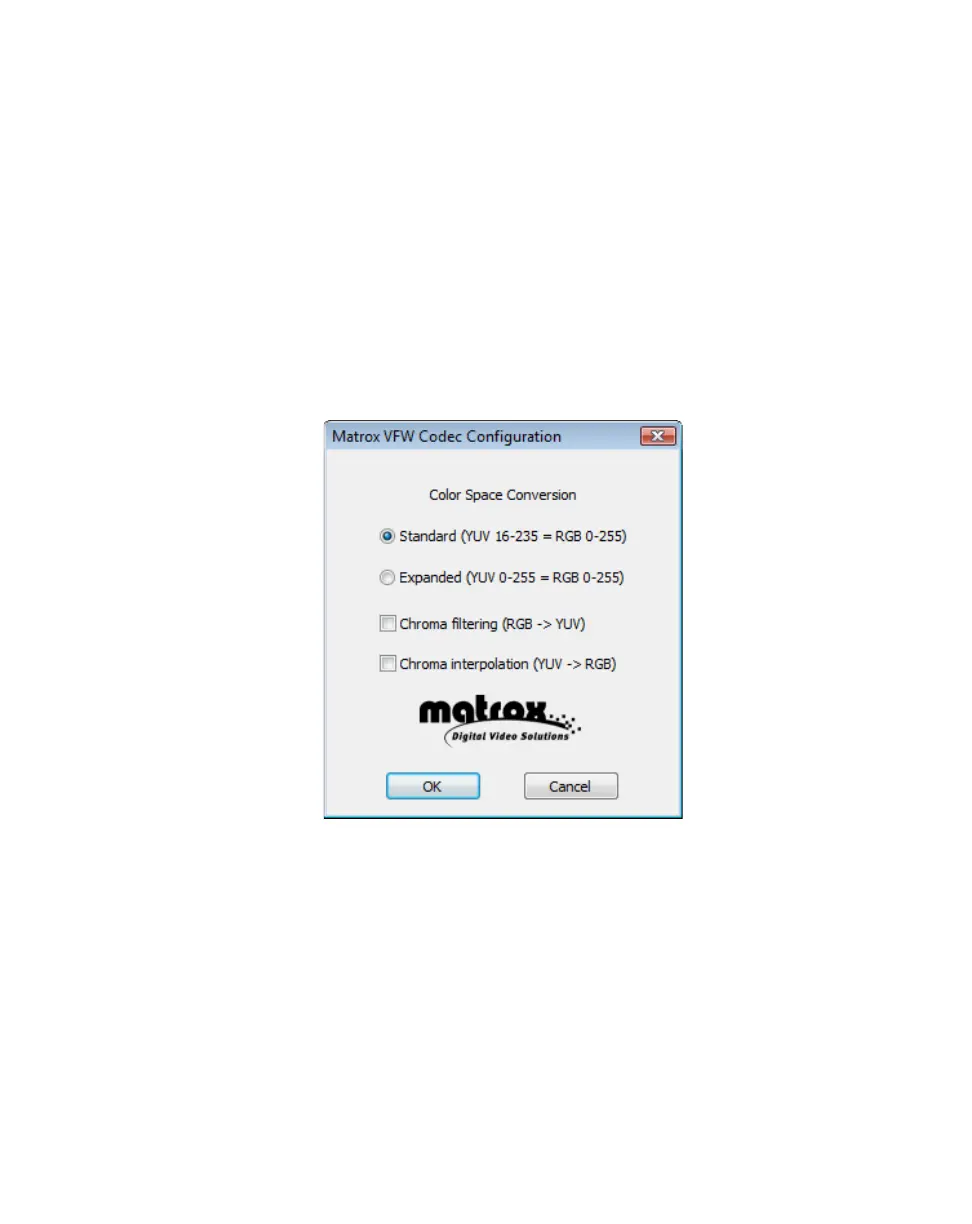
1 Choose Start > All Programs > Matrox Mtx.utils (or Matrox VFW
Software Codecs
) > Matrox VFW Codec Configuration.
2 In the provided dialog box under Color Space Conversion, select the
options you want:
$ Standard Renders video using standard broadcast luminance levels.
Super black and super white luminance levels are clipped.
$ Expanded Renders video using the full range of luminance levels.
Super black and super white luminance levels are retained. You may want
to use this setting, for example, to render material on which you’ll be
applying luminance key effects.
¡ Important When rendering RGB graphics, selecting Expanded will
create super black and/or white in your rendered images. For example, all
black in your RGB graphics will become super black, and white will become
super white. To render your RGB graphics with standard black and white
levels, set your luminance range to
Standard.



 To Next Page