126
Chapter 9, Setting Up Matrox Effects with Adobe Premiere Pro
Using the selective key graph
The selective key graph allows you to modify your selective key settings (Hue
Key
, Saturation Key, and Luma Key) directly in the graph. You can also
perform an auto key.
•
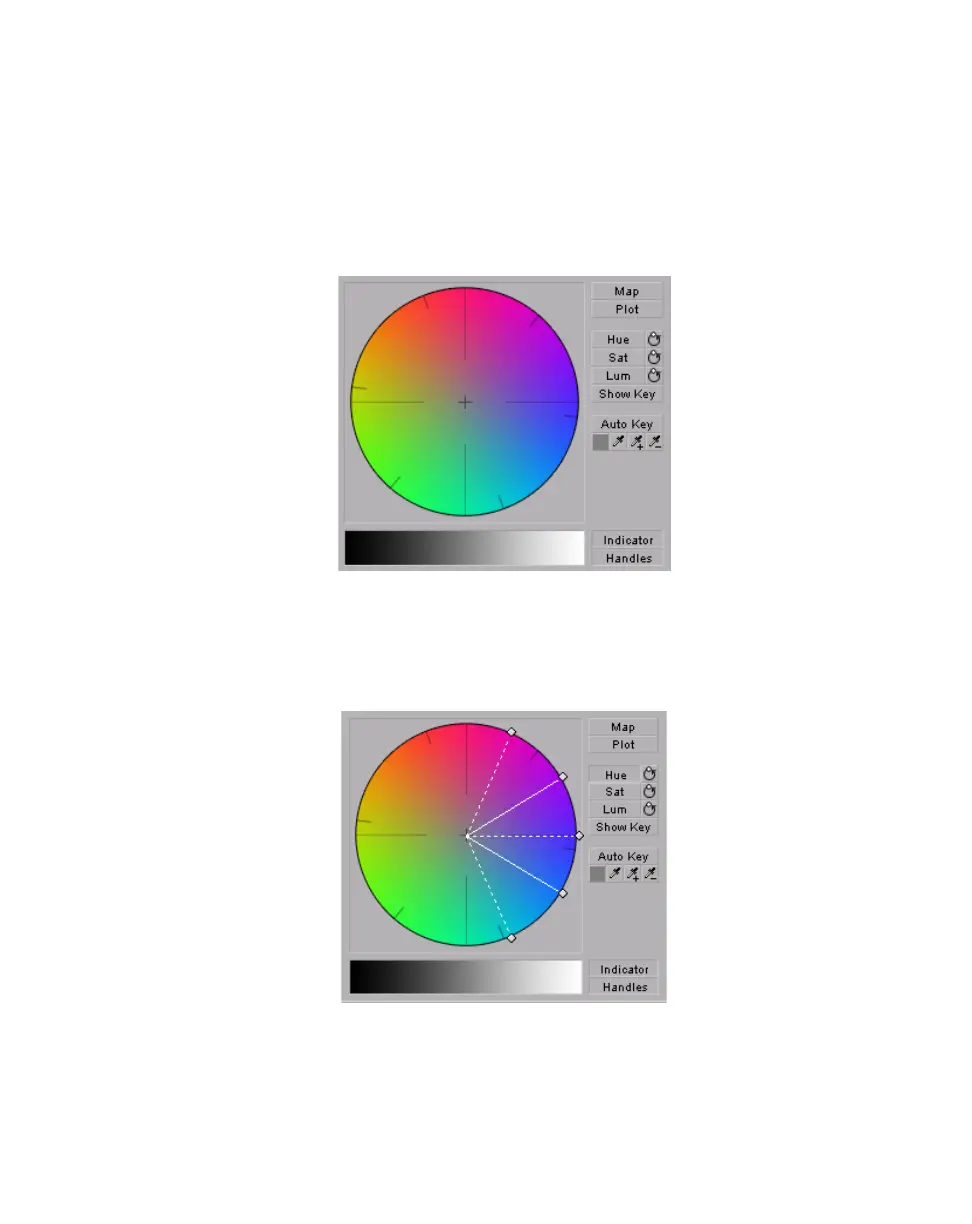
Map This is the default view when you first expand the graphical property.
You can drag the handles to move the indicator to different regions in the
graph to adjust the
Hue Key, Saturation Key, and Luma Key settings.
In order to see the indicator and handles, you have to enable the key setting you
want to use. For example, if you want to adjust the
Hue Key properties, you need
to click the
Hue button in the selective key graph or select the Enable option in
the
Hue Key numerical properties. In the following graph, the Hue properties
have been enabled.
•
Plot Click this button to plot the colors and luminance values that are
present in the current frame of your clip. You can drag the handles to move
the indicator to different regions in the graph to adjust the
Hue Key,
Saturation Key
, and Luma Key properties. The luma plot histogram shows



 To Next Page