268
Chapter 21, Using Matrox MAX H.264 Capture
7 Click Capture to specify where you want to store your captured clips, the
base filename to use, and start capturing clips as explained in “Starting your
capture” on page 276.
Specifying your input settings
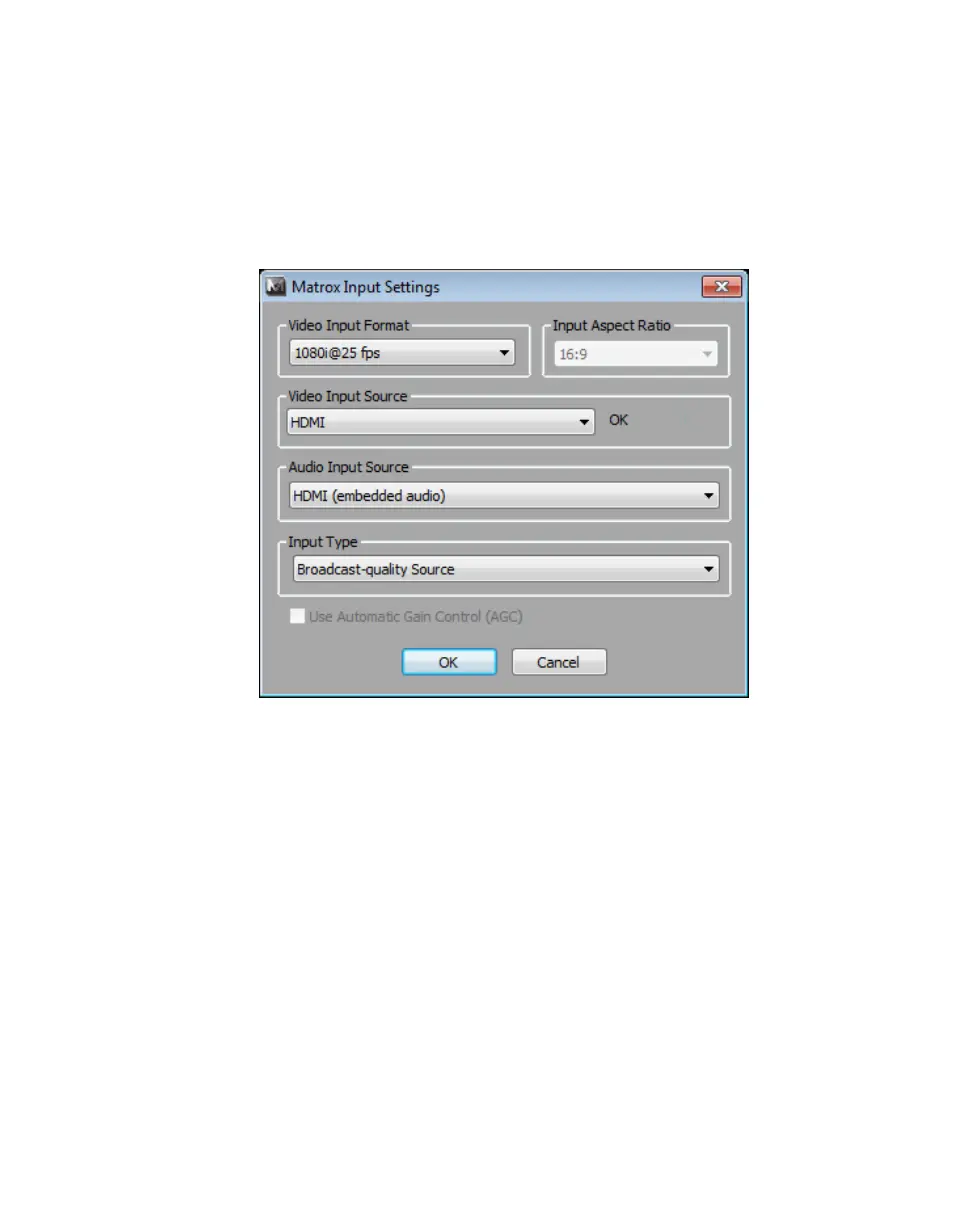
To specify your video and audio input settings for capturing clips, click the Input
Settings
button.
1 From the Video Input Format list, select the video format that matches
your source video. For a list of the video input formats supported on the
various MXO2 inputs for capturing clips, see “Supported input formats” on
page 306.
¦NoteIf you select a 1080PsF video input format, you won’t be able to
capture to a 1080i format. As a workaround, select a 1080i video input format,
even though your connected video input is actually 1080PsF.
2 From the Input Aspect Ratio list, select the aspect ratio of your SD source
video (4:3 or 16:9). For example, to capture SD video that was recorded
using the standard TV screen format, select
4:3. To capture SD video that
was recorded using the widescreen 16:9 format, select
16:9. If you’re
capturing HD video, the
Input Aspect Ratio will be set to 16:9.
3 From the Video Input Source list, select the type of input you want to
capture. For example, to capture material from your HDMI source, select
HDMI. The available video input sources depend on your selected video
input format.



 To Next Page