70
Chapter 8, Using Matrox MXO2 with Adobe Premiere Pro
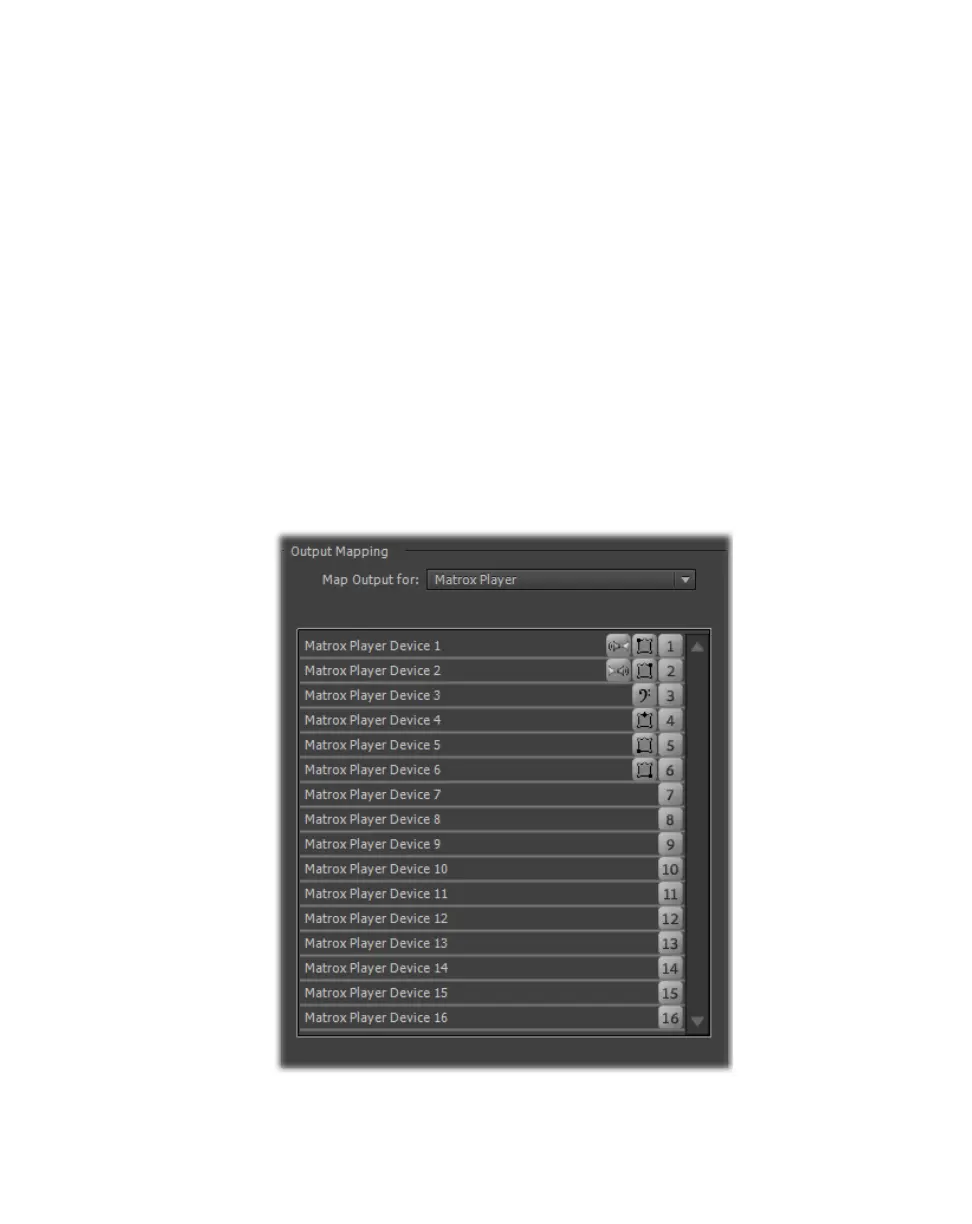
Mapping audio output for a 5.1 master track
To properly output embedded HDMI audio on Matrox MXO2 for a 5.1 master
track, you must map the audio output channels in your sequence as follows:
• Channel 1: Left front
• Channel 2: Right front
• Channel 3: Low frequency effects
• Channel 4: Center front
• Channel 5: Left surround
• Channel 6: Right surround
°To specify your 5.1 surround audio output mapping:
1 Choose Edit > Preferences > Audio Hardware (CC) or Audio Output
Mapping
(CS6).
2 From the Map Output for list, select Matrox Player.
3 Drag the icons for the surround sound channels into the order required for
output on Matrox MXO2. The mapping should appear as follows:
4 Click OK to save your settings.



 To Next Page