165
Adding a voice-over to your sequence
3 Select Audio Punch-in mode and click Configure.
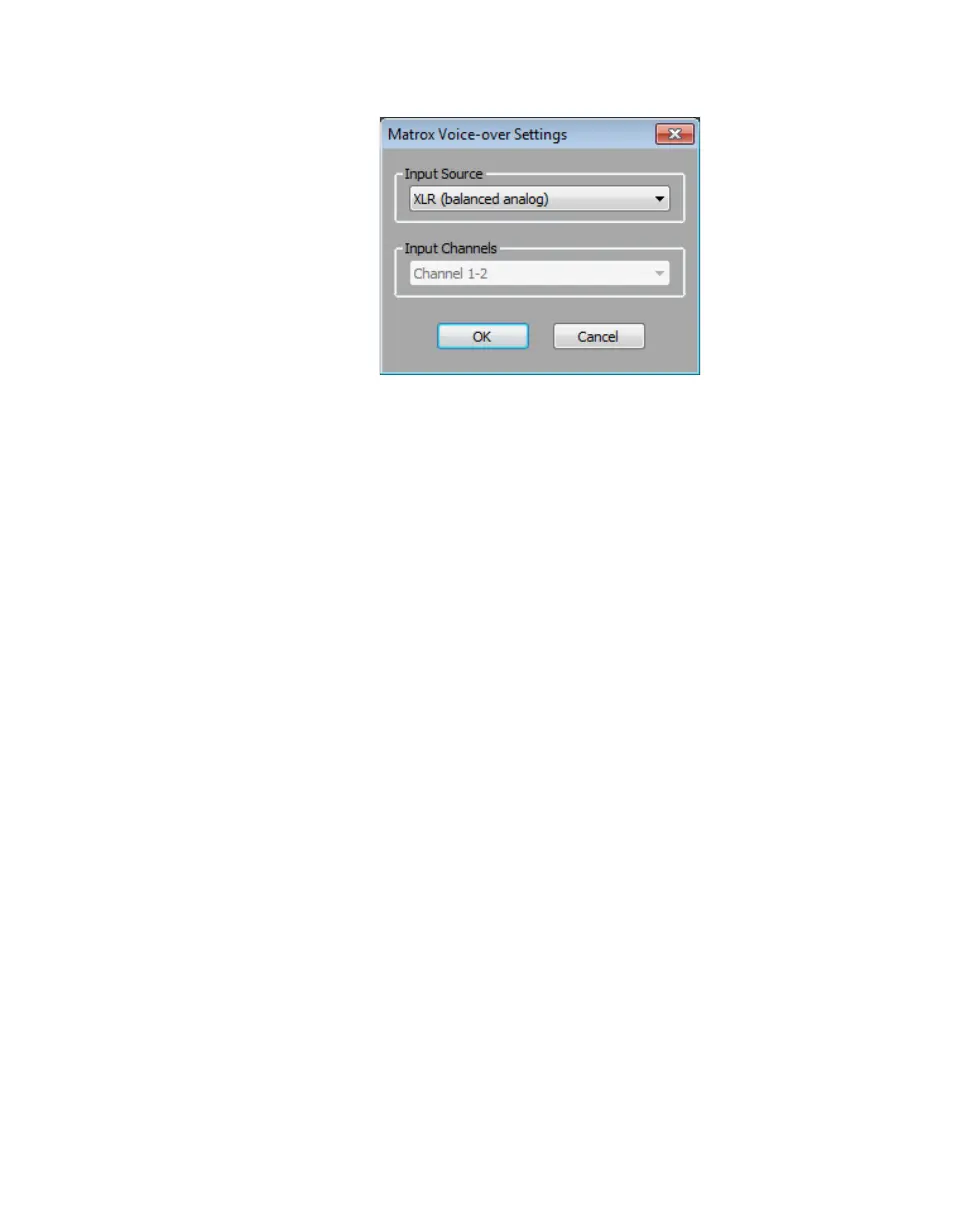
4 From the Input Source list, select the audio source type corresponding to
the device to which the microphone is connected.
5 The audio input channels are set to Channel 1-2. On MXO2 Rack, make
sure that your XLR or AES/EBU audio input source is connected to the
channel 1/2 connector(s) only.
6 Click OK to save your settings, and then click OK to close the Matrox
Capture Settings
dialog box.
¡ Important When you’ve finished recording your voice-over, you’ll need to
clear
Audio Punch-in mode before performing a capture as explained in
“Defining your capture settings” on page 160.
Recording your voice-over
You use the Audio Punch-In tool to record your voice-over. The following steps
provide guidelines for recording a voice-over. For details on using the
Audio
Punch-In
tool, see your Avid documentation.



 To Next Page