116
Chapter 9, Setting Up Matrox Effects with Adobe Premiere Pro
Performing an auto balance
Before matching colors, you can perform an auto balance on your target clip to
automatically apply a color shift to your clip to compensate for different lighting
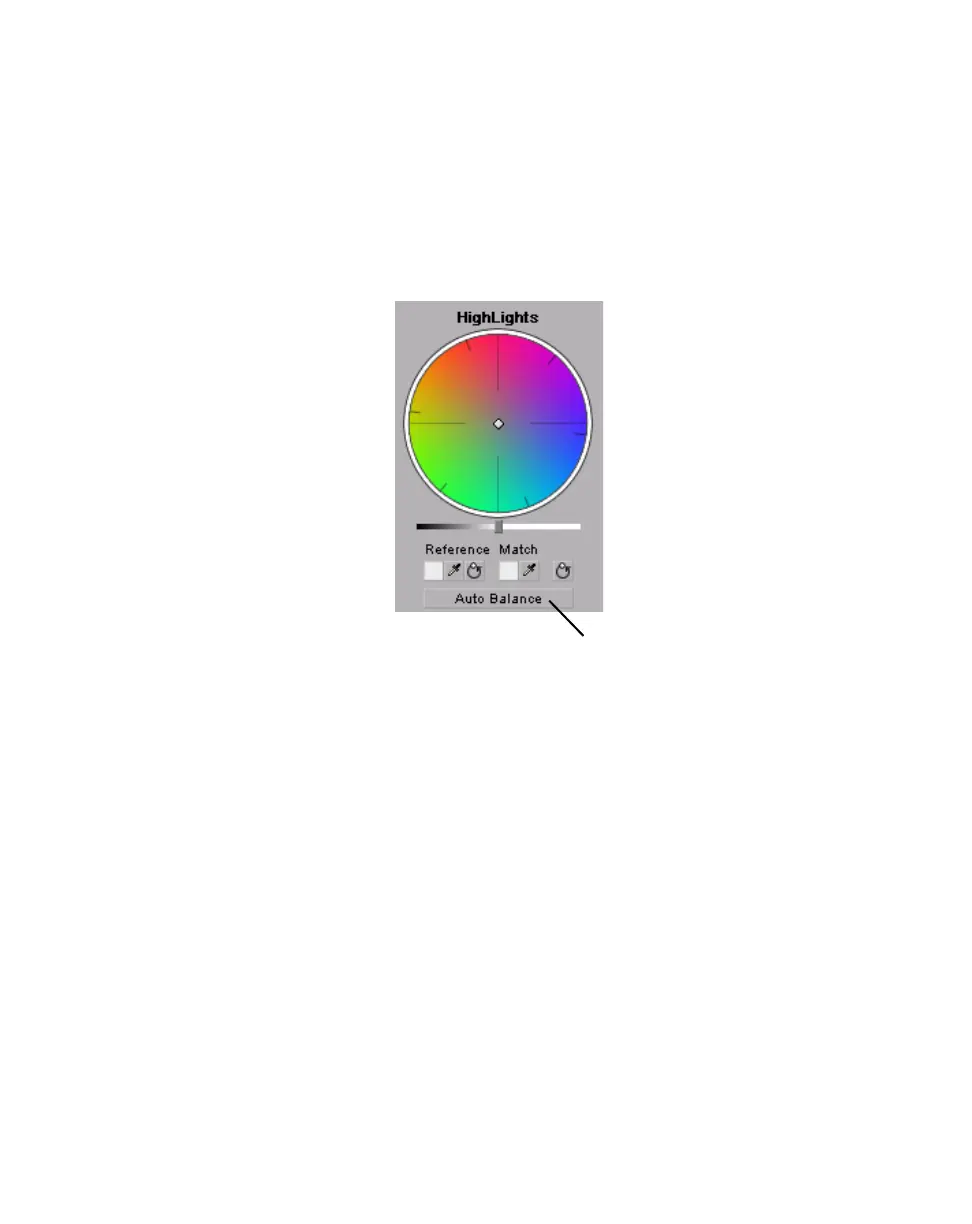
conditions. To do this, click the
Auto Balance button under the corresponding
color map and use the eyedropper to select the area you want to correct in your
clip. For example, to balance your clip’s highlights, click the
Auto Balance
button under the
Highlights color map, and click (or click and drag) on the
lightest area of your clip. The auto balance is performed immediately.
¦NoteTo perform an auto white balance, click the Auto White Balance button
under the
Master color map, and click (or click and drag) on a white or light gray
area of your clip.



 To Next Page