141
Creating a luma key effect
You can select luminance values on which to key by adjusting the Low Clip and
High Clip
handles, or you can use the luminance eyedropper to automatically
pick the luminance value you want to key on. The eyedropper can be used in two
ways:
• Click the eyedropper button and click on the color with the desired
luminance value in your clip.
• Click the eyedropper button and click and drag anywhere on your clip to
create a rectangular area containing the luminance values you want to select.
The selected luminance will be an average of the luminance values contained
within the rectangle.
¦NoteAny luma key displayed in the Program Monitor will be temporarily
deactivated when using the luminance eyedropper. This allows you to see the
colors of your clip before any modifications were made.
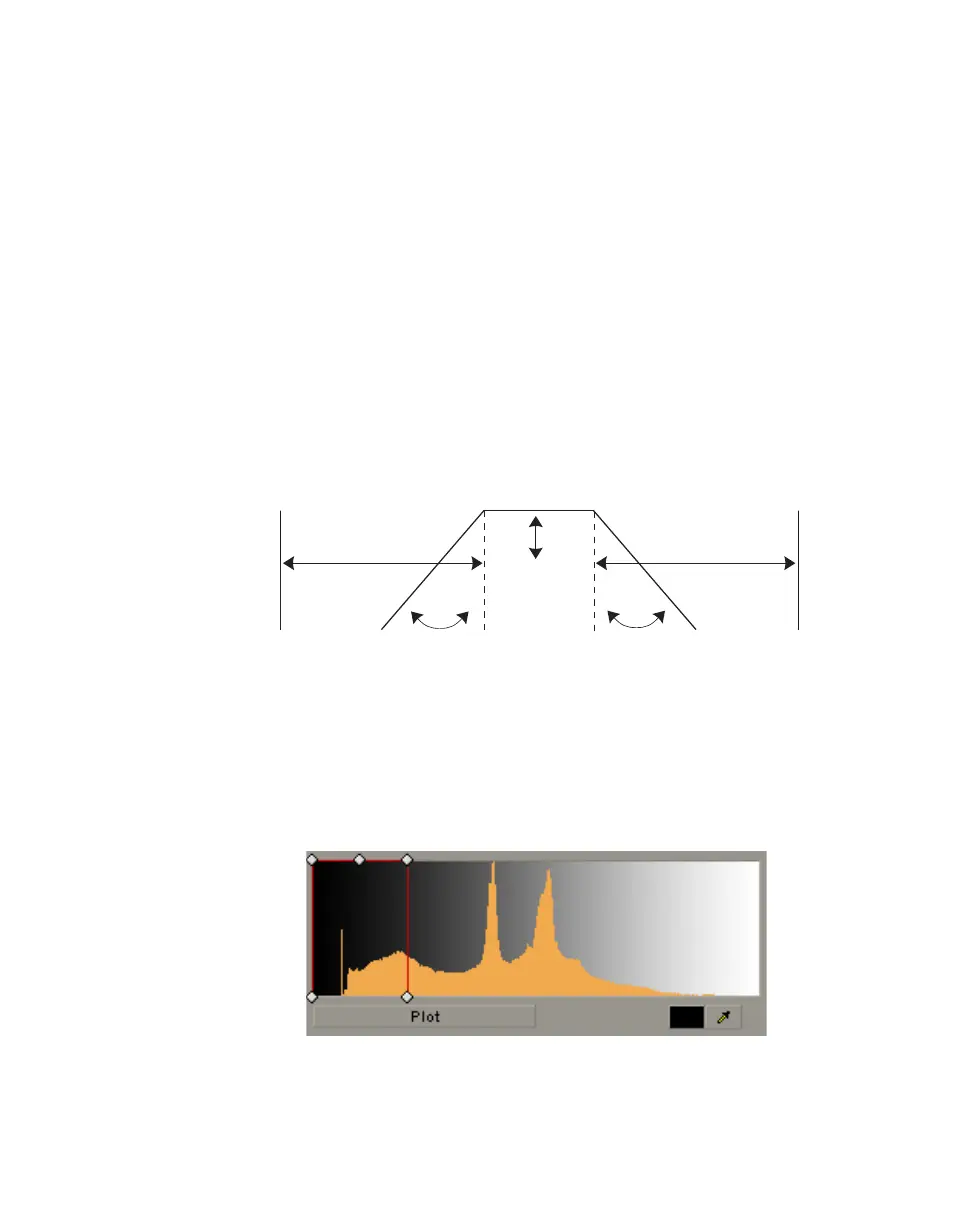
You can also adjust the softness of your key with the
Low Gain, High Gain, and
Transparency
handles. All these adjustments affect the shape and size of the
luminance selector as follows:
•
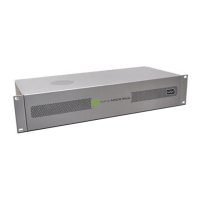
Plot Click this button to see the luminance spectrum with a plot that shows
each luminance value present in your image as a vertical line in the
histogram. A longer line indicates a higher amount of pixels in your image of
that line’s luminance value. You can drag the handles in the luma plot
spectrum to adjust the
Transparency, Low Clip, High Clip, Low Gain, and
High Gain
properties. Any adjustments made affect the shape and size of the
luminance selector in the
Luma Plot.
HIGH GAIN
LOW GAIN
TRANS
LOW CLIP
HIGH CLIP



 To Next Page